


What is Gemini in Google Workspace?
Gemini in Google Workspace is Google's AI assistant built directly into Gmail, Docs, Sheets, Slides, Meet, Drive, and Vids, opened via the Ask Gemini button in the upper right corner, and can read files and emails that the user already has permission to view. General information about Gemini is in the post What is Gemini?; this post only covers workplace use. This post does not promise how many hours per week Gemini will save: OPCAIOS has not used a Google Workspace plan with Gemini and has not measured productivity. The post goes through each application according to the official help pages, what features are in which plan according to the pricing page read on 04/11/2026, enterprise data commitments, how administrators turn features on and off, and three sample workflows assumed for small businesses.
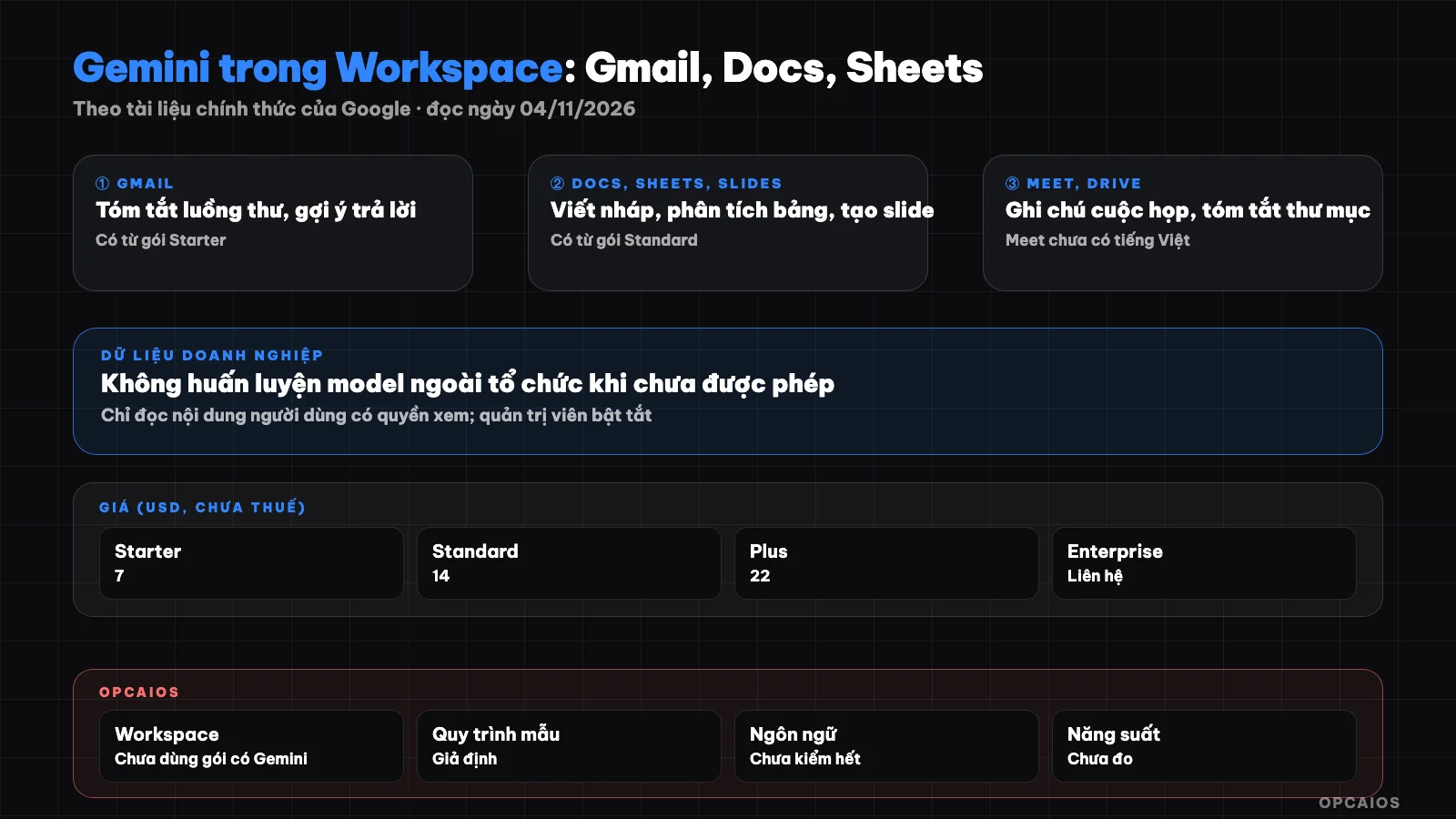
Gemini in Google Workspace: one assistant, many applications, access rights by user and administrator. Diagram: OPCAIOS.
What can Gemini do in Gmail?
Gemini in Gmail is a side panel on desktop that helps summarize email threads, draft messages, organize the inbox, find information, and suggest meeting times. According to the help page "Collaborate with Gemini in Gmail" (read on 04/11/2026), the side panel opens from the Ask Gemini button and has five main task groups:
- Summarize: condense long email threads into a few bullet points.
- Draft: write a new message or edit a draft for clarity and tone.
- Organize: archive, delete, label, mark as read, star, with a confirmation step before acting.
- Search: find details like flight times or tracking numbers in messages.
- Schedule: suggest meeting times based on Google Calendar.
Gmail is the only application with Gemini in the lowest-tier plan, according to the pricing page (see the Plans section below).
How do Gemini in Docs, Sheets, and Slides differ?
Gemini in Docs, Sheets, and Slides use the same Ask Gemini side panel, but each application excels at different tasks: Docs for writing and editing text, Sheets for building tables and analyzing numbers, Slides for creating presentations. According to three official help pages read on 04/11/2026:
| Application | Main tasks per documentation | Notes |
|---|---|---|
| Docs | Draft from prompts, summarize entire document or a section, Refine (change tone, shorten, expand), create images, use Drive files as source with "@" | Some writing and editing features are marked as Gemini Beta and Workspace Experiments |
| Sheets | Create tables, generate formulas, Fix button for broken cells, ask about data, create charts, conditional formatting, pivot tables, filters | Excel files must be converted to Google Sheets first; generated charts do not auto-update when data changes |
| Slides | Create new slides, create images, summarize the presentation, rewrite content, reference Drive files | No clear documentation on the limit of slides created per request |
The Sheets page does not mention a specific AI function name to use in cells; outside posts mention =AI or =GEMINI but we have not seen them on the official page so we do not provide guidance here.
What is Gemini in Meet and Drive used for?
Gemini in Meet is mainly the "Take notes for me" feature: record meeting notes into a Google Docs file, while Gemini in Drive summarizes and finds information across multiple files at once. According to the Meet help page (read on 04/11/2026), notes are saved in the organizer's Drive, in the "Google Meet" folder, attached to the Calendar event, and the organizer receives an email summary after the meeting. Three limits to know:
- Supported languages are English, French, German, Italian, Japanese, Korean, Portuguese, Spanish; the supported languages list does not include Vietnamese.
- Each meeting supports only one language.
- Recommended length is 15 minutes to a maximum of 8 hours; the organizer must have a Workspace plan with this feature.
With Drive, the official update on the Workspace Updates blog (12/2024) describes how to attach a folder with "@" and then request a summary, or click "Summarize this folder". Gemini can only read text, PDF, spreadsheets, and presentations.
Which Google Workspace plan has Gemini, and what's the price?
Gemini is available in all Google Workspace plans currently being sold, but at different levels: the lowest plan only has Gemini in Gmail and the Gemini app, while plans from Standard and up have Gemini in most applications. The pricing page at workspace.google.com (Vietnamese version, read 04/11/2026) lists prices in USD, per user per month, excluding tax, with a one-year commitment saving 16%, maximum 300 users for the first three plans:
| Plan (name on pricing page) | Listed price | Gemini in applications |
|---|---|---|
| Starter | 7 USD | Gmail, Gemini app, Vids; "Gemini in Workspace apps" marked as Limited; no Docs, Sheets, Slides, Drive, Meet, Chat |
| Standard | 14 USD | Gmail, Docs, Sheets, Slides, Drive, Meet, Chat, Vids; plus Google's most powerful model |
| Plus | 22 USD | Same as Standard according to comparison table |
| Enterprise | Contact sales | Same as Plus according to comparison table |
Pricing may differ when purchasing through partners in Vietnam and can change at any time; check the pricing page again on the day you buy. For comparison with the personal plan, see the post Free and paid Gemini.
Is business data used to train Gemini?
No, according to Google's public commitment: Google Workspace customer data is not used to train models unless the customer gives permission or requests it beforehand. The page "Generative AI in Google Workspace Privacy Hub" (read 04/11/2026) outlines five key points:
- Training: Workspace does not use customer data to train models without permission.
- Reviewers: content is not reviewed by people outside the organization.
- Access scope: Gemini only accesses content that the user already has permission to view.
- Retention: Gemini prompts and responses in Workspace are retained from 90 days to indefinitely, in the Gemini app up to 36 months, decided by the administrator.
- Certifications: the page lists SOC 1/2/3, multiple ISO standards including ISO/IEC 42001, and FedRAMP High.
The Workspace AI introduction page also states data is not used for advertising, and administrators can restrict Gemini from accessing sensitive data using DLP, IRM, and client-side encryption. Note: Gemini Notebook has an exception, does not yet support ISO, SOC, FedRAMP, and data region settings do not apply. This commitment applies only to Workspace accounts, not personal Gmail accounts. General rules when bringing business data into AI are in the post securing business data when using AI.
Where does an administrator turn Gemini on and off?
An administrator turns Gemini on and off in the Admin console using two separate switches: one for Gemini in Workspace applications, one for the Gemini app at gemini.google.com. According to the admin help page (read 04/11/2026), the steps are as follows:
- Go to Menu, Generative AI, Gemini for Workspace, open the Feature access panel. Requires Gemini Settings administrator permission.
- Default is on. You can turn off Gmail, Calendar, Drive group along with Docs, Sheets, Slides, Forms, Drawings, Vids, then Meet, Chat, and Workspace Studio individually.
- Apply by organizational unit or configuration group; configuration group settings take priority.
- The Gemini app turns on and off in Generative AI, Gemini app; changes may take up to 24 hours.
- Users must turn on "smart features and personalization" to use Gemini in applications.
Easy-to-miss point: turning off Gemini in Drive does not block Drive data. Users can still ask Gemini in Gmail about a Drive file.
Three sample processes for small businesses
The three processes below are hypothetical models, not real customers, for a 5-person service company using the Standard plan.
Process 1: handling the sales inbox each morning
- Open Gmail, Ask Gemini, request a summary of unread email threads from customers in the last 24 hours.
- Ask next which emails need a quote, which are complaints.
- Use Draft to write reply emails, the person in charge reads again, adjusts pricing and commitments before sending.
Don't let Gemini send emails on its own; all figures and promises must be checked by a person.
Process 2: weekly meeting with minutes and task assignment
- The organizer turns on Take notes for me if the meeting is in English; for Vietnamese meetings, take notes by hand or record another way because Vietnamese is not yet in the supported languages list.
- After the meeting, open the minutes file in Docs, use Gemini to summarize decisions and tasks to do.
- Paste the task list into Sheets, ask Gemini to create a table with columns for person in charge, deadline, status, add dropdown lists.
Process 3: monthly revenue report
- Export order data to Google Sheets (not as .xlsx format).
- Ask Gemini to total by channel, by product, and create charts.
- Charts don't update automatically; recreate them next month.
- Export the analysis section to Docs, edit the comments, then use Gemini in Slides to create a few presentation pages.
For ideas about cost savings when replacing manual work with AI tools, see the article cost of AI tools replacing 3 staff members.
OPCAIOS experience
OPCAIOS has not used the Google Workspace plan with Gemini, so we have no real experience with Gemini in Gmail, Docs, Sheets, or Meet and no numbers on time savings. What we have related to Gemini is:
- Google Antigravity, running the Gemini model, is the orchestrating agent in the system, used in parallel with Claude Code and Codex.
- The opcaios.org admin panel has a "Google Gemini" provider option for AI writing features, via Google's OpenAI-compatible endpoint.
- The internal knowledge base runs on Obsidian, not Google Docs, so most documents are not in Drive for Gemini to read.
Frequently asked questions
Does the Starter plan have Gemini in Docs and Sheets?
No, according to the comparison table on the Google Workspace pricing page read on 04/11/2026. Starter has Gemini in Gmail, the Gemini app and Vids, while the Gemini in Workspace apps section shows Limited. Gemini in Docs, Sheets, Slides, Drive, Meet, and Chat starts from the Standard plan.
Does Gemini in Workspace understand Vietnamese?
It depends on the feature. The help pages for Gmail, Docs, and Sheets point to a separate list of supported languages that we have not fully read, so we cannot confirm Vietnamese is in all features. Specifically for Take notes for me in Meet, the language list read on 04/11/2026 does not include Vietnamese.
Can customer data in Drive leak to other companies?
According to Privacy Hub, Gemini only takes content the user has permission to view, does not share prompts or answers with other users or organizations, and content is not reviewed by people outside the organization. If an employee can view a sensitive file due to wrong sharing, that person's Gemini can also read it, so review Drive sharing permissions before turning it on.
Can we turn off Gemini for a few employees?
Yes. In the Admin console, Generative AI, Gemini for Workspace, administrators can turn it off by organizational unit or configuration group, and groups take priority over organizational units. Note that turning off one app does not fully block that app's data, since Gemini in other apps can still ask about it.
Where should we start using Gemini in Google Workspace?
Start with a repeating task that happens every day and is easy to check, like summarizing email threads or building a task tracking table in Sheets. Always have someone read emails again before sending and check formulas before reporting. To learn how to build office processes with AI systematically, see OPCAIOS's AI application training course.
Source: Google Workspace pricing page in Vietnamese and English, Workspace AI overview page, Gemini help pages in Gmail, Docs, Sheets, Slides, Meet's "Take notes for me" page, Generative AI in Google Workspace Privacy Hub, admin page "Manage access to Gemini features in Workspace services", Workspace Updates post about Gemini in Drive (read 04/11/2026). Not verified: full language list for each feature, pricing through partners in Vietnam, pricing for the AI Expanded Access add-on plan, AI functions in Sheets cells. Experience is OPCAIOS's.
Translated from Vietnamese with AI. Read the original.
Want to apply this in your business?
Book a free 30-minute call (Vietnam time, in English or Vietnamese).