
What are Artifacts in Antigravity?
An artifact is a structured output that an Antigravity agent creates to show you what it's thinking and what it has done: an implementation plan, code diff, architecture diagram, screenshot, browser recording, and walkthrough summary. According to the official documentation (accessed 03/11/2026), artifacts enable asynchronous collaboration: you don't need to watch every tool call, just review the outputs at key checkpoints. This post doesn't claim that artifacts make AI error-free—artifacts are evidence for reviewers to check, and how you check them is still your responsibility. The post covers each artifact type, how to comment, review policies, the Review frame, and /diff. For a general introduction, see What is Antigravity?.
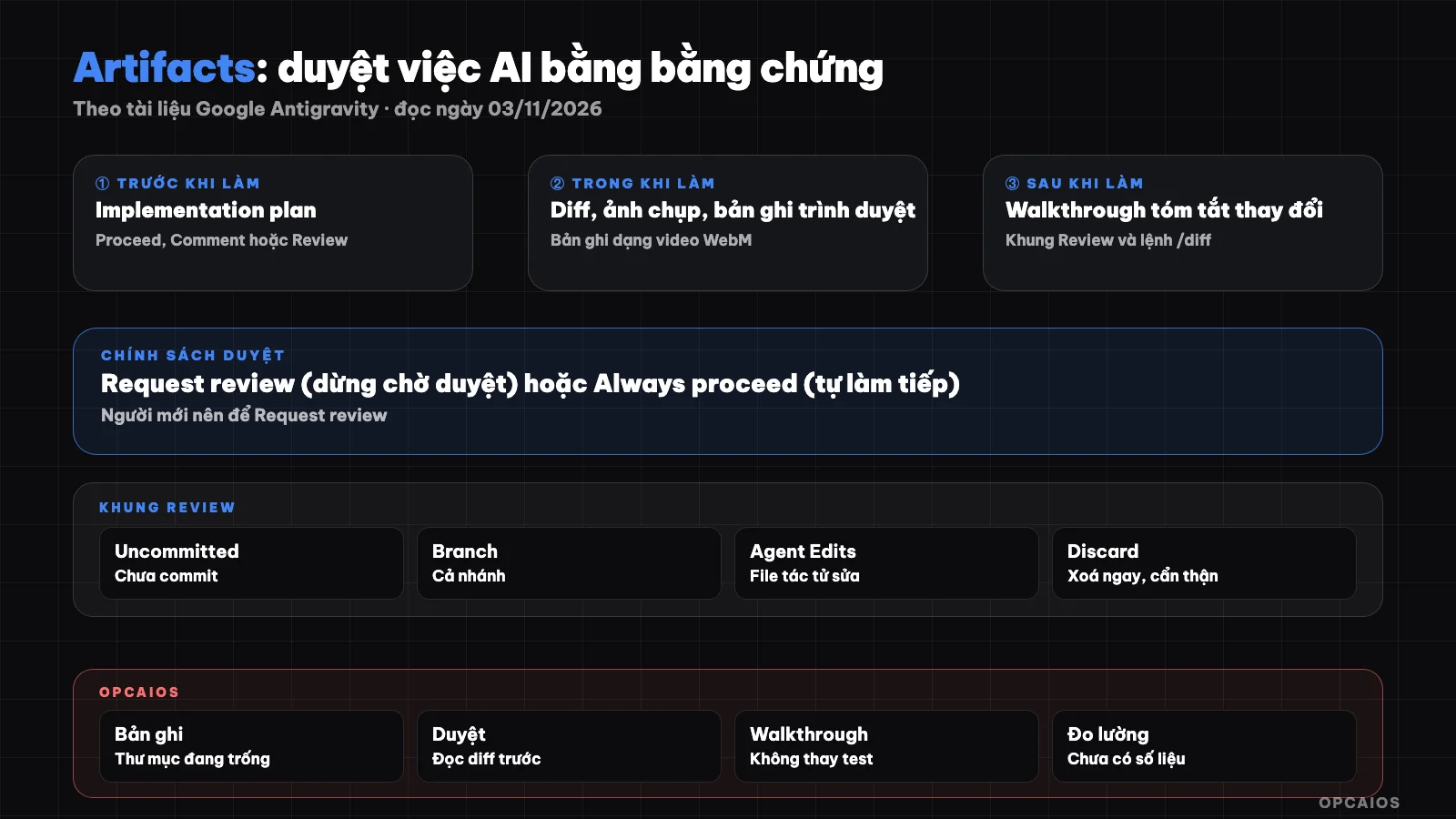
Review loop with artifacts: plan, evidence, comments, fix, then keep changes. Diagram: OPCAIOS.
What kinds of artifacts does Antigravity create?
Artifacts in Antigravity fall into five main groups, according to the documentation pages on artifacts, implementation-plan, walkthrough, screenshots, and browser-recordings (accessed 03/11/2026). Most artifacts are created in the agent's Planning mode.
| Artifact | When it appears | What you review |
|---|---|---|
| Implementation plan | Before editing code, or when calling /plan |
Direction, scope, verification steps |
| Code diff | When the agent writes a file | Each line of change |
| Screenshot | When the browser agent needs you to see page state | Whether the interface is correct |
| Browser recording | Each time the browser agent takes an action | What the agent clicked or typed |
| Walkthrough | When work is done | Summary of what changed |
About task lists: the current documentation has no dedicated page (accessed 03/11/2026). The artifact-review page only notes that Planning mode breaks work into "task groups," and the change log mentions "task list" as an artifact type.
What is an implementation plan and how do you review it?
An implementation plan is a design artifact that an Antigravity agent uses to lay out code changes before making them, with technical details to fix, written for you to read and review. According to the Implementation plan page (accessed 03/11/2026), unless your review policy is set to Always proceed, the agent usually stops to ask you to review the plan before editing files. You have three choices:
- Proceed: click in the conversation or at the top of the artifact for the agent to follow the plan.
- Comment and still Proceed: leave notes for the agent but let it continue.
- Review: click Review at the top of the artifact to see all comments again and send them as one message of feedback instead of letting it go right away.
After you Proceed or send Review, the agent either revises the plan and asks for approval again, or starts the implementation. The /plan command forces the agent to survey the code without writing files, ask again if the request is unclear, then write the plan. The /plan page suggests using it for large refactors, unclear requirements, or database migrations. This is similar to Plan mode in Claude Code.
How do comments on artifacts work for AI to fix things?
Comments on artifacts let you point to exactly what's wrong for the Antigravity agent, instead of writing a long message describing everything from the start. According to the Mentions and quoting page (accessed 03/11/2026), when you select text in an artifact like an implementation plan, a small window shows two buttons: Comment to leave a review comment, Quote (Cmd+L on macOS, Ctrl+L on Windows and Linux) to add that text to your next message. Screenshots are also saved as image artifacts and you can comment on them. Four tips:
- Each comment makes one point: "skip this step," "use the library we already have," don't mix multiple ideas.
- Write a short reason so the agent doesn't repeat the mistake elsewhere.
- State acceptance criteria: "the page must load when not logged in."
- Read the revised plan, don't assume the agent got it right.
A made-up example, not a real project: the plan proposes adding an appointment booking page by installing a new calendar library. The reviewer comments on exactly that step: "use the browser's built-in date picker, don't add a library," then clicks Review.
What Should the Artifact Review Policy Be Set To?
The artifact review policy determines whether the Antigravity agent stops to wait for you before acting on a plan or not. According to the Artifact review page (read 03/11/2026), when you open a new conversation you choose between two modes: Planning (careful planning, create artifacts) and Fast (do it straight, suitable for small tasks like renaming variables or running a command). In Planning mode, the review policy is set in the Agent tab of Settings, with two choices:
- Request review (recommended): the agent always stops and waits for you to review when creating a plan or diff.
- Always proceed: the agent never stops to wait for review, it continues on its own.
The review policy is different from the command execution permission mode. The /goal page makes clear that goal mode only changes how the agent stops, it does not change tool permissions or artifact review policy. Newcomers should set Request review; Always proceed only suits trial projects with Git and backups. Details about permission levels like Default, Auto or Turbo are in the post safety modes in Antigravity.
What Do Walkthroughs, Screenshots and Browser Recordings Prove?
Walkthroughs, screenshots and browser recordings are three types of artifacts that prove what the Antigravity agent has done, different from what the agent tells you itself. According to documentation read on 03/11/2026, a walkthrough is created when the agent finishes work, summarizing changes so you understand the code state even if you don't follow each step. For browser work, walkthroughs usually come with screenshots and browser recordings. Screenshots are taken by the browser sub-agent of the page or part of the page when it needs you to see something. Browser recordings capture the actions of the browser sub-agent, you can review them as a loop; the features page lists the format as WebM video. Three limits to remember:
- Walkthrough is a summary written by the agent, so you still need to cross-check with the actual diff.
- Screenshots only show one moment in time, they don't prove the page runs correctly in all cases.
- Recordings show the agent has taken actions, they don't yet prove the result is correct for the business logic.
Treat artifacts as evidence to ask questions with, not as a final confirmation statement. See how the browser sub-agent works at browser agent of Antigravity.
How Do You Use Review changes on the App and /diff on CLI?
Review changes is Antigravity's diff viewing frame to check each file the agent has edited before keeping it, sending line-by-line comments and committing to Git. According to the Review changes page (read 03/11/2026), on the app you open the Review frame from the Overview panel or from the "N files changed" tab below a response. The frame has three viewing modes:
| Viewing Mode | Shows |
|---|---|
| Uncommitted | Staged and unstaged changes (default) |
| Branch | All changes on the current branch compared to the base branch |
| Agent Edits | Files the agent has edited in this conversation |
Line-by-line comments are attached to the next message, the agent receives them with the file name and line number. Important note: the Discard unstaged changes button takes effect immediately without asking again and deletes untracked files from disk right away. On CLI, the /diff command opens a full-screen diff viewer with three modes All Changes, Per Turn and Commit Tree; press C to comment, when you exit you will be asked whether to send unsent comments or not.
What Steps Does the Process of Reviewing AI Work Using Evidence Include?
The process of reviewing by evidence is a habit of only accepting the agent's changes when you have seen the plan, diff and verification result, instead of trusting a summary. OPCAIOS's suggestion, drawn from features in Antigravity documentation:
- Work has risk: use
/planor Planning, Request review policy. - Comment on the exact step in the plan that needs changing, press Review.
- Write the criteria for verification completion: test command must pass, page must show what.
- Work is done: open the Review frame at Agent Edits, read each file.
- Interface: see screenshots, recordings, then open the page yourself to check.
- Read the walkthrough last, cross-check with diff, then commit.
For people who don't write code, these six steps are the minimum safety layer; see more at safe process for people who don't know code.
OPCAIOS Experience
In the OPCAIOS system, Antigravity is the orchestrating agent on Mac, with Antigravity app version 2.28.x, Antigravity IDE version 2.5.x, and CLI agy version 1.4.12, running in parallel with Claude Code and Codex. Antigravity has handled some website management features and menu fixes. Here's what we observed on the machine, checked on 03/11/2026:
- The agent uses a separate Chrome profile, isolated from the personal browser.
- The browser recording folder is currently empty, so we have no recordings to show and cannot confirm the level of sub-agent browser usage.
- Website code is edited and deployed from a single machine only. Reason: we once had over 1,500 files showing as different just because of line ending styles when deploying from Windows. Diffing thousands of files can't be reviewed by eye, so we had to clean up the root cause first. We haven't verified whether the Review frame's hidden whitespace option hides line ending differences.
We haven't measured review time or error catch rate through artifacts, so we have no numbers to share.
Frequently Asked Questions
Where are artifacts in Antigravity stored?
According to the Agent settings page (read 03/11/2026), the app's local data folder holds artifacts, knowledge items, and other data. By default, the agent can only access the project folder and this data folder. In the app, you view artifacts in the sidebar and review pane; in the CLI, open the artifact list with Ctrl+R. Don't copy this folder to a public Git repo because it may contain private content.
Can I turn off the agent waiting for plan review?
Yes. In the Agent tab of Settings, change the artifact review policy from Request review to Always proceed, and the agent won't wait for review anymore. The Fast mode for small tasks also skips the planning step. The documentation recommends Request review. Only disable the review step for test projects that have Git and backups.
How is commenting on an artifact different from typing a regular message?
Comments attach to a specific section of text or line of code, so the agent knows exactly where to fix. With the diff in the Review pane, the agent sees both the file name and line number. With a plan, you can gather multiple comments and press Review to send them all at once. Messages work for major direction changes; comments work for detailed fixes.
Is a walkthrough enough to trust the agent did it right?
Not enough. A walkthrough is a summary the agent writes after completing the work. It may omit details or be overly optimistic. Compare it with the actual diff in Agent Edits mode, run tests again, and open the page yourself to see. Screenshots and browser recordings are supporting evidence, not a replacement for your own review.
How should a beginner start using artifacts?
Start with Planning mode and Request review policy for anything touching real code. Each time the agent offers a plan, read it all and leave at least one comment if you spot anything unclear. When done, open the Review pane and read each file before committing. If you want to run multiple agents, read more about Agent Manager in Antigravity. To learn this workflow with guidance, see OPCAIOS's AI application training course.
Source: Google Antigravity documentation at antigravity.google/docs: artifacts, artifact-review, implementation-plan, walkthrough, screenshots, ide/browser-recordings, review-changes, ide/review-changes-editor, cli/artifacts, plan, commands/goal, at-mentions, features, agent-settings, changelog (read 03/11/2026). Not verified: artifact task list details (no dedicated page), whether the hidden whitespace option hides line ending differences. Experience is OPCAIOS's own.
Translated from Vietnamese with AI. Read the original.
Want to apply this in your business?
Book a free 30-minute call (Vietnam time, in English or Vietnamese).