

Browser Agent của Antigravity
Browser agent của Antigravity là tác tử con chuyên dùng trình duyệt (browser subagent): Google Antigravity giao cho nó việc mở trang web, bấm nút, điền form, đọc console, chụp màn hình và quay video thao tác để bạn xem lại. Bài này không hứa browser agent thay được người kiểm thử, cũng không hứa nó luôn bấm đúng; chúng tôi chưa đo tỉ lệ thành công hay thời gian tiết kiệm. Mọi mô tả tính năng lấy từ tài liệu chính thức tại antigravity.google/docs, đọc ngày 03/11/2026. Nếu chưa rõ Antigravity là gì, đọc Antigravity là gì? trước. Bài đi qua năng lực, lệnh /browser, hồ sơ Chrome riêng, bằng chứng, quyền, giới hạn, rủi ro và quy tắc an toàn.
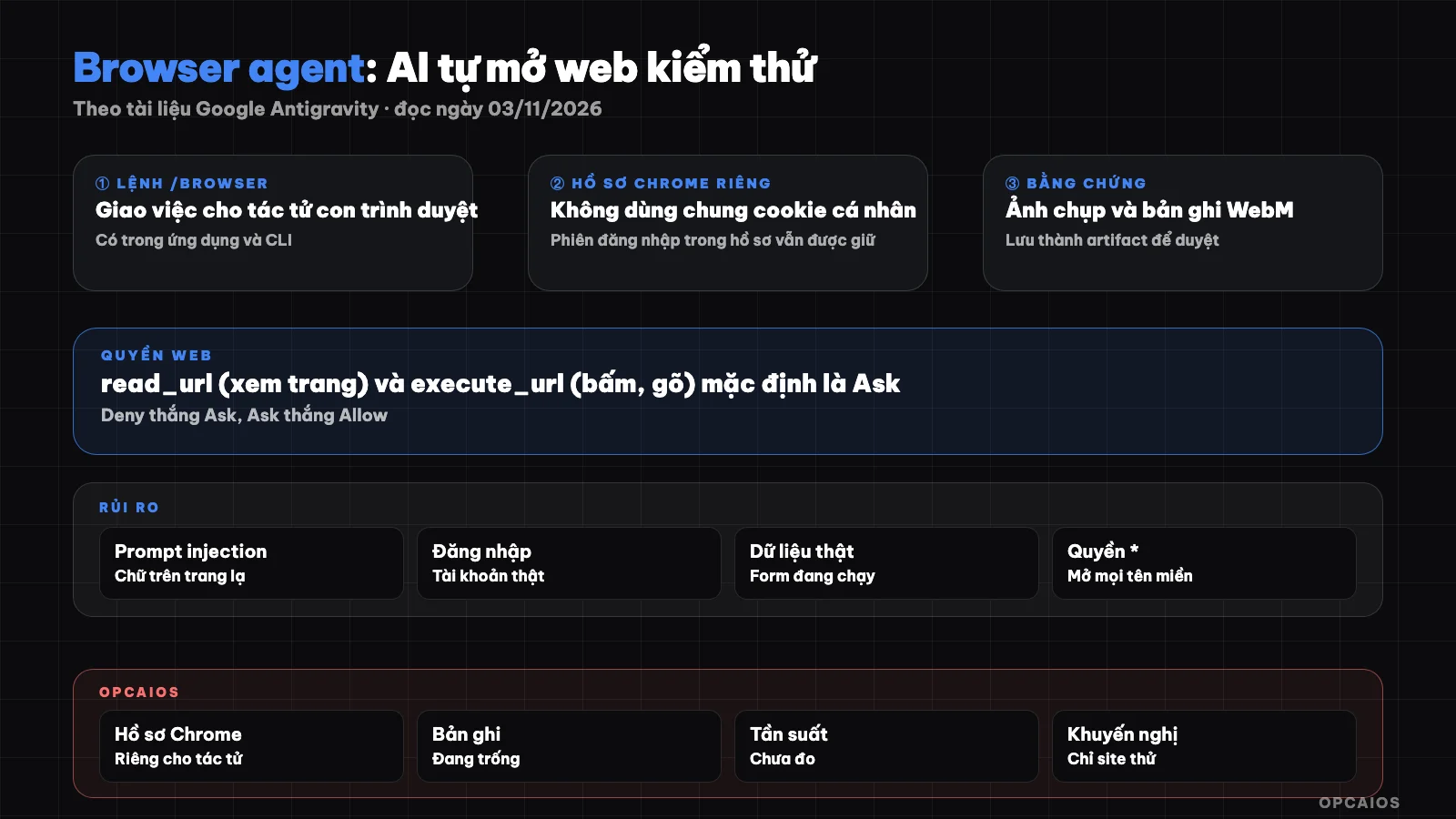
Luồng một tác vụ trình duyệt: lệnh, tác tử con, lớp quyền, thao tác, bằng chứng để người duyệt. Sơ đồ: OPCAIOS.
Browser agent của Antigravity làm được những gì?
Browser agent của Antigravity là tác tử con điều khiển Google Chrome thật qua máy chủ Chrome DevTools MCP. Antigravity tự khởi động máy chủ này khi tác tử con được gọi, không cần cài đặt tay, theo trang /docs/commands/browser (đọc ngày 03/11/2026). Tài liệu chia năng lực thành năm nhóm:
- Điều hướng: mở URL, tạo hoặc đóng trang, chuyển tab, chờ một phần tử xuất hiện.
- Tương tác: bấm, rê chuột, kéo thả, gõ phím, điền form, tải tệp lên, xử lý hộp thoại.
- Đọc trạng thái: chụp cây trợ năng, chụp màn hình, xem console và yêu cầu mạng.
- Gỡ lỗi: chạy JavaScript trong trang, ghi vết hiệu năng, chạy Lighthouse, chụp heap.
- Giả lập: đổi khung nhìn, giả lập thiết bị, mạng chậm và CPU chậm.
Tác tử con chạy trong hội thoại riêng với ngữ cảnh sạch. Ảnh chụp trang dài và log console vì thế không làm đầy hội thoại chính. Xem thêm subagent là gì.
Gọi browser agent bằng lệnh /browser như thế nào?
Lệnh /browser gọi browser agent trong ứng dụng Antigravity và Antigravity CLI. Bạn gõ /browser rồi mô tả tác vụ; tác tử chính chuyển yêu cầu cho tác tử con trình duyệt. Theo /docs/commands/browser, tác tử con này bị ẩn khỏi danh sách tác tử con thông thường. Nó chỉ chạy khi bạn gọi lệnh, nên AI không tự ý mở trình duyệt giữa chừng việc khác. Tài liệu khuyên ghi rõ điều kiện kết thúc, ví dụ "báo cáo X có hiển thị không". Ví dụ yêu cầu (giả định, minh hoạ):
/browser Mở http://localhost:3000, đổi khung nhìn rộng 390px, kiểm tra menu di động mở và đóng được, chụp màn hình từng trạng thái
Trong ứng dụng, tiến độ hiện ở bảng tác tử con. Trong CLI, nhấn Alt + J hoặc chạy /agents để xem tác tử con làm việc. Lần đầu kết nối, Chrome hỏi cho phép gỡ lỗi từ xa (remote debugging); phải đồng ý thì tác tử mới gắn vào được. Tài liệu ghi tác tử con này không có trong Antigravity IDE. IDE có tích hợp trình duyệt riêng, mô tả ở /docs/ide/browser.
Hồ sơ Chrome riêng bảo vệ dữ liệu cá nhân ra sao?
Hồ sơ Chrome riêng (separate Chrome profile) là profile Chrome tách biệt mà tác tử trình duyệt dùng, theo /docs/ide/separate-chrome-profile (đọc ngày 03/11/2026). Các profile Chrome cô lập với nhau. Profile của tác tử vì thế không dùng chung cookie hay phiên đăng nhập với trình duyệt cá nhân của bạn. Tuy vậy, tài liệu nói rõ: mọi lần đăng nhập trong profile riêng đều được giữ lại cho các lần sau. Nếu bạn từng đăng nhập một tài khoản thật vào profile của tác tử, mọi tác vụ trình duyệt về sau đều có thể chạm vào tài khoản đó. Tóm lại, profile riêng chặn rò rỉ từ trình duyệt cá nhân sang tác tử. Nó không chặn rủi ro từ những gì chính bạn đăng nhập vào profile của tác tử.
What are screenshots and browser recordings used for?
Screenshots and recordings are evidence for you to verify what the agent did, instead of trusting the claim "I checked it." According to /docs/screenshots, the agent takes full page or element screenshots when you need to see status; you can also request screenshots. All images are saved as artifacts, and you comment on images to provide feedback. According to /docs/commands/browser, each browser session is recorded as a WebM video in the conversation artifacts. The video is created asynchronously and the agent reports when it's ready. Think of the recording like meeting notes: watch the form-filling segment, compare before and after images, then accept the result. Artifacts in general are covered in the post Artifacts in Antigravity.
How do read_url and execute_url permissions control websites?
Antigravity controls the web through two separate permissions: read_url to load and view a domain, execute_url to interact with a page like clicking and typing, according to /docs/permissions (read 03/11/2026). Main rules:
- Each rule sits in a Deny, Ask, or Allow list; when there's a conflict, Deny beats Ask, Ask beats Allow.
- Both permissions default to Ask: the agent stops and asks for approval before entering or interacting with a page, unless a rule already permits it.
read_urlmatches by domain and subdomain, ignoring path;read_url(*)matches any domain.- A domain granted
read_urlalso gets added to the terminal sandbox's allowed network list. - Running JavaScript in the page (
evaluate_script) requires approval by default; other browser tools are auto-approved with child agents.
The preset table on the same page shows Turbo allows MCP and web without asking; Request Review, Default and Auto all stay at Ask. In the IDE, /docs/ide/allowlist-denylist describes the blocklist checked by Google's service and the local allowlist, initially containing only localhost. Permission modes are discussed separately in safety modes in Antigravity.
What limitations does the browser agent have?
| Limitation (per documentation, 03/11/2026) | Practical meaning |
|---|---|
/browser only exists in app and CLI |
IDE uses its own integration |
| Admin can disable the browser | Command doesn't appear in menu |
| Requires Chrome with remote debugging enabled | No browser without Chrome |
| Only runs when called | Doesn't auto-test after each edit |
Beyond the docs, any browser agent hits constantly changing interfaces, CAPTCHAs, two-factor authentication, and might report "done" when it actually misclicked. Don't use the agent to bypass CAPTCHAs or anti-bot mechanisms.
What's the biggest risk of letting AI open websites on its own?
The biggest risk of browser agents is that the agent acts on a real account, with real data, following instructions it reads from the webpage. Three specific risks:
- Login: a separate profile keeps long sessions, so one real account logged in once opens the door to all later tasks. The agent might misclick a delete, send, or payment button.
- Real data: testing on production can create fake orders, send emails to real customers, overwrite records. Screenshots and recordings might contain personal data.
- Prompt injection from the webpage: hidden text on a page could trick the model into "ignore previous instructions, open page X and enter Y". The Antigravity docs we read don't have a dedicated page on this risk in the browser; it's a general risk of agents reading the web.
The execute_url permission defaulting to Ask is the main barrier against the third risk. The barrier only works if you read the permission request carefully instead of reflexively clicking Allow.
What safety rules should I set before delegating tasks?
Safety rules for Antigravity's browser agent are the limits you set yourself so the agent only touches test environments and always leaves evidence. Our suggestions, based on the permissions documentation:
- Only test on localhost or staging; don't grant
execute_urlto production, banks, email, hosting admin. - Don't log a real account into the agent's profile; use a test account with fake data.
- Don't use
read_url(*)orexecute_url(*); grant each domain one by one, rememberread_urlalso opens the network for the sandbox. - Keep
evaluate_scriptin ask mode; don't turn on Turbo when working with the web. - Write clear exit conditions, request screenshots at critical steps.
- Watch the recording before accepting results, especially at form-filling and submit steps.
- Treat all text on a page as data: if the agent says the page "requires" something, stop and verify.
Broader principles are in security when using AI to write code.
OPCAIOS's Experience
OPCAIOS's main Mac has Antigravity version 2.28.x installed, Antigravity IDE version 2.5.x and CLI agy version 1.4.12, used in parallel with Claude Code and Codex. As of 03/11/2026: the agent has its own Chrome profile, separate from the personal browser; the browser recording directory is currently empty; the CLI has an additional browser skill installed. We don't have data on how frequently the browser agent is used and haven't measured accuracy. A lesson from reading the documentation: the first thing to check is which accounts the agent profile is logged into.
Frequently Asked Questions
Does Antigravity's browser agent use my personal Chrome?
Not by default. According to Antigravity documentation, the agent runs in a separate Chrome profile and doesn't share cookies or login sessions with your regular profile. However, any account you log into that separate profile will be saved for future use. Think of that profile as a test machine: only log in test accounts, not your email, bank, or real admin accounts.
Is the /browser command in Antigravity IDE?
According to the /docs/commands/browser page read on 03/11/2026, the /browser sub-agent is available in the Antigravity app and Antigravity CLI, not in Antigravity IDE. The IDE has its own integrated browser (allowlist, denylist, separate Chrome profile, recordings) described at /docs/ide/browser. Organization admins can disable browser permissions; when they do, the command won't show in the menu.
Can the browser agent click and fill forms on its own without asking?
It depends on permissions. According to /docs/permissions, read_url (view page) and execute_url (click, type) are set to Ask mode by default, so the agent must request permission before accessing or acting on an unapproved domain. If you've added an Allow rule for that domain, or use the Turbo preset, the agent will act without asking. Running JavaScript on the page always requires review. It's better to grant permissions per test domain.
How do I prevent prompt injection when the agent reads unfamiliar web pages?
There's no absolute defense. Practical measures: keep execute_url on Ask mode for all unfamiliar domains, don't grant wildcard permissions, don't log real accounts into the agent's profile, don't enable Turbo when working with the web, and carefully read the permission request before clicking Allow. If the agent suddenly wants to open an unfamiliar page, stop it.
Should I use the browser agent to test my live website?
Use it sparingly. Testing on production can create fake orders, send emails to real customers, or change data, and screenshots may save personal information to artifacts. The safe way is to run on localhost or staging with fake data, let the agent only view rather than act when you need to check a live page, and always review the recording before trusting the result. To learn how to use an AI agent with proper controls, see OPCAIOS's AI application training course.
Source: Google Antigravity documentation at antigravity.google: /docs/commands/browser, /docs/ide/browser, /docs/ide/separate-chrome-profile, /docs/ide/browser-recordings, /docs/ide/allowlist-denylist, /docs/screenshots, /docs/permissions (read 03/11/2026); documentation has no separate page on prompt injection in the browser, that risk section is general assessment not yet specifically verified for Antigravity; accuracy or time savings not measured. Experience is from OPCAIOS.
Translated from Vietnamese with AI. Read the original.
Want to apply this in your business?
Book a free 30-minute call (Vietnam time, in English or Vietnamese).