


What is Docker?
Docker is an open platform for developing, packaging, and running applications in isolated lightweight environments called containers. According to Docker's official documentation, containers are lightweight and contain everything an application needs to run, so they don't depend on what's pre-installed on the server; you share the container with colleagues and ensure they get the exact same running environment. This post explains what Docker is, how containers differ from virtual machines, what images and Compose are for, how to keep data, common security mistakes (exposed ports, root permissions, resource limits), the cost of Docker Desktop under current terms, and OPCAIOS's real experience running Docker on a VPS.
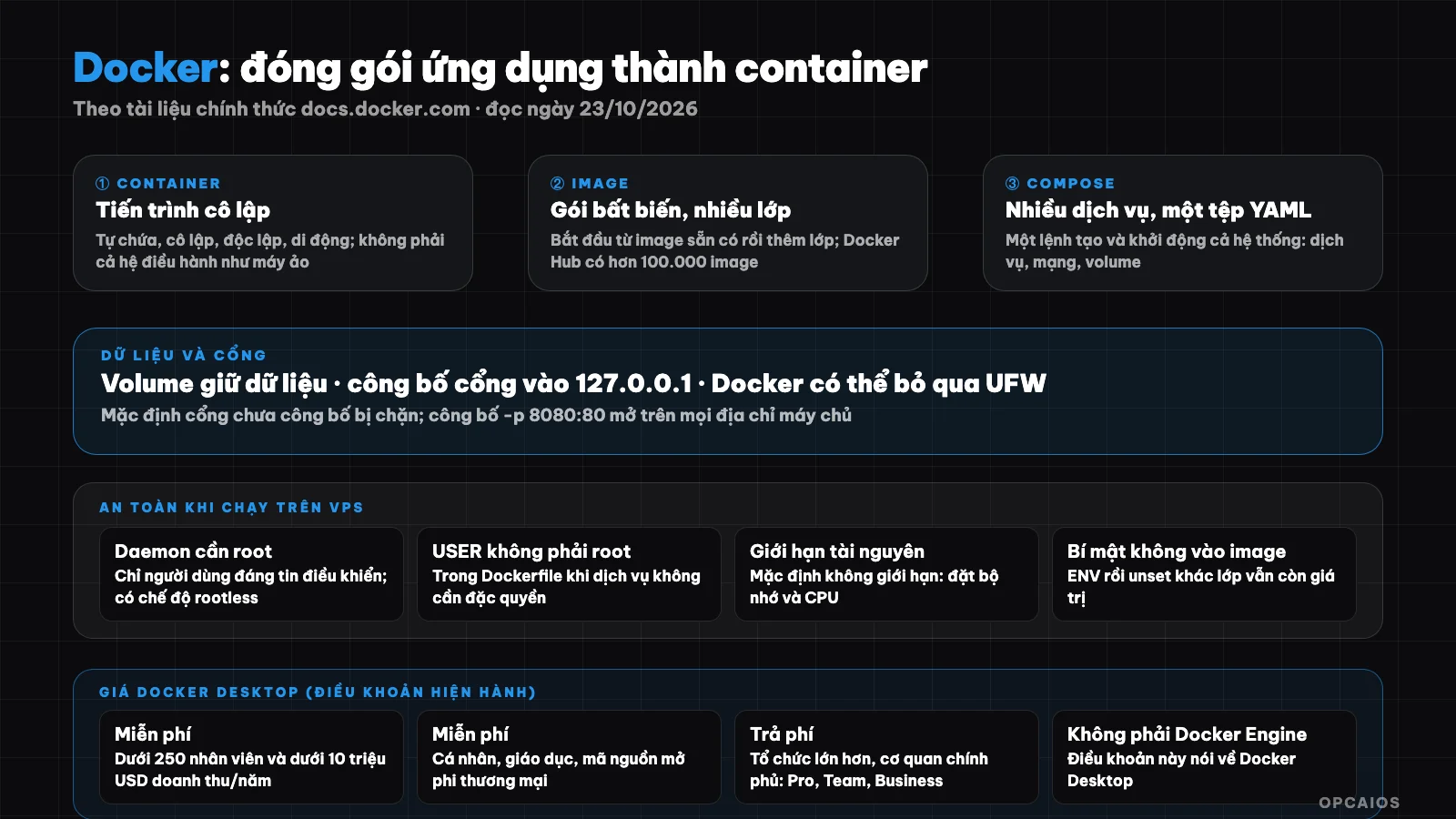
Image built from immutable layers; container runs from image; volume holds data; Compose connects multiple services. Diagram: OPCAIOS.
What is a container and how does it differ from a virtual machine?
A container is an isolated process for each component of an application, while a virtual machine (VM) is an entire separate operating system. For example, with an application made up of a React interface, a Python API, and a PostgreSQL database, according to Docker (as of October 23, 2026) each component runs in its own container, instead of installing Node, Python, and PostgreSQL on a machine and then worrying about version mismatch between developers, CI/CD testing, and the actual environment. With Docker, four characteristics of containers are:
- Self-contained: everything needed to run is included.
- Isolated: minimal impact on the server and other containers.
- Independent: deleting one container doesn't affect others.
- Portable: runs the same on a development machine, a data center, or the cloud.
A VM includes a kernel, hardware drivers, programs, and its own application, so spinning up a VM just to isolate one application is expensive; a container is just a process plus the files it needs. Also, about VPS (which is itself a virtual machine), see What is a VPS?.
What is an image?
An image (container image) is a standard package containing files, programs, libraries, and configuration to run a container. According to Docker documentation (as of October 23, 2026), an image follows two principles (according to Docker):
- Immutable: once created it can't be edited, only new versions can be created or layers added on top.
- Made of layers: each layer is a set of changes to the file system.
After that, you start from an existing image, for example a Python image, then add a layer to install libraries and your code. Docker Hub is the default repository to store and distribute images; Docker's documentation lists over 100,000 images, including images supported and verified by Docker (Docker Trusted Content). For example, the command docker run nginx pulls the nginx image from Docker Hub and runs it as a container. When building an image with a Dockerfile, use the official version as the base and pin the version so the build can be repeated.
What is Docker Compose for?
Compose is Docker's tool for defining and running multi-container applications. According to Docker (as of October 23, 2026) you describe services, networks, and volumes in a YAML file, then a single command creates and starts everything. First, Compose has commands to start, stop, rebuild, see status, and view logs for the entire system, and can be used for development, testing, pre-production, production, and CI environments. Next is an example using Compose, in which a PostgreSQL database can only listen on the server and has a volume to hold data:
services:
  db:
    image: postgres:16          # pin the version, don't use "latest"
    environment:
      POSTGRES_PASSWORD_FILE: /run/secrets/db_password
    ports:
      - "127.0.0.1:5432:5432"   # only the server can access
    volumes:
      - dbdata:/var/lib/postgresql/data
    secrets:
      - db_password
volumes:
  dbdata:
secrets:
  db_password:
    file: ./db_password.txt     # don't commit this file to Git

## Does Data in a Container Get Lost When You Delete It?

Yes, data gets lost when you delete a container unless you use a volume. A volume is a storage mechanism that keeps data beyond the lifetime of a container; according to Docker (read on 23/10/2026), think of it as a shortcut connecting from inside the container to the outside. For example, when you restart a PostgreSQL container, you don't want to start with an empty database. There are three steps to keep data safe:

1. Attach a volume to every important data directory, like `dbdata:/var/lib/postgresql/data` in the Compose file above.
2. Don't treat a volume as a backup, because a volume sits on the same server as the container.
3. Finally, back up off-server on a schedule, like the guide in [What is a VPS?](/en/blog/vps-la-gi), and test recovery at least once a year.

## Is Publishing a Container Port Safe?

It's only safe when you restrict the address. According to the port publishing documentation, Docker blocks access to unpublished ports by default; but when you publish a port (for example `docker run -p 8080:80`), that port gets mapped on all addresses of the server so it can be reached from anywhere outside. If you add a local address to the publishing flag (`-p 127.0.0.1:8080:80`) then only the server itself can reach it. The documentation warns further: on versions older than 28.0.0, machines on the same L2 network segment can still reach the published port on localhost.

The easiest mistake to make: Docker and UFW firewall don't work together; when you publish a port, traffic gets redirected before it goes through UFW rules so your rules can get bypassed (see Docker documentation "Docker and ufw"). The better way: only publish to 127.0.0.1, place the service behind nginx and control via the `DOCKER-USER` chain.

## What Are Docker's Security Risks?

Docker's biggest risk is that the daemon process needs root permissions, showing up clearly when using Docker on a shared VPS. Also according to Docker (read on 23/10/2026) unless you choose rootless mode, the daemon runs as root so only trusted users should control it; Docker allows sharing a server directory into a container without restricting permissions, meaning you can start a container mounting even the root directory and then modify the filesystem however you want. Besides that, there are five things you should do (per Docker):

1. Don't add regular users to the Docker control group.
2. In your Dockerfile, use `USER` to switch to a non-root user if the service doesn't need privileges.
3. Don't put secrets in the image's environment variables: setting with `ENV` then `unset` in another layer still keeps the value in the image, so use the secret mechanism instead.
4. Only pull images from trusted sources, like Docker Trusted Content.
5. Set memory and CPU limits with flags on `docker run`, because by default a container is unlimited and a broken service can crash the entire shared VPS.

## How Do You Build a Good Image?

According to Docker's best practices documentation: use multi-stage builds so the final image only contains files needed to run and is smaller; use `.dockerignore` (syntax like `.gitignore`) to exclude unrelated files from the build context; consider pinning the base image version instead of using floating tags; use `docker build --pull --no-cache` when you want a completely fresh build; and switch to a non-root user with `USER`.

## Is Docker Desktop Free?

Docker Desktop is free in some cases and paid in others. According to Docker, via the official terms page (checked on 23/10/2026) there are two groups (per Docker):

1. **Free:** small businesses under 250 employees and under $10 million in annual revenue, personal use, education and non-commercial open source projects.
2. **Need a paid plan (Pro, Team, Business):** professional use at larger organizations, government agencies and commercial cases exceeding the free threshold.

Also, the terms talk about Docker Desktop, an application for personal machines, not Docker Engine running on a Linux server. Example assumption: a company with 30 employees and annual revenue of a few hundred thousand dollars falls below both thresholds, while a corporation with 500 employees needs a paid plan. Specific pricing for Docker plans is not stated here; carefully read Docker's terms and FAQ if your organization is near the threshold.

## OPCAIOS's Experience Using Docker

I use Docker selectively. The opcaios.org website runs directly with a process manager after nginx, not packaged in Docker; Docker appears where I need to quickly set up a ready-made system: self-hosted Supabase (database, authentication, storage, edge functions) runs on Docker Compose (see [What is Supabase?](/en/blog/supabase-la-gi)), a text embedding service for semantic search runs in a container listening only internally (see [What is RAG?](/en/blog/rag-la-gi)), and an experimental database on my personal machine also runs in a container. The most valuable lesson is the firewall: the firewall script on my VPS blocks container ports via the `DOCKER-USER` chain, and administrative tools running on Docker access only through SSH tunnels after public admin ports were closed during a security review. I do not publish container names, ports, or specific configurations.

## When to and when not to use Docker?

Use it when you need a consistent environment across machines, run multiple interdependent services (databases, queues), or deploy pre-built software with existing images. Think carefully when your application is simple (a single Node.js process) and you already have a stable deployment process, because Docker adds a layer you need to learn, update images, and secure. If you have an AI agent write a Dockerfile or Compose file, reread the sections on ports, permissions, and secrets; see [What is Vibe coding?](/en/blog/vibe-code-la-gi).

## How to get started with Docker?

1. Install Docker (Docker Desktop on your personal machine, Docker Engine on Linux) and check licensing if you use it for your company.
2. Try running a ready-made image, for example `docker run -p 127.0.0.1:8080:80 nginx`, then open `localhost:8080`.
3. Write a simple Dockerfile for your application, use `.dockerignore` and a non-root user.
4. Use Compose to run alongside a database, bind volumes for data.
5. Pin image versions, set resource limits, expose ports only to 127.0.0.1.
6. Back up volumes outside the machine and monitor security updates for base images. If your application needs to connect to Git and deploy automatically, see [What is GitHub?](/en/blog/github-la-gi).

## Frequently Asked Questions

### What is Docker?
An open platform to package and run applications in containers, isolated environments that contain everything the application needs, running the same way on your personal machine, servers, and the cloud.

### How is a container different from a virtual machine?
A virtual machine is an entire operating system with its own kernel; a container is just an isolated process with required files, so it's much lighter. Containers share the host machine's kernel.

### Is Docker free?
Docker Desktop is free for small businesses (under 250 employees and under 10 million USD annual revenue), personal use, education, and non-commercial open source; larger organizations need a paid plan. Read the current terms.

### Does Docker break UFW firewall?
Docker and UFW are incompatible: when you expose a port, traffic goes through the nat table before UFW rules, so it may be bypassed. Expose ports only to 127.0.0.1 and control with the `DOCKER-USER` chain.

### Will data in a container be lost?
Yes, if you delete the container without using a volume. Bind volumes for important data and still back it up outside the machine. Want to learn how to use Docker and AI to build a secure automated infrastructure, see OPCAIOS's [AI application training course](/services/dao-tao-ung-dung-ai).

*Source: official Docker documentation (Docker overview, What is a container, What is an image, Compose, Persisting container data, Port publishing, Docker security, Resource constraints, Building best practices, Docker Desktop license agreement), read directly on 23/10/2026. Terms and pricing may change; specific prices for Docker plans are not stated. Configuration experience is from OPCAIOS and does not disclose sensitive details.*
Translated from Vietnamese with AI. Read the original.
Want to apply this in your business?
Book a free 30-minute call (Vietnam time, in English or Vietnamese).