

Motion engineering is the technique of making motion video through numbers instead of intuition: you assign frame numbers to each event (card appears, cursor clicks, result shows up), write them into a summary document, then have Claude Code (Anthropic) write Remotion code to build it exactly that way. According to @beamnxw (post on X on 9/10/2026, over 499 thousand views on X), with Claude Opus 5.5 one person can handle the entire workflow of a small motion design studio, from analyzing reference video to delivering a 20-second product launch clip. This post rewrites that guide in Vietnamese, with sample images from the original post, and cross-references Remotion commands with the official documentation dated 23/10/2026. The content covers four parts:
- Analyze reference video and write the BRIEF.md summary document.
- Build, check still images, and fix by frame number.
- Install tools, export the film, and read metadata.
- Package Launch Clip at a $150 introductory price for illustration only.
For example, a 20-second clip at 30 fps contains exactly 600 frames, so each event has its own frame number.
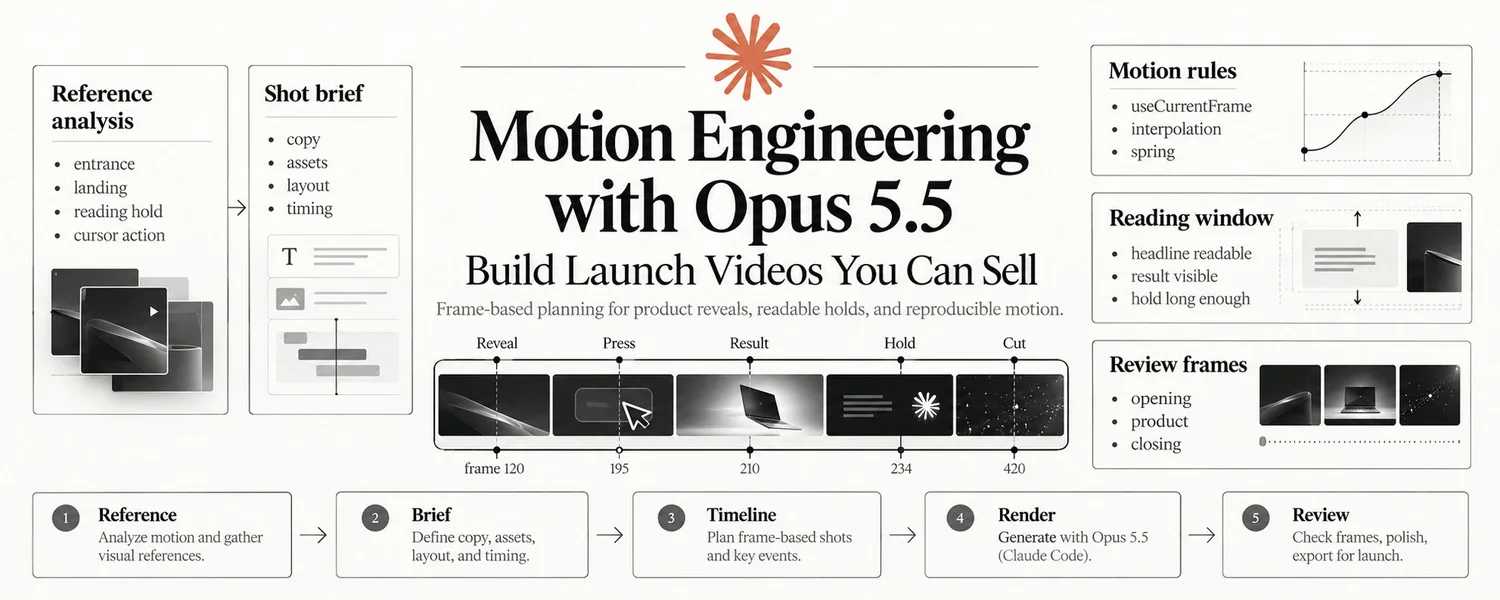
Five-step process from the original post: reference, summary document, timeline, building with Opus 5.5 in Claude Code, checking. Image: @beamnxw.
What is motion engineering and why does it fit with AI?
Motion engineering is the way to describe movement by numbers: when does the card tap down, when does the product respond, how long does the title stay readable. Each number ties to its own frame count, so fixing one thing doesn't break another. Because everything is text, Claude can read, measure, fix, and rebuild; this is also why the original post uses the word "engineering" instead of "style".
The original post opens with three principles: tell Opus when the card must tap down, when the product responds, how long the title stays readable; assign frame numbers to each step (appear, enter scene, hold to read, cursor clicks) so you can fix each step separately; and for a short film focused on one product action, keep the dialogue, assets, and motion decisions in one summary document. Opus 5.5 launched on 22/9/2026; Anthropic describes it as their first Claude 5.5 model, delivering Claude Fable 5.1-level results across most tasks and costing about 40% less than Opus 5 (announcement on X; cross-reference Anthropic's page).
What should reference video be tasked with?
Each reference should answer only one question, such as how a card comes down under control, how to keep a product in frame during a scene transition, or how a cursor makes a result appear clearly. You are not copying that scene, but extracting reusable decisions: how the product enters the frame, what moves first, where the viewer's eye stops, how long the result is held.
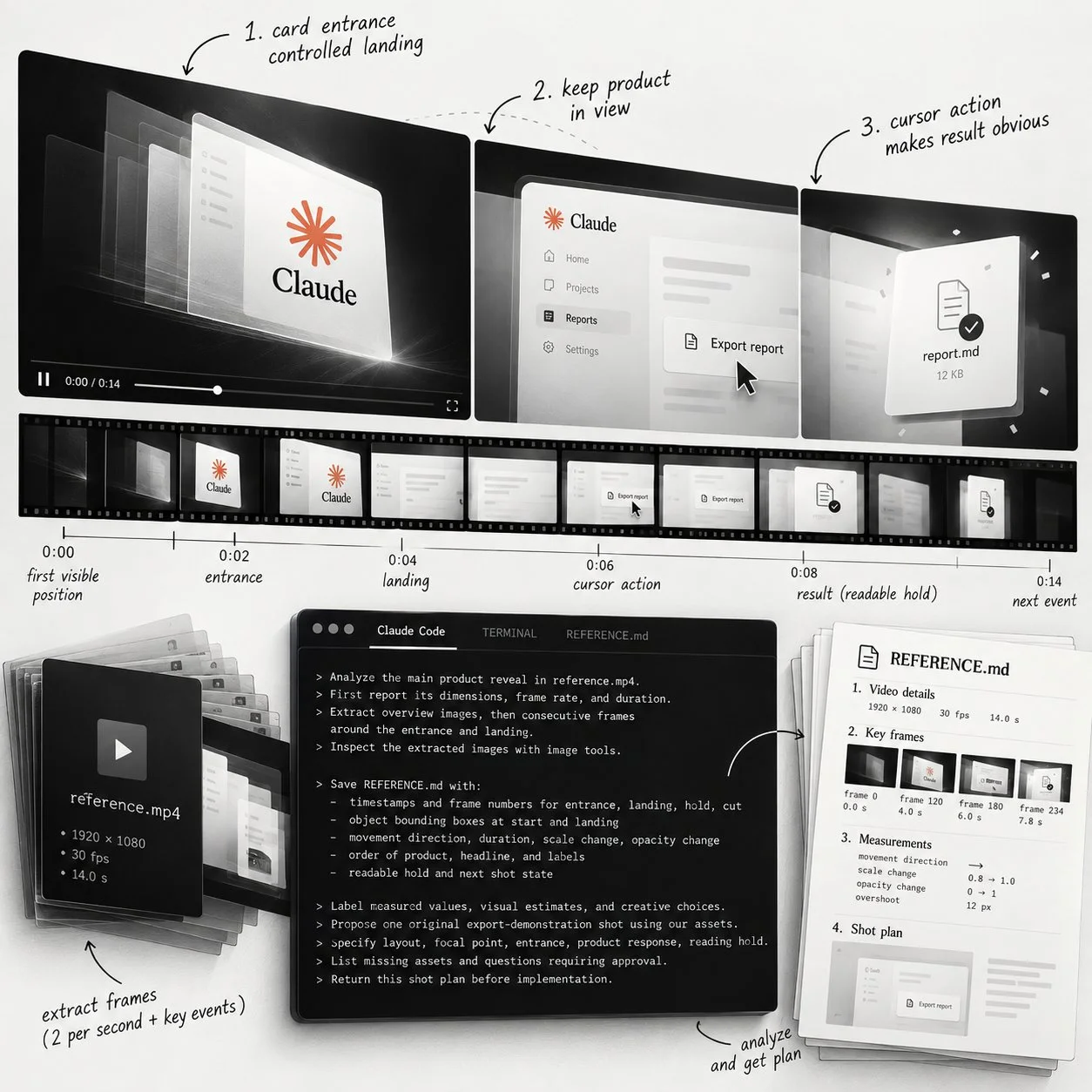
Extract frames from reference.mp4, then have Claude write REFERENCE.md noting timecodes, bounding boxes and order of appearance. Photo: @beamnxw.
How to do it following the original post:
- Extract frames from the reference video, about two images per second to see the overall flow, then extract consecutive frames around important events.
- Paste a command into Claude Code (video in
reference.mp4) asking to measure dimensions, frame rate, duration; note timecodes for in, out, hold and cut; record object positions; and separate measured values, visual estimates and creative suggestions. - Check important positions with extracted images, because according to the original post Claude's spatial estimates are only approximate. Claude's image processing guide is in the official documentation.
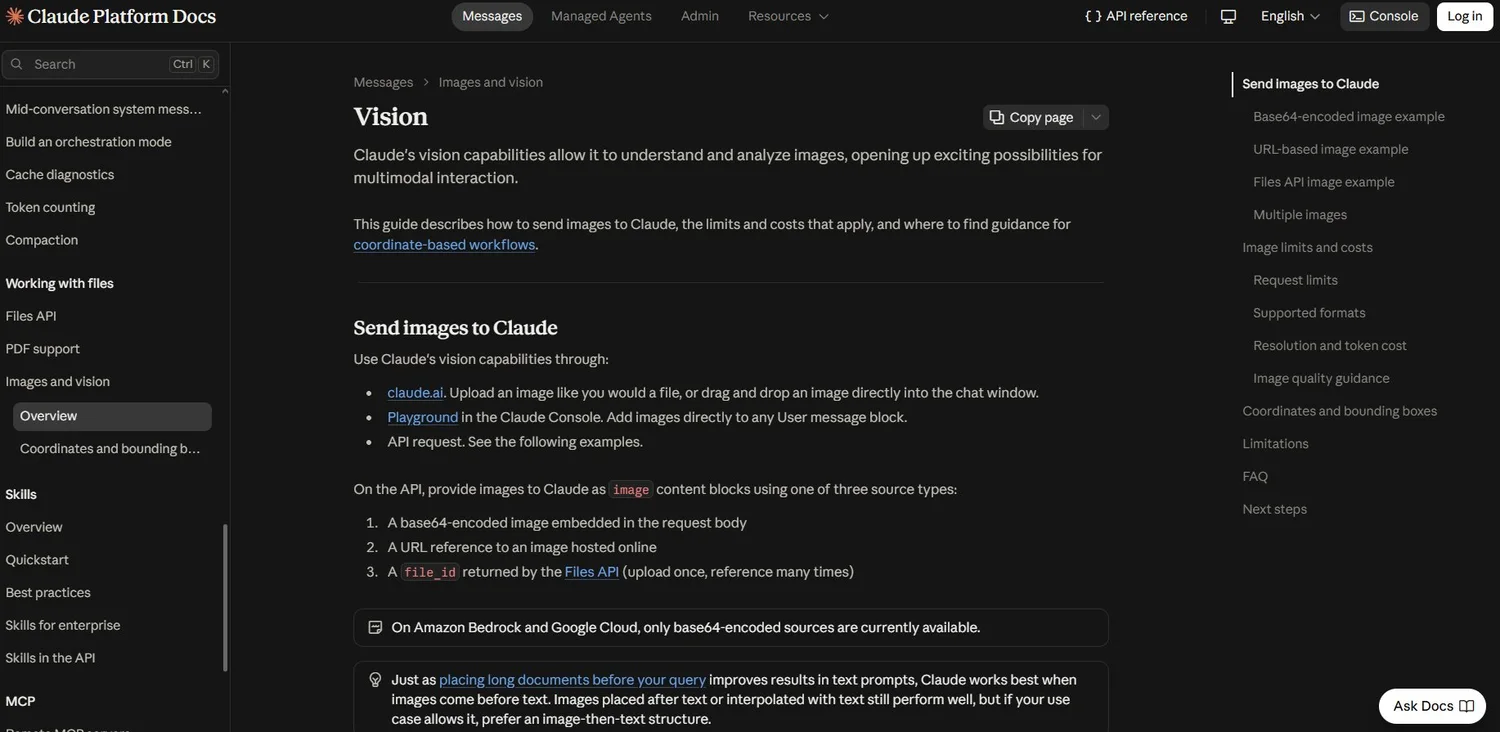
The documentation page for sending images to Claude that the original post links to. Screenshot: @beamnxw.
Condensed translation of the author's analysis command:
Analyze the scene where the product appears prominently in reference.mp4.
First report dimensions, frame rate and duration using available tools.
Extract overview images, then consecutive frames around the entry and exit moments.
View the extracted images using image processing tools.

Save REFERENCE.md containing:
Timecodes and frame numbers for entry, exit, hold, and cut.
Bounding box of the object at start and exit (coordinates in original image).
Direction, duration, scale change and blur, bounce if any.
Order of appearance of product, title, subtitles.
Hold duration for reading and state of transition to next scene.

Record separately: measured values, visual estimates, creative suggestions proposed.
For uncertain values, list frames needing review.

Use our assets to propose ONE scene illustrating the action of generating a report on its own.
State layout, focus, entry method, product response, hold time for reading.
List missing assets and questions needing review. Deliver the plan before building.
Write each scene as a sequence of events
A product scene needs to have an order a viewer can follow: initial state, cursor placed on button, click is registered, then result appears. According to the original post by @beamnxw (9/10/2026), the example is the export report action: from full report, through button click, to finished file, and that file must be held long enough to read its name. First is the timeline table of the example at 30 fps (frame equals second times 30); next are two things to remember: record the source frame rate in the reference timecode, and convert correctly, because half a second is 15 frames at 30 fps but 30 frames at 60 fps. Finally, use these values for the first preview, then adjust any sections that feel rushed or empty. Timeline table:
| Timecode | Frame (30 fps) | Event |
|---|---|---|
| 4.0 sec | 120 | Report appears, card in position |
| 5.0 sec | 150 | Cursor moves toward Export button |
| 6.0 sec | 180 | Cursor touches button |
| 6.5 sec | 195 | Click is registered |
| 7.0 sec | 210 | Finished file appears |
| 7.8 sec | 234 | Result label fully readable |
| 14.0 sec | 420 | Closing scene begins |
What Should a BRIEF.md Summary Contain?
BRIEF.md is a file that holds every decision about the film so that each time I edit, I only touch one group of values. According to the example in the original article, it includes the following sections:
- Objective: illustrate the product report export, who the viewer is, opening line (state the result, maximum eight words), closing line (one next action and destination).
- Delivery and assets: composition
Launch, 1080 × 1080, 30 fps, 600 frames; logo, report screen, exported file screen, font, sound placed inpublic/; check asset size and font loading before working. - Layout: coordinates in pixels from top-left corner; background color, text, emphasis; safe margin 64 px; title box, product tag, layer order.
- Opening (frames 0 to 119): title enters in frames 0 to 18, tag enters in frames 18 to 42, use cubic ease-out curve, then hold still.
- Product (frames 120 to 419): tag continues to correct position, cursor moves to button, click at frame 195, result file appears at frame 210 and completes at frame 234.
- Closing (frames 420 to 599): cut to logo and closing line, fade in from frames 420 to 438, then hold.
- How to build and check: dynamic values taken from
useCurrentFrame, time constants and layout exposed outward, random variants use fixed seed; build the opening stage first, export static images and preview, then wait for review before continuing.
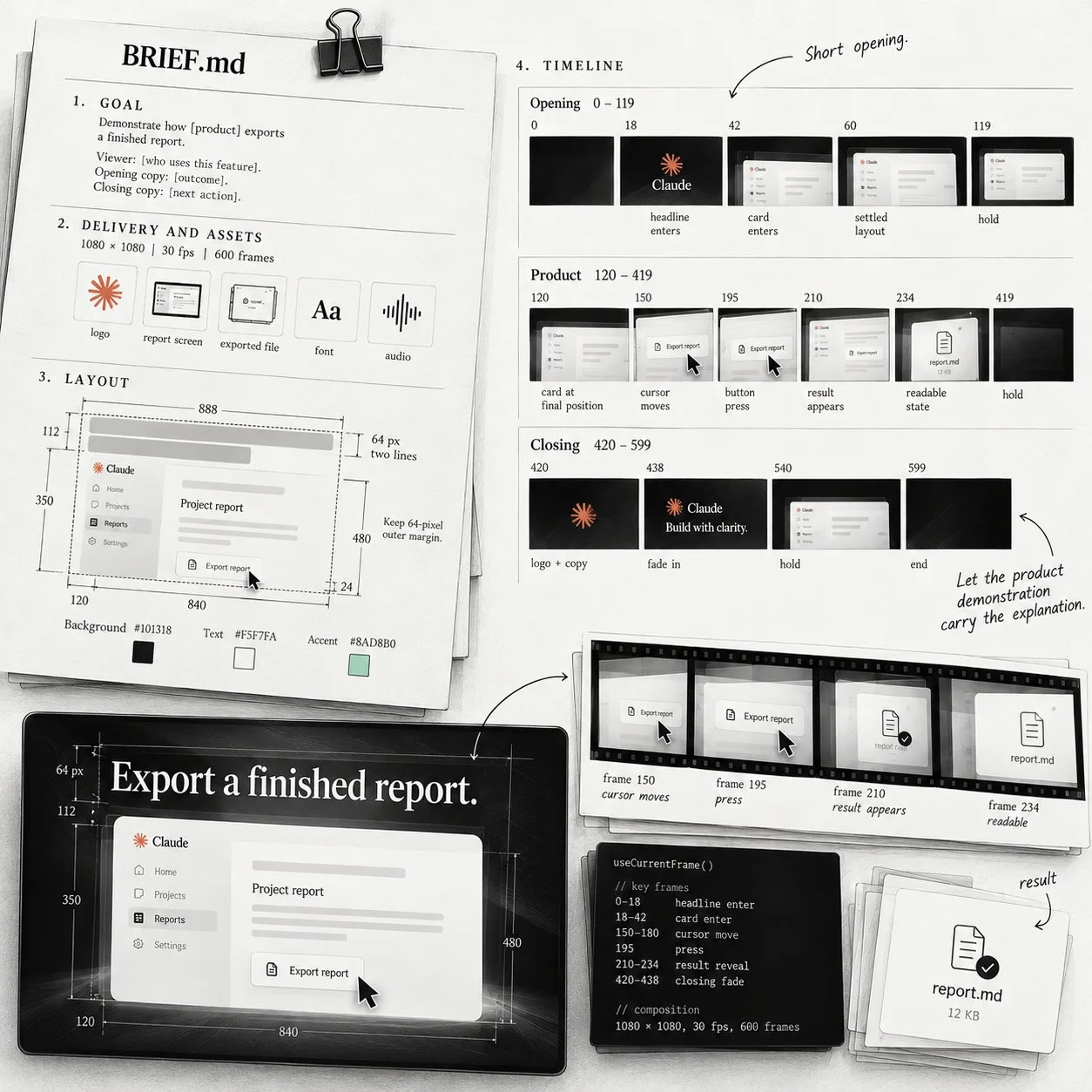
BRIEF.md of the original article example: five decisions (objective, assets, layout, timeline, check) live in one file. Photo: @beamnxw.
The original article emphasizes that coordinates, colors and time are only starting choices for this exercise, and need to be checked against the actual product screen. Use a short opening line and let the product demonstration section carry the explanation; if the explanation needs many sentences, split it into a separate scene.
Check the Longest Copy Before Building Motion
Check the opening layout using the longest title you plan to use. If it drops to three lines, stop the motion work: shorten the sentence, expand the text box or move supporting information to another scene. Write layout limits next to the style section: title width, maximum lines, space for logo, end position of text and product tag. Check the actual font in the comp (weight, letter spacing); if you change the title, rebuild the response frame before viewing motion, and do the same with the call to action in the closing scene when replacing short product name with a longer one.
How to Make Every Frame Reproducible?
Remotion uses React components and the current frame number to draw the exact moment you choose, so the same frame always produces the same image. Three core techniques, cross-checked with Remotion documentation:
- Control by frame number: get value from
useCurrentFrame()then interpolate or usespring(); avoid letting CSS transition run independently because it flickers easily when building. - Fixed seed for randomness: Remotion's
random()function takes a seed; same seed produces same result, different fromMath.random(). - Write time in seconds first, convert to frames after: 0.6 seconds is 18 frames at 30 fps; save the offset into, destination, duration and set common response in one place to edit only one set of values.
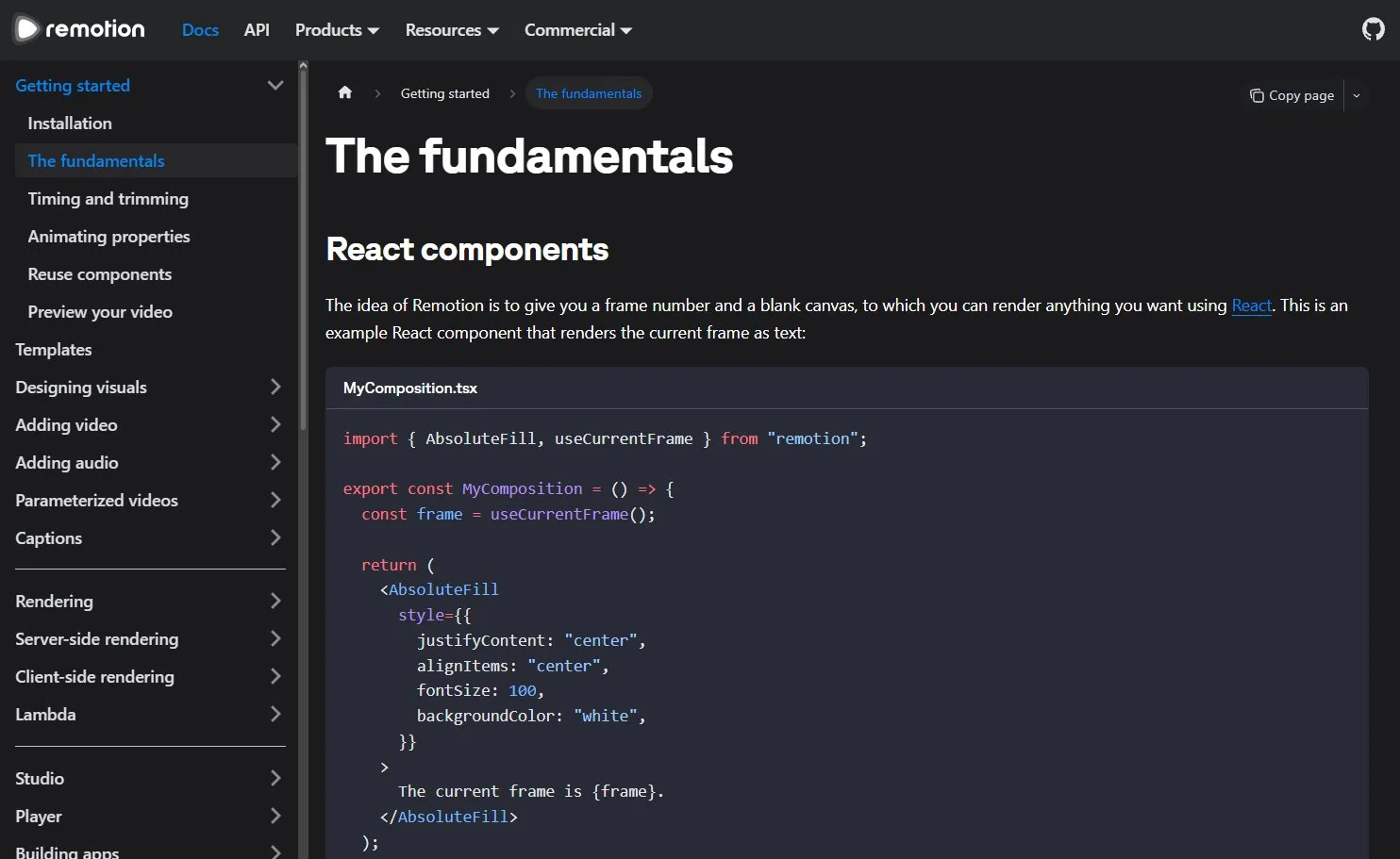
Remotion fundamentals page: a React component receives frame number and draws everything. Screenshot: @beamnxw.
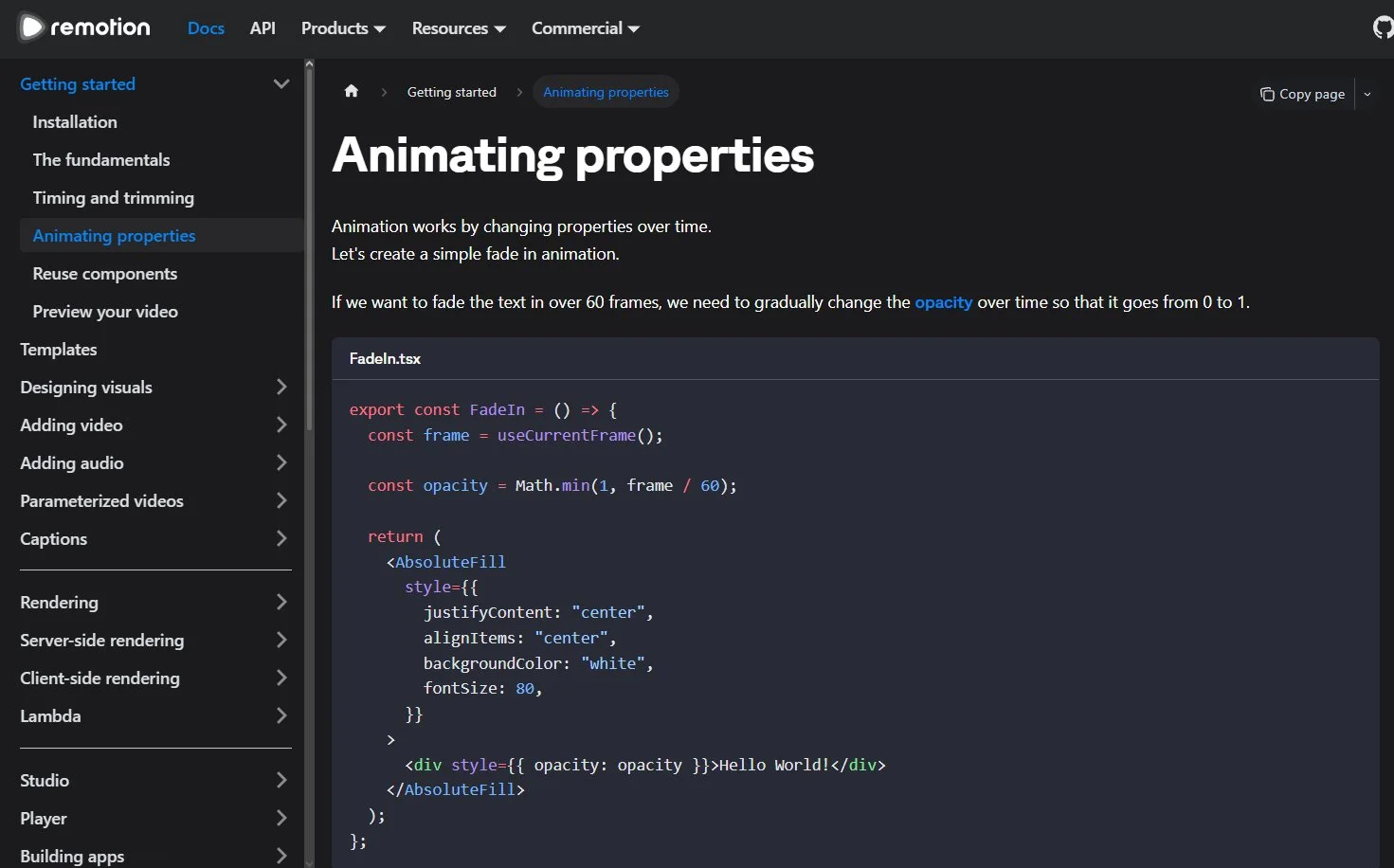
Animate properties by current frame number. Screenshot: @beamnxw.
What purpose does motion serve inside the shot?
Every motion in the shot must have a job: entrance to introduce the main subject, hold so the viewer has time to read, pointer to indicate the next action, transition to move the viewer to the next state. The original article offers these practical rules:
- Adjust
spring()with duration, damping, stiffness and bouncy; keep the destination the same, change one parameter at a time then play it back. - Entrance in order: start with the main subject, secondary information enters after a small interval (try offsetting 0.1 seconds between the title and subtitle).
- Light push: for a subtle push effect, set the scale from 1.00 to 1.03 over three seconds; the percentage changing continuously will compound across frames.
- While holding for reading: keep secondary motion gentle enough that text is the focus.
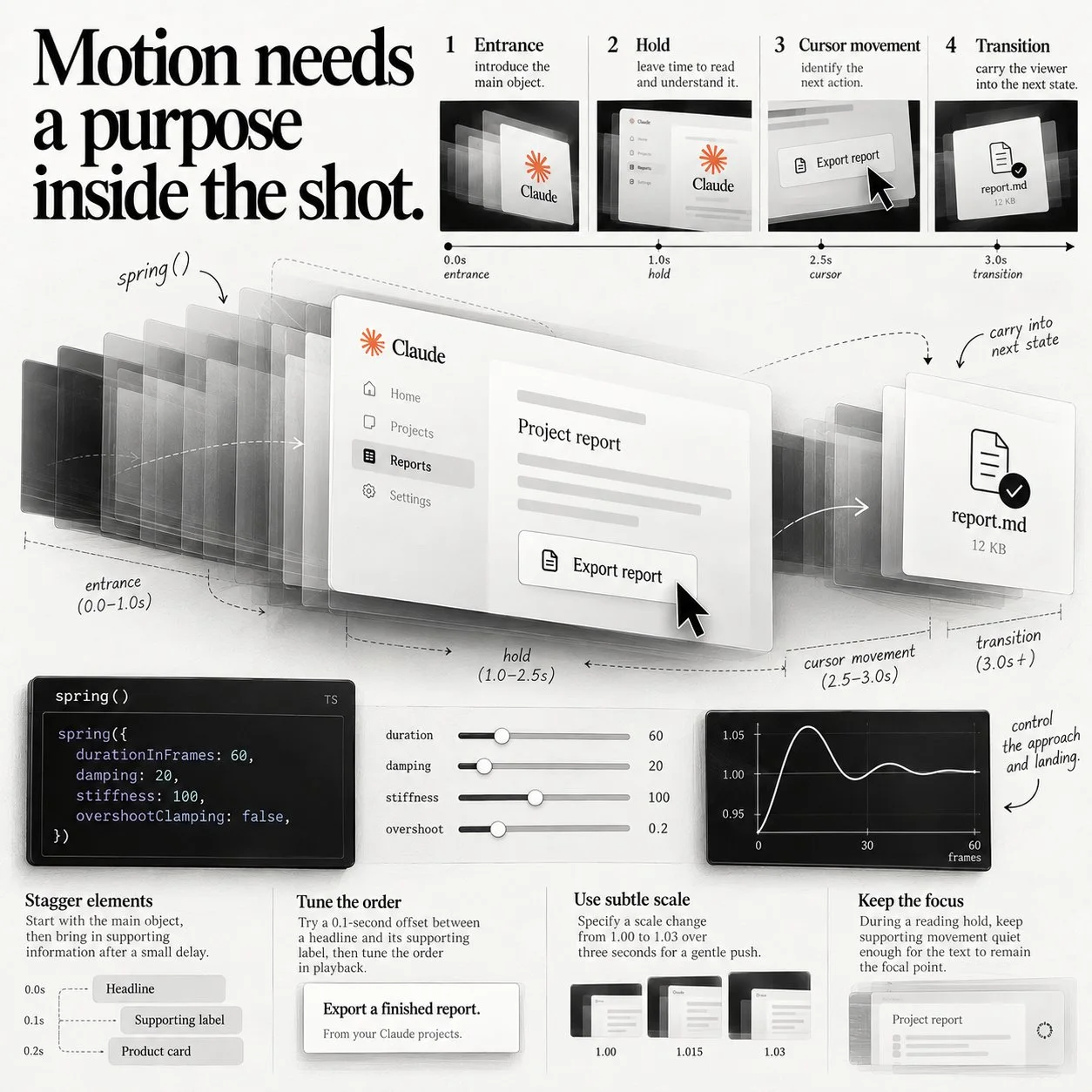
Four roles of motion and the spring adjustment table. Photo: @beamnxw.
Which shot "owns" the screen?
Keep attention on the button until there's feedback, then let the result own the reading frame. If the pointer sweeps across the title as the card enters, delay an event or change the path. Time the reading from when the text becomes readable: a hold of eight frames at 30 fps only gives the viewer about 0.27 seconds. Play at normal speed and read aloud; if the hold runs out before you finish reading, extend it, and check the interface labels at phone screen size.
With fast-moving cards, decide whether motion blur contributes to getting that entrance right. According to Remotion documentation, the @remotion/motion-blur package duplicates frames multiple times then blends them back to create realistic blur; check that text isn't smudged and streaks don't pull unnaturally.
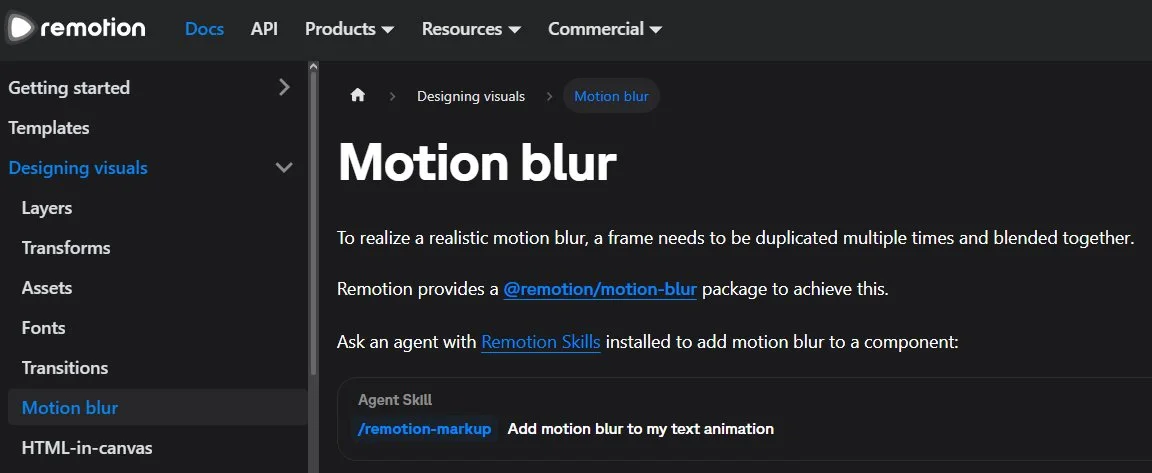
Motion blur page in Remotion documentation. Screenshot: @beamnxw.
Three static frames should guide the next round of edits
Before adding motion details, build three static frames: opening frame, frame showing the product result, and closing card. Check that the main text is readable, the result is clear, no elements are cut or overlapping, the final call to action has enough space. Use these commands (change frame numbers if your result falls elsewhere):
npx remotion still Launch out/opening.png --frame=60
npx remotion still Launch out/product.png --frame=240
npx remotion still Launch out/closing.png --frame=540
To see how attention shifts across scene boundaries, build just the interval around that spot. The --frames flag of the render command takes a range, for example frames 90 to 149 is two seconds around the boundary between opening and product scene at 30 fps:
npx remotion render Launch out/transition.mp4 --frames=90-149 --codec=h264
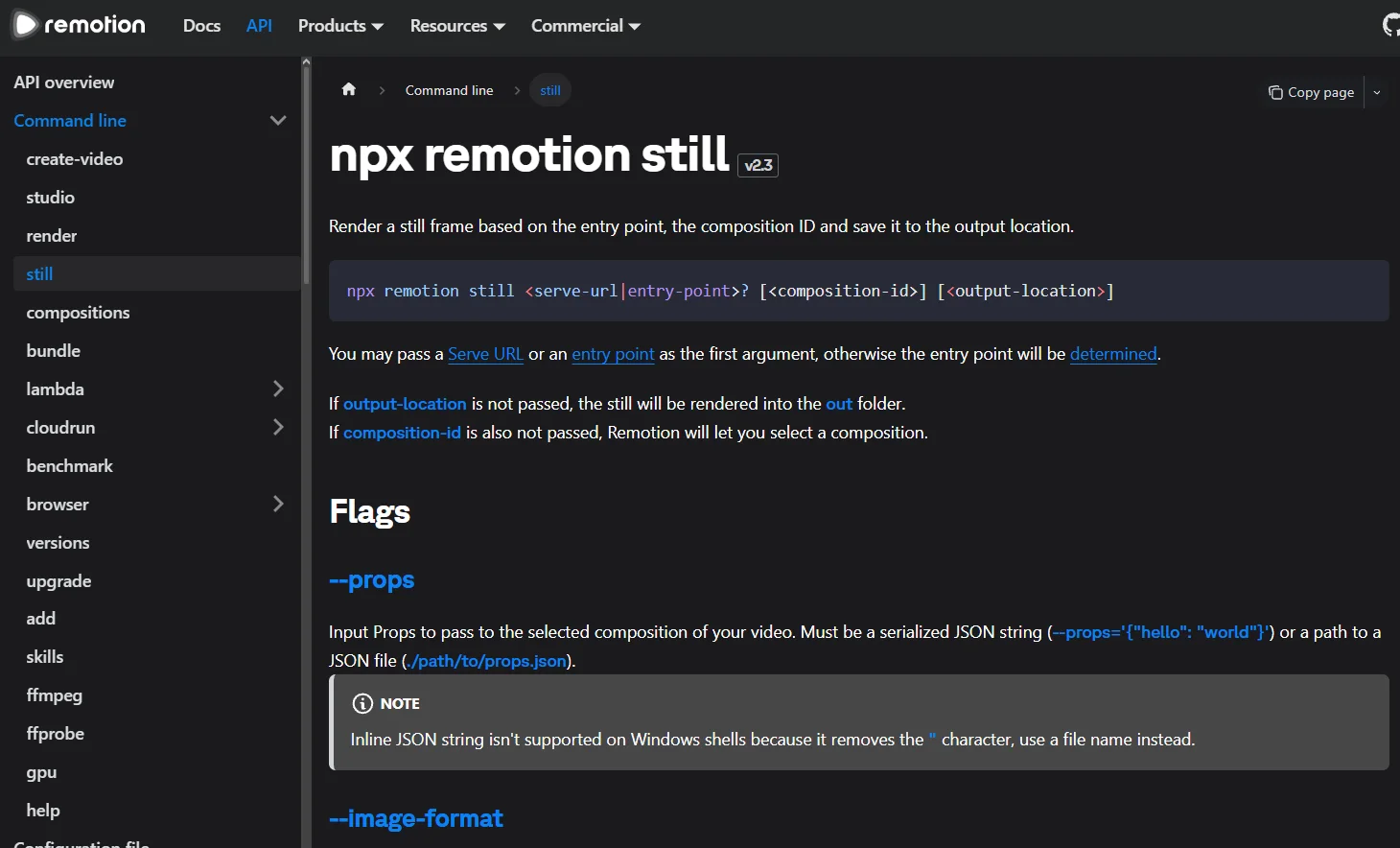
Command to render a single static frame. Screenshot: @beamnxw.
Assign AI an Executable Editing Request
A good editing request has four fields: location, observed error, change, and what to keep unchanged. Edit in this order: missing information and unreadable text first, then timing, then visual details. If you need an independent opinion, open another session with the summary, images, and extracted frames, ask it to review up to five errors tied to frame numbers, then pass the reviewed portion to the working session.
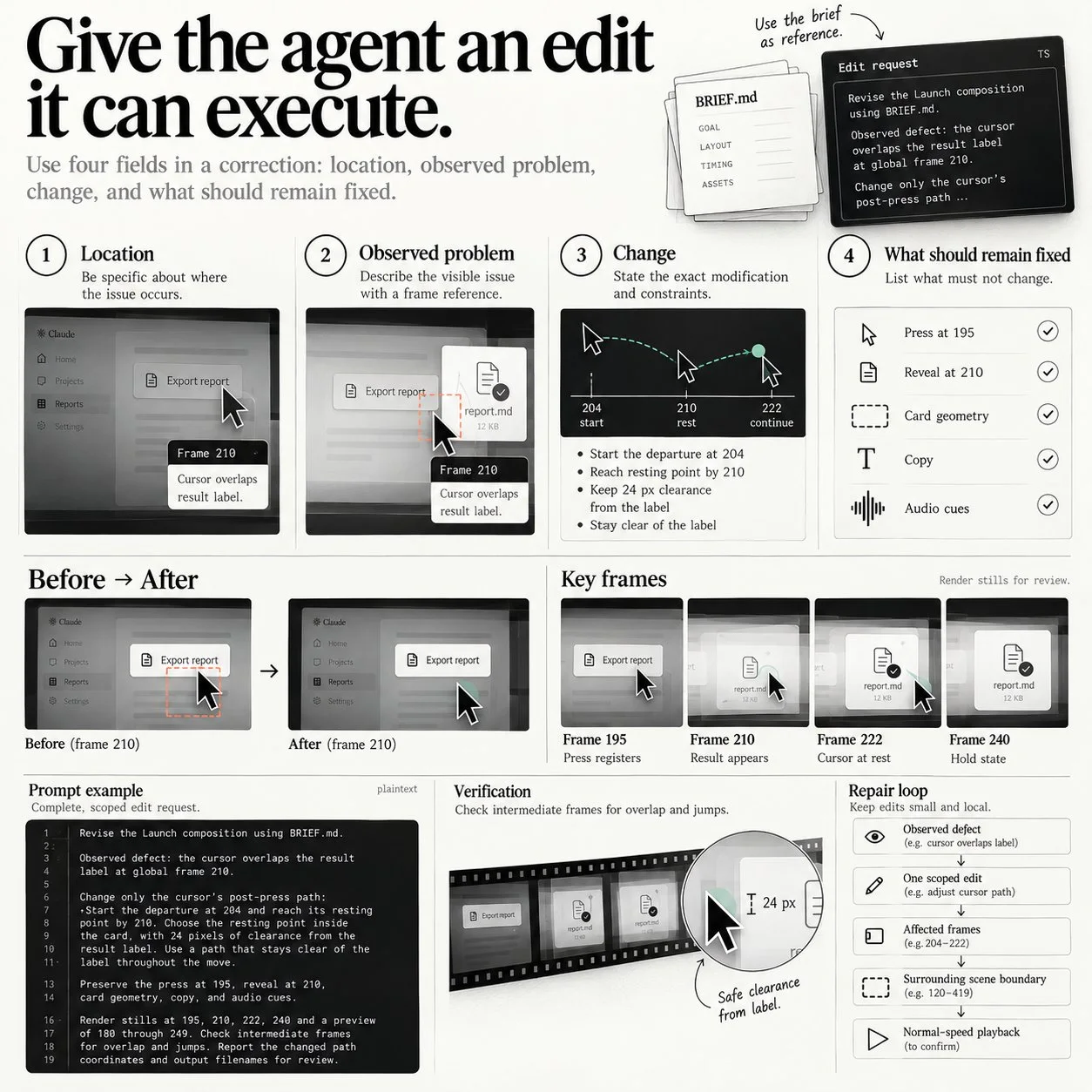
Four fields of an editing request, example of cursor overlapping result label at frame 210. Image: @beamnxw.
Shortened example (translation of the original command intent):
```
Fix Launch composition per BRIEF.md.
Observed error: cursor overlaps result label at global frame 210.
Only change the cursor path after the click:
Start leaving at frame 204 and reach rest point before frame 210.
Select rest point inside the field, 24 pixels away from result label.
Path must not touch label throughout movement.
Keep click at 195, result at 210, field geometry, text and sound.
Keep cursor at destination until end of frame 419.
Build stills at 195, 210, 222, 240 and preview from 180 to 249.
Check intermediate frames for overlap or jitter.
Report new path coordinates and output filename for review.
```
One effective editing round is always local: observed error, one tight fix, affected frames, boundaries of surrounding scene, then playback at normal speed. Note clearly the local frame of the scene: local frame 30 in a sequence starting at global frame 120 corresponds to global frame 150 (by Remotion's `` frame numbering).
Audio Also Has Event Frames
Place the click sound right when the tap becomes visible, and the strongest emphasis of audio must reveal right when the result appears. A soft lead or silence at the start of the file can shift the tap away from the file head; use waveform and test playback to find the exact point then compensate the offset. Record a list of audio signals next to visual events:
```
BUTTON PRESS frame 195 click sound
RESULT APPEARS frame 210 accent sound
END HOLD frame 438 music fades
```
Keep sound and music on separate layers with adjustable position and volume, then test playback at loudest, smallest useful signal and the segment over both earbuds and phone speaker.
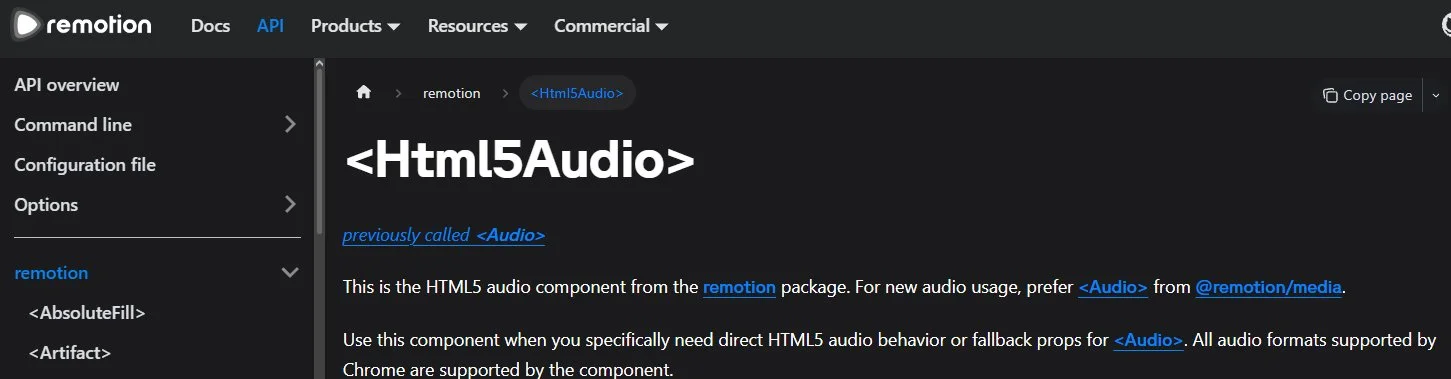
Remotion audio component. Screenshot: @beamnxw.
Install Tools and Run from Start
Install Node.js, Claude Code, FFmpeg and FFprobe before creating a Remotion project. The commands below match Remotion's Claude Code guide page (updated 22/10/2026):
```bash
npx create-video --yes --blank launch-video
cd launch-video
npx remotion skills add
npm run dev
```
Select Claude Code in the skills installer, then in a second terminal in the `launch-video` folder, run the model with `claude --model claude-opus-5-5` (Opus 5.5 model code as the original post notes). Per Remotion docs, skills install into the `.agents/skills` folder and Claude Code becomes available through the `.claude/skills` link. Place product assets in `public/`, reference video at `reference.mp4`, summary at `BRIEF.md`, create `frames/` for reference images and `out/` for exports.
Extract overview of reference video with FFmpeg (two images per second, 960 px wide, keep aspect):
```bash
ffmpeg -i reference.mp4 -vf "fps=2,scale=960:-2" frames/ref-%04d.jpg
```
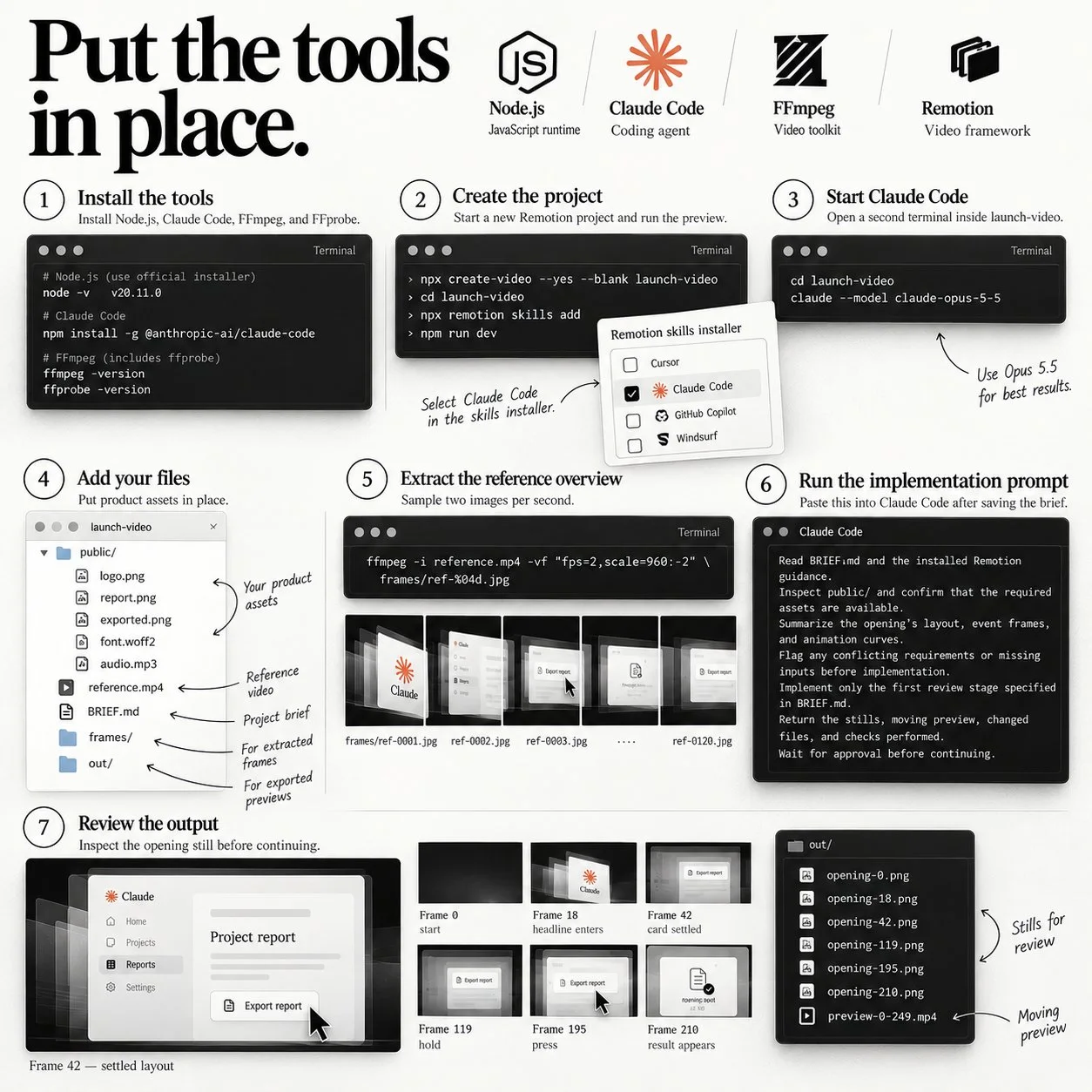
Seven setup steps from tool installation to viewing results. Image: @beamnxw.
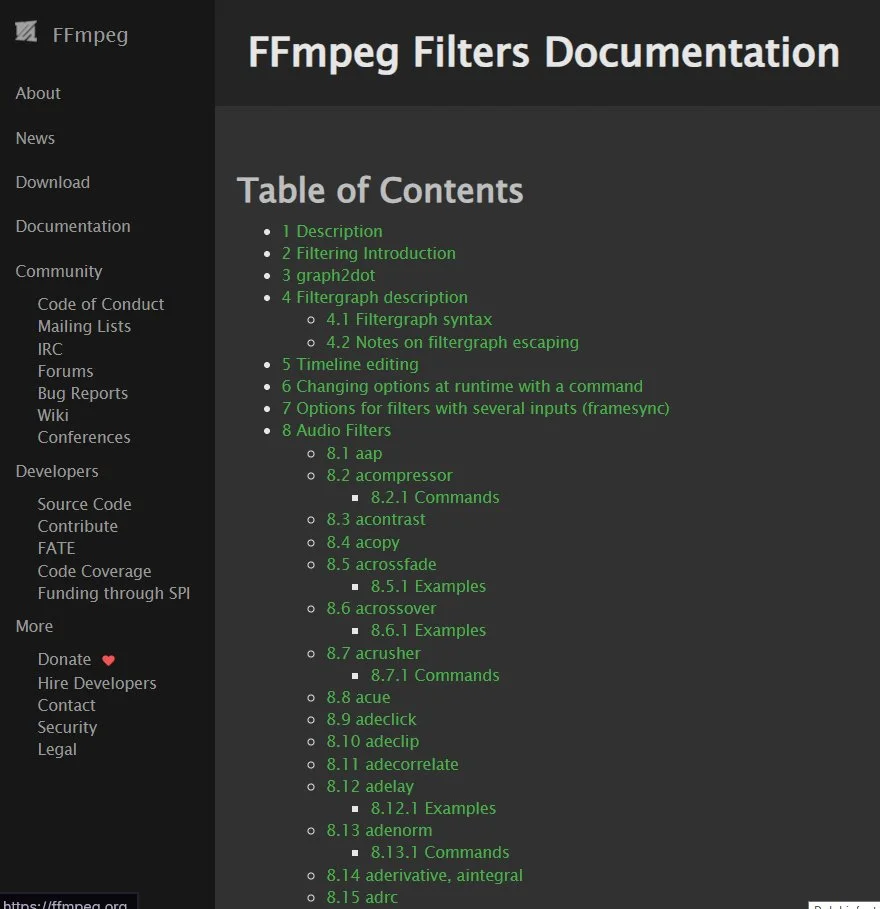
FFmpeg filter documentation the frame extraction command uses. Screenshot: @beamnxw.
After saving the summary, paste the first-stage build request into Claude Code. The spirit of the original command: read BRIEF.md and installed Remotion guides, check assets in `public/`, summarize layout, event frames and motion curves of the opening, state conflicts or gaps before proceeding, only build the first review stage, return stills, preview, list of changed files and checks done, then wait for review. View opening images before requesting remaining scenes.
Export Approved Film and Check File
When image and sound have been approved, render the entire film, watch at normal speed in sequence starting with intro message, product operation, ending section, then read metadata:
npx remotion render Launch out/launch.mp4 --codec=h264
ffprobe -v error -select_streams v:0 -show_entries stream=width,height,avg_frame_rate,duration -of json out/launch.mp4
With an example summary, expect 1080 × 1080 pixels, frame rate 30/1 and about 20 seconds. Keep the approved version along with the summary, scene timecodes and audio signal list. With longer film, give each scene an entry state and exit state: position, scale and final highlight field of the card is the entry state of the next scene; keep background, color palette, spacing in common settings; do each scene or small group, and if scene transitions overlap then calculate the overlap into total duration.
Turn Exercise into Sellable Product: Launch Clip
The original post packages a 20-second exercise into "Launch Clip" for a programmer launching a feature: shoot a real report, animate the export operation, keep the finished file on screen, and the customer gets a video to paste into launch post or product page. First package should be small: one feature and one approved script, one 20-second 1080 × 1080 video, one cover image taken from an approved frame, and one round of edits on timing, words and sound.
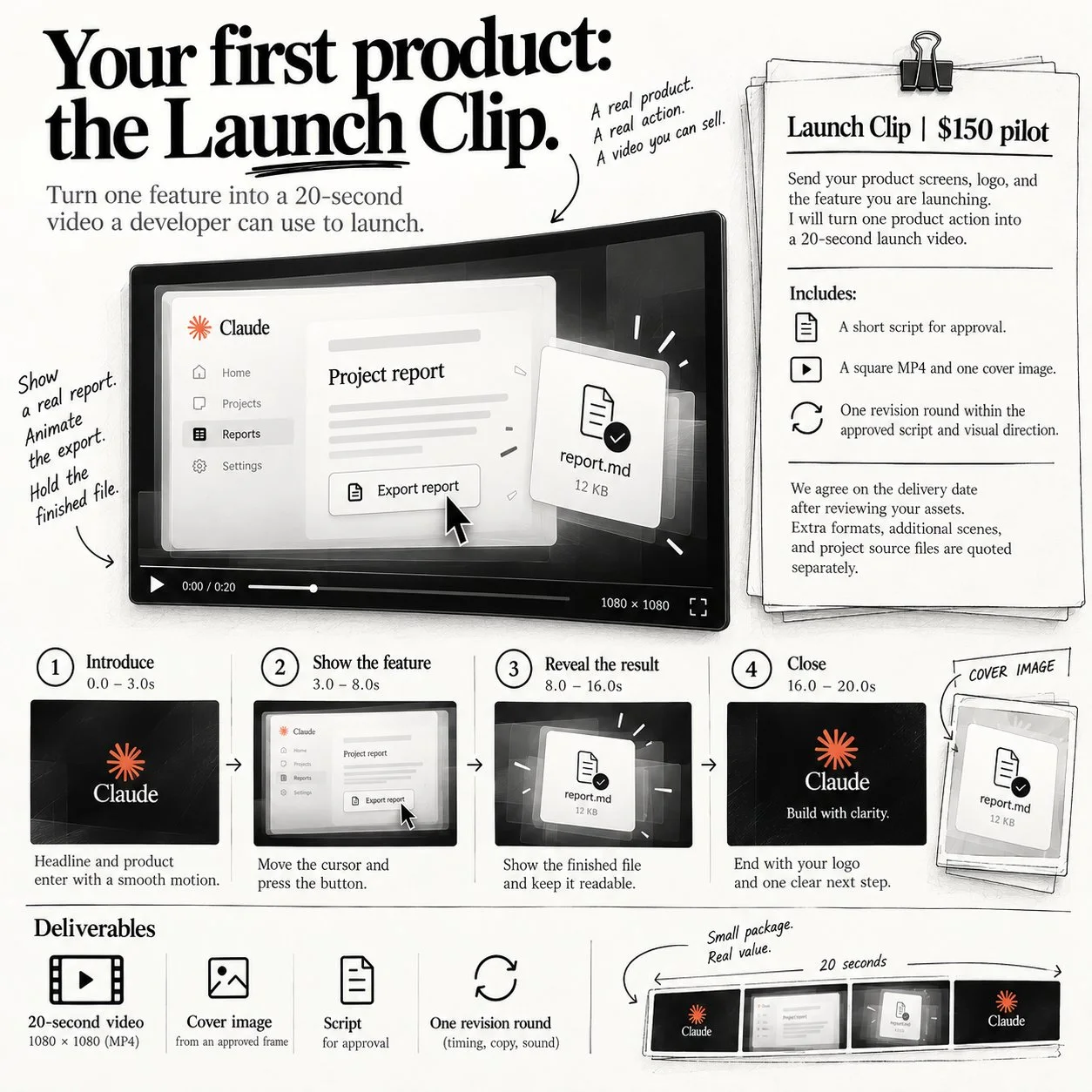
Launch Clip package: four segments of 20-second clip and deliverables. Image: @beamnxw.
I use 150 USD as a illustrative trial price to test workload and customer feedback. This is not a verified market rate, and this post does not guarantee anyone will buy at that price. Condensed pitch:
Launch Clip | trial price 150 USD

Send product screen, logo and feature you are launching.
I turn ONE product action into 20-second launch video.

Includes:
Short script to approve.
One square MP4 and one cover image.
One round of edits within script scope and approved image direction.

Delivery date agreed after asset review.
Additional formats, additional scenes and source files quoted separately.
Make example before pitching
Make one complete example using your own assets or a product whose owner has agreed to let you use for illustration. Place the export next to intro image, operation and ending so customer sees the finished product, and time the whole job: asset prep, feedback, render, delivery. This real number tells whether the price makes sense.
Find customer with upcoming launch
Pick a programmer with a running feature and release date. Identify one action the audience needs to understand, then write a specific proposal, for example "your report export feature could be the whole 20-second clip". Send sample and package details to a fitting customer, ask which feature they want to demonstrate. Before starting agree on script, assets, deadline, payment terms and edit scope; state clearly where the customer can use the video and whether you get to add it to your portfolio. While working, send three still images to approve direction, then preview version and final export; tie feedback to frame number so edit round has clear list.
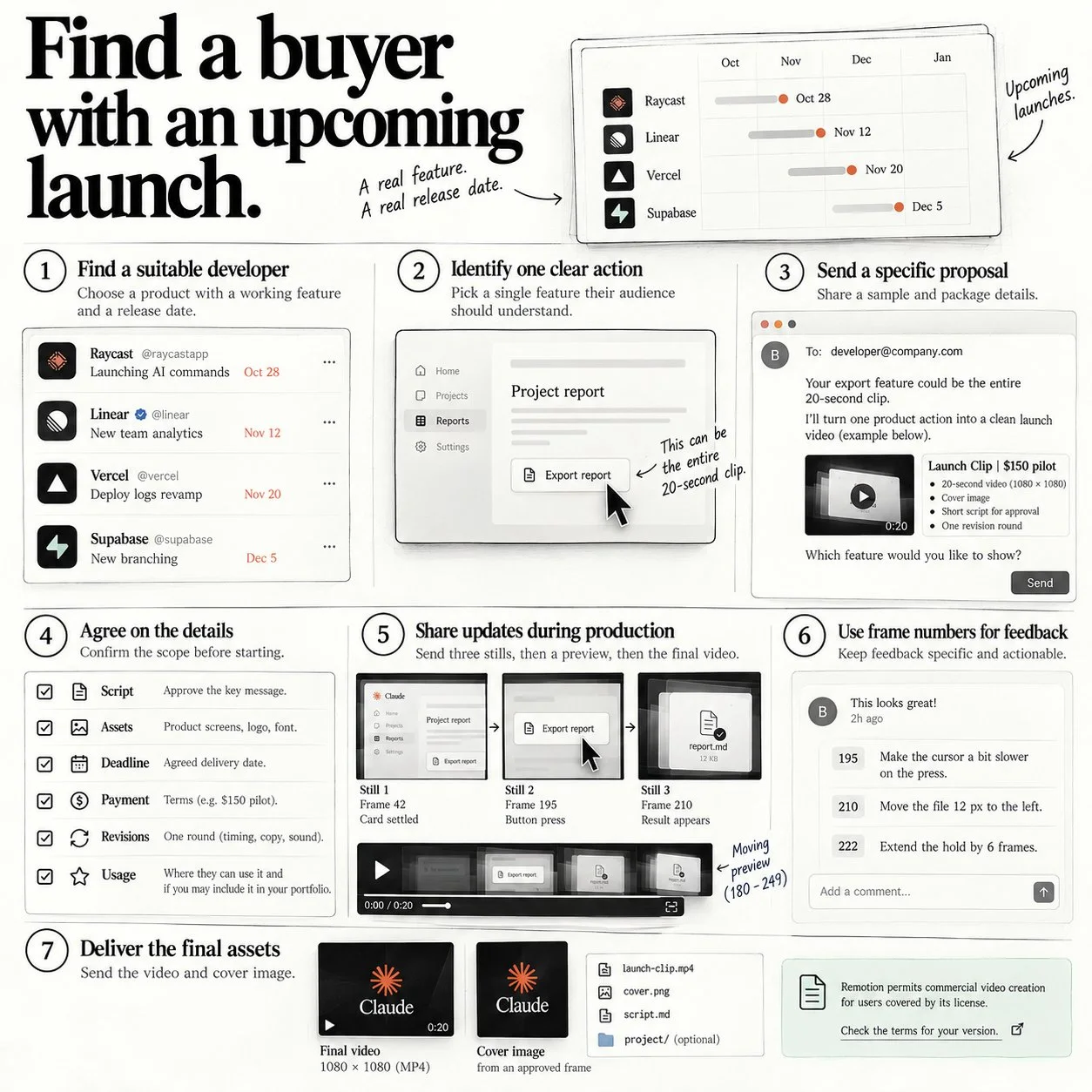
Seven steps from finding customer to delivery. Image: @beamnxw.
Does Remotion allow commercial video?
Remotion allows commercial video, but depends on license terms. You can use free, per Remotion (license read 23/10/2026), in three cases:
- You are an individual.
- You are a for-profit organization with maximum 3 employees.
- You are a nonprofit organization evaluating and not yet using commercially.
License allows use to create video and images, including commercial, but bans copying or editing Remotion code to sell derivatives. Larger organizations need company license. For example, a freelance programmer sells compiled clip using Claude (Anthropic) to customers in the individual group, while an agency with 10 people must check terms for companies. Read the terms of the exact version you use before taking hire, because OPCAIOS does not give legal advice.
Notes to Keep in Mind
There are six notes to keep in mind when following this guide; the first and most important is about income, the last is about copyright:
- This is a guide, not an income guarantee: the $150 price and having clients are assumptions by @beamnxw. Try it yourself with actual workload and feedback.
- AI estimates need verification: according to the original post, Claude position estimates (Anthropic) are approximate only; always cross-check with frame screenshots.
- Property rights: only use product screens, logos, and music you have the right to use; record agreements in writing with clients.
- Don't copy references: use reference videos to learn movement decisions, then build original scenes with your own assets.
- Need machine and time: complex scenes will render slower on regular machines.
- OPCAIOS experience: the diagrams and cover images of this blog were also built with code (written HTML then captured with Chrome headless). OPCAIOS has not yet built a Launch Clip following this process and has not tested the market for it.
If you're new to this, read more in Making motion graphics with Claude Opus 5.5 for how to set up a brand folder and reference library, Which AI model should you choose? to weigh costs, and AI writes code in wrong versions to understand why you should give AI reference documentation.
Frequently Asked Questions
What is motion engineering?
It's a way to make motion video using specific frame numbers for each event, recorded in a summary, so AI or a coder builds it right and can fix each part without breaking others.
What do I need to install to build a product launch video with Claude and Remotion?
You need Node.js, Claude Code, FFmpeg and FFprobe, then create a project with npx create-video --yes --blank launch-video and add skills with npx remotion skills add. These commands match Remotion documentation updated 22/10/2026.
What parts make up a 20-second launch clip?
According to the original post: short opening (frames 0 to 119), product section with cursor click and results appearing (frames 120 to 419), then closing scene with logo and next action (frames 420 to 599), at 1080 × 1080 and 30 fps.
Why record frame numbers for each event?
Because each value lets you fix one spot without breaking others, and helps client feedback attach to a specific frame. At 30 fps, 0.6 seconds is 18 frames; at 60 fps over the same time it's 36 frames.
Can you make money building video with AI?
Whether you can make money building video with AI hasn't been proven for you yet. According to the original post by @beamnxw (9/10/2026), the Launch Clip package is priced at $150 for one 20-second clip, but that's an assumption to test, not yet verified, and OPCAIOS has not yet sold any packages. To evaluate it yourself, do three things:
- First, make one complete sample using your assets or the product owner's assets with agreement.
- Next, time all the real work: preparing assets, feedback, building, handing over.
- Finally, send the sample to a developer launching a feature and ask for feedback before setting price.
Example assumption: if total work takes 10 hours then $150 equals $15 per hour, not counting tax and other costs. To learn how to apply AI to real work, see OPCAIOS's AI application training course.
Source: post "Motion Engineering with Opus 5.5: Build Launch Videos You Can Sell" by @beamnxw on X, x.com/beamnxw/status/2108616740846420354, posted 9/10/2026; images from original post as requested, belong to author; this is a Vietnamese rewrite with cross-reference. Commands and Remotion features (create-video, skills add, still, render --frames, spring, random, motion blur, licensing), Opus 5.5 information cross-checked against Remotion documentation and Anthropic page dated 23/10/2026. Price $150 and potential for clients are author assumptions, not yet verified.
Translated from Vietnamese with AI. Read the original.
Want to apply this in your business?
Book a free 30-minute call (Vietnam time, in English or Vietnamese).