



Using AI to work with Excel means asking an AI assistant to write and explain formulas, clean data, or build report frameworks in your spreadsheet, while you verify and sign off on the final numbers. This article is for people who prepare reports using Excel or Google Sheets, not data specialists. We do not promise AI will get your reports completely right, we do not promise how many hours you will save (we haven't measured), and we do not guarantee every feature in your package. This article covers where AI tends to get things wrong, and Excel and Sheets' AI integrations are based on official help pages read on 04/11/2026, a 6-step process, and an example with a 10-row table and a one-page report template.
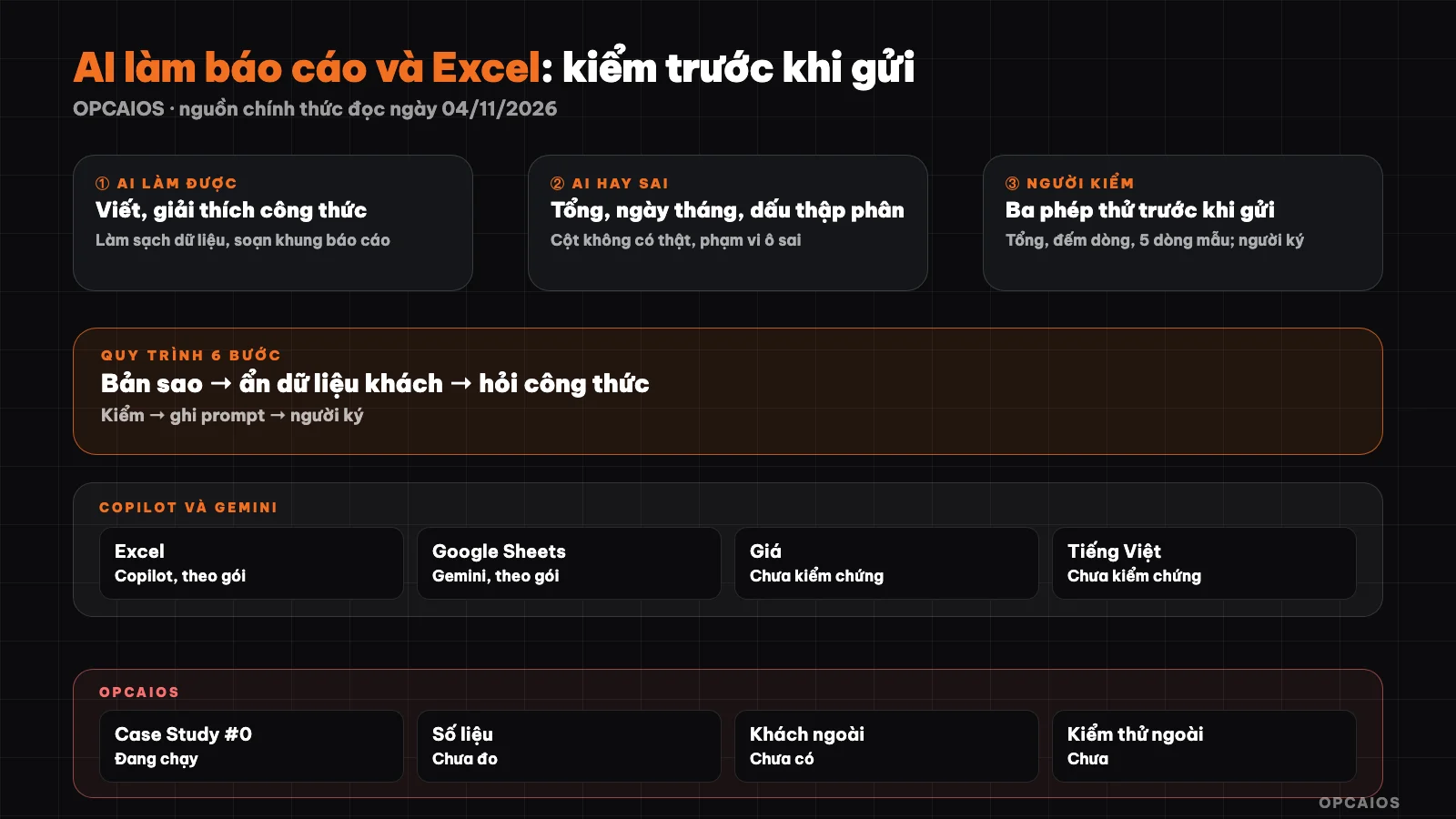
6-step process from copy to sign-off by person in charge. Diagram: OPCAIOS.
What can AI do with spreadsheets?
AI does well at text-based tasks around spreadsheets: writing and explaining formulas, suggesting ways to clean data (merging differently spelled names, splitting full names, standardizing dates), summarizing a remarks column, and drafting a report template. Both official help pages list this kind of work: Copilot in Excel creates formulas, summarizes data, creates charts and PivotTables; Gemini in Google Sheets creates tables, formulas, charts, analyzes, and summarizes. The first job you should hand over is something you can verify in a few minutes—for example, a conditional sum formula. For financial or tax numbers, this article is for reference only, not advice.
Where does AI go wrong with spreadsheets?
AI tends to go wrong with direct calculations, dates, number formatting, and columns that don't exist. Both Microsoft and Google state on their official pages that results may be wrong and you need to verify yourself; Microsoft even advises against using it for financial, legal, or medical decisions. The table below reflects our judgment, not a count of how often errors happen.
| Error type | Example scenario | How to spot it |
|---|---|---|
| Totals and direct math | AI reports total "4,150,000" when your sum works out to 4,100,000 | Compare to =SUM(...) that you set yourself |
| Dates | Reads 05/11 as 11 May | Check 5 sample rows |
| Decimal point, thousand separator | Confuses 1.234,5 and 1,234.5 | Check regional settings; try a small number |
| Column that doesn't exist | Uses a Profit column even though your table has none |
Cross-check against the header row |
| Wrong formula logic | Adds the total row into the total | Re-read the cell range |
What AI does Excel and Google Sheets have built in?
Both platforms have their own AI assistants, but how you use them differs and you may not have them in your package. We don't list prices because we haven't checked each package's pricing page.
| Item | Copilot in Excel | Gemini in Google Sheets |
|---|---|---|
| Can do | Edit worksheet, formulas, charts, PivotTables, filter, get sourced web info | Tables, formulas, charts, analyze, summarize, format |
| Requirements | Need a qualifying Microsoft 365 plan or Copilot (see FAQ); organization may restrict | Google Workspace plan or qualifying Google AI; .xlsx files should be saved as Google Sheets |
| Known limits | Needs Auto-calculate on; trained mainly in English | Chat history lost on reload; charts don't auto-update |
| Vietnamese | Lists around 50 languages; we have not confirmed Vietnamese is included | Has its own language list; not confirmed |
Two notes. First, the =COPILOT() preview function is gone: Microsoft reported from 14/09/2026 that the function no longer appears in Excel, cells show #NAME? instead, and the company points to the Copilot pane. Second, Copilot has three modes (edit directly, Plan to suggest first, Chat only for analysis); Plan and Chat only suit report work because you read before it changes your file.
6-Step Data Verification Process Before Sending
The 6-step process is OPCAIOS's process, proposed according to the principle: AI drafts, person reviews, person signs. There is no evidence yet that it catches all errors. You copy the checklist below as your verification list.
- Work on a copy. Duplicate the file, name it with the word "copy," to keep the original intact. AI tools in the file can change many cells at once.
- Hide customer data. Replace names, phone numbers, emails with codes (K01, K02) before feeding into AI; keep the code reference table in a separate place. See business data security when using AI.
- Request formulas, not numbers. Ask "write a formula to sum revenue by product" instead of "give me the total by product." You can read and rerun formulas; AI-calculated numbers you cannot.
- Test with 3 methods. One, sum: add the column using
=SUMindependently, compare against the result. Two, count rows:=COUNTAnumber of rows before and after AI cleans. Three, five sample rows: randomly select 5 rows, calculate by hand with a calculator. - Record the prompt. Save the prompt, date, tool name on a notes page so someone else can reproduce it.
- Signer. One specific person reads again and takes responsibility before sending. AI does not sign on behalf. Other office tasks see the post AI for office workers.
Hypothetical example: 10-row small sales table
Hypothetical data from a small store, not real people. Unit price in dong, F = D × E, data in rows 2 to 11.
| A Date | B Code | C Product | D Qty | E Unit Price | F Amount |
|---|---|---|---|---|---|
| 02/11 | K01 | Package A | 2 | 150.000 | 300.000 |
| 02/11 | K02 | Package B | 1 | 400.000 | 400.000 |
| 03/11 | K03 | Package A | 3 | 150.000 | 450.000 |
| 03/11 | K01 | Package C | 1 | 250.000 | 250.000 |
| 04/11 | K04 | Package B | 2 | 400.000 | 800.000 |
| 04/11 | K05 | Package A | 1 | 150.000 | 150.000 |
| 05/11 | K02 | Package C | 2 | 250.000 | 500.000 |
| 05/11 | K06 | Package B | 1 | 400.000 | 400.000 |
| 06/11 | K03 | Package A | 4 | 150.000 | 600.000 |
| 06/11 | K07 | Package C | 1 | 250.000 | 250.000 |
Full prompt to paste with the table:
Sales table is at A1:F11, row 1 is the header (Date, Code, Product, Qty, Unit Price, Amount). Customer replaced with code.
1. Write formula F2 to calculate Qty times Unit Price, pull down to F11.
2. Write formula for total revenue, number of rows, revenue by each product.
3. Use only columns in the table; if another column is needed, ask me.
4. Explain each formula in one sentence, state the cell range.
Do not calculate numbers on your own, do not state business conclusions.
The correct result to compare against: total 4.100.000; 10 rows; Package A 1.500.000 (10 items), Package B 1.600.000 (4), Package C 1.000.000 (4). If the result differs, the error is in the formula or cell range; fix and run the three tests again. Depending on regional settings, Excel may use semicolon instead of comma in formulas (not verified on all machines).
One-page report framework for the boss
A one-page report for the boss has 5 sections, each answering one question the reader will ask. AI drafts the framework and text; the numbers come from the table that passed the 3 tests.
- One-sentence conclusion: this period is fine or there is an issue.
- Three main numbers, with comparison to previous period and source cell.
- Unusual items, separated into verified and hypothesis.
- Matters needing the boss to decide.
- Appendix: source, calculation method, reviewer, review date.
Draft a one-page report for the director, readable in 2 minutes.
Verified data: [paste summary table].
In 5 sections: one-sentence conclusion; three main numbers with comparison to previous period; unusual items; matters needing decision; appendix on source.
Use only numbers in the table. If data has no known cause, write "cause unknown."
At the end list all numbers used with source cell.
Detailed prompt writing is in the post How to Write Effective Prompts in the same series.
OPCAIOS experience
The website opcaios.org was built by one person (Le Quoc Nghia) with AI agents. The website has a weekly marketing report produced by the source code itself, summarized from data in the system, not using n8n; a person reviews the result. We have not measured how many hours that report saves, have not checked its operation today, and have not used Copilot in Excel or Gemini in Sheets for a real report, so the section on both tools is based on official help pages. Instructions for building a weekly report with n8n are in the post automatic weekly report for OPC owners using n8n; we have not run that workflow yet.
Frequently Asked Questions
Does AI calculate totals in Excel correctly?
Don't trust it unconditionally. Both Microsoft and Google state that results can be wrong. Ask AI to write the formula and let Excel calculate it, then compare it with a =SUM formula you enter yourself. If the two numbers differ, the error usually lies in the cell range, number formatting, or the total row being counted in, so you need to review each part.
Do I need paid Copilot or Gemini to use AI for Excel?
Not necessarily. You can use any chat assistant to write and explain formulas, then paste them into Excel, with customer data already anonymized. Copilot and Gemini are convenient because they work right in the file, but you need the right plan, so check the official pages yourself. We haven't compared the quality of these tools and haven't verified the pricing of each plan.
Is it safe to give customer data to AI?
Only if you've read the data policy of the tool and have the right to process that data. A cautious approach is to replace names, phone numbers, and emails with codes before pasting. Google warns that shared sheets outside the domain could expose content generated by Gemini to outsiders. This is not legal advice; if the data is bound by contract, ask the person in charge first.
How do I know if the formula AI wrote is correct?
Run three tests: compare the total with an independent =SUM, count rows before and after, and manually calculate five randomly selected sample rows. Read the cell range to see if the formula misses rows or wrongly includes the total row, and compare AI's explanation with the actual formula. If you're still unsure, ask a colleague to review the formula.
Can AI replace the person writing the report?
We don't have data to say that and we don't promise it. AI works well for drafting structure, writing formulas, and wording; choosing important numbers, explaining causes, and taking responsibility still need a person. Try a small report and measure your actual time, since we haven't measured it either.
Next Steps
Copy the 6-step process above into your notes, then apply it to the next report on a copy of the file.
Source: Microsoft Help pages (Get started with Copilot in Excel, Frequently asked questions about Copilot in Excel, COPILOT Function) and Google Help pages (Gemini in Google Sheets), read on 04/11/2026. Not verified: specific prices and plans, Vietnamese language support for Copilot and Gemini in spreadsheets, how the internal weekly report works today, frequency of AI errors. Examples are hypothetical. Experience is from OPCAIOS.
Translated from Vietnamese with AI. Read the original.
Want to apply this in your business?
Book a free 30-minute call (Vietnam time, in English or Vietnamese).