


What is Gemini CLI?
Gemini CLI is Google's open-source AI agent (Apache 2.0 license) that runs in the terminal: you type requests in plain language, the agent reads code, edits files, runs shell commands, and calls external tools via MCP, using the Gemini model. General introduction to Gemini is in the post What is Gemini?. The most important thing to know first: according to the README on GitHub and Google Developers blog (read 04/11/2026), from 18/06/2026 Gemini CLI stopped serving free users and Google AI Pro, Ultra users; this group was moved to Antigravity CLI. Gemini CLI is now for organizations with Gemini Code Assist Standard, Enterprise licenses and paid API key users. This post makes no promise to increase productivity (OPCAIOS has not measured), only describes features per documentation, limits, and who should still use it.
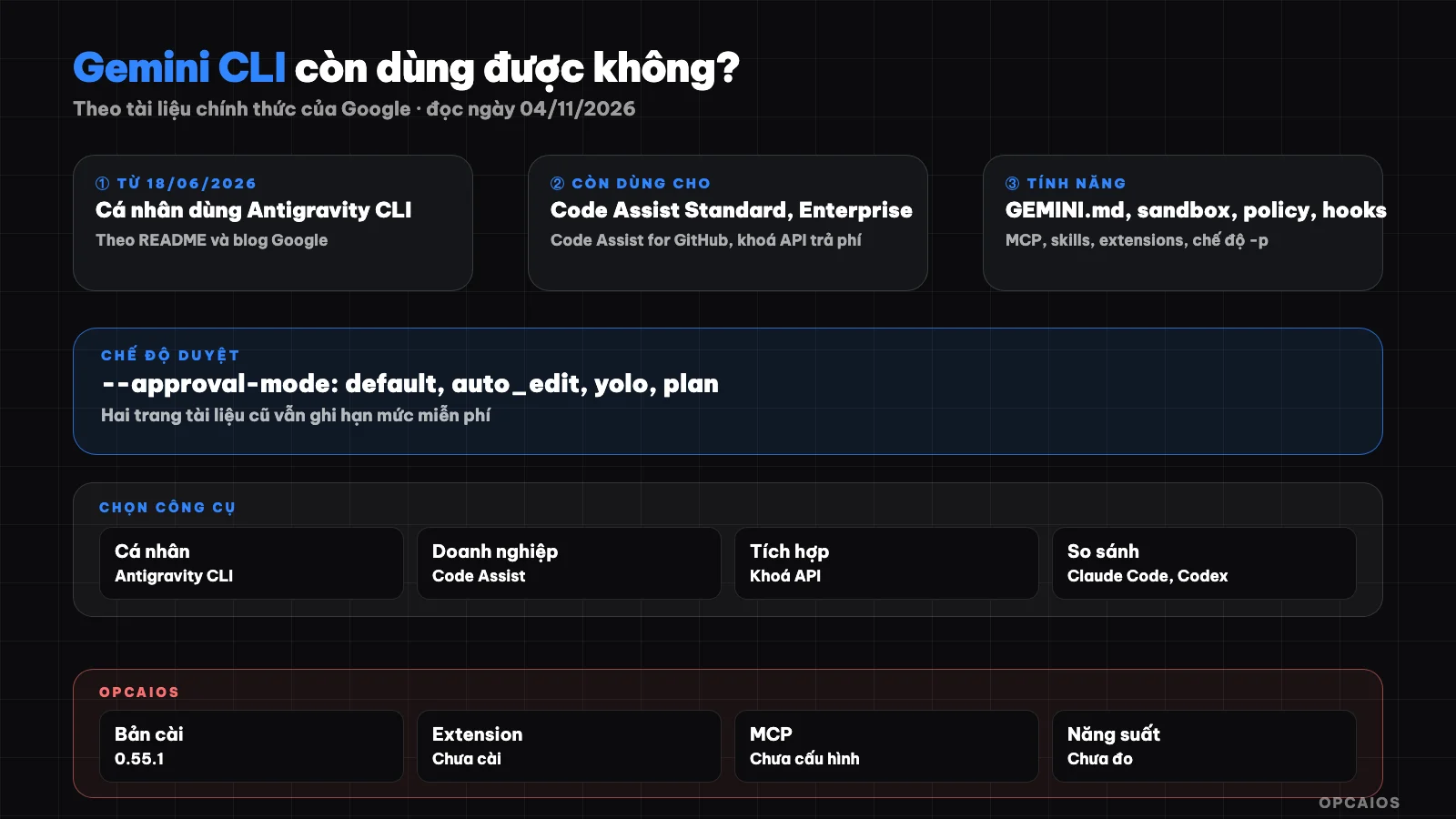
Gemini CLI: from installation to control layers and extensions. Diagram: OPCAIOS.
Who is Gemini CLI for now after the June 2026 change?
Gemini CLI is now mainly for organizations on Google Cloud, no longer the default choice for individuals. The post "An important update: Transitioning Gemini CLI to Antigravity CLI" on Google Developers Blog (19/05/2026, read 04/11/2026) states that from 18/06/2026, Gemini CLI stopped serving requests from Google AI Pro, Ultra users and free users via Gemini Code Assist for individuals. Business users with Gemini Code Assist Standard or Enterprise licenses keep access, and Gemini CLI still works with paid API keys. The README (read the same day) adds: Gemini CLI has not been optimized for the Gemini 4 line like Gemini 4 Argon, and should not be used to benchmark models. Google suggests individuals use Antigravity CLI (command agy); calling API from scripts has its own tool called Gemini API CLI. If you work solo, read the post Antigravity CLI (agy) before installing Gemini CLI.
How do I install Gemini CLI?
Installing Gemini CLI requires Node.js 20 or higher; the Installation page (read 04/11/2026) lists macOS 15 or higher and Windows 11 24H2 or higher in system requirements. Installation methods per README:
npx @google/gemini-cli
npm install -g @google/gemini-cli
brew install gemini-cli
The first line runs a trial without installing, the second line installs globally via npm, the third line installs via Homebrew on macOS or Linux. The project has three release channels: nightly, preview, and stable (weekly). The latest stable version on the changelog page dated 04/11/2026 is v0.64.0, released 13/10/2026. Check your current version with gemini --version.
What are the ways to log in to Gemini CLI?
Logging in to Gemini CLI has three ways per README and the Authentication page (read 04/11/2026):
- Sign in with Google: run
gemini, choose to sign in, browser opens login page, credentials stored locally for next time. With organization Code Assist license, you need to set theGOOGLE_CLOUD_PROJECTvariable. - Gemini API key: get the key in Google AI Studio, set it in the
GEMINI_API_KEYvariable. - Vertex AI: set
GOOGLE_API_KEYandGOOGLE_GENAI_USE_VERTEXAI=true.
Note: the Authentication page still recommends signing in with a personal Google account, which contradicts the README and blog; we consider the README and blog more recent. How to get and protect keys is in the post Gemini API and AI Studio.
What is GEMINI.md used for in Gemini CLI?
GEMINI.md is a context file containing long-term instructions for the agent, like code conventions, test commands, writing style, so you don't have to repeat them in each prompt. Per the "Provide context with GEMINI.md files" page (read 04/11/2026), Gemini CLI loads context in three layers then merges content sent with each prompt:
- Global file in the
.geminifolder in the user directory, applies to all projects. - File in the working directory and parent directories, applies to the current project.
- Just-in-time loaded file: when a tool touches a directory, CLI looks for GEMINI.md there and in parent directories up to the trusted root.
The /memory show command shows loaded context; large files are split using @file.md syntax. The idea is similar to CLAUDE.md from Claude Code and AGENTS.md from Codex.
How are --approval-mode settings different?
The approval mode decides what the agent can do on its own without asking you. According to gemini --help version 0.55.1, the --approval-mode flag accepts four values:
| Mode | Behavior per help | When to use |
|---|---|---|
default |
Ask before running tools | Real projects, when just starting |
auto_edit |
Auto-approve file-editing tools | Familiar code edits, with Git |
yolo |
Auto-approve all tools | Only in sandbox or test machines |
plan |
Read-only | Surveying, planning before editing |
The -y or --yolo flag is equivalent to yolo mode. The Plan Mode page (read 04/11/2026) describes plan as a read-only environment for researching and planning before editing code. Safety advice: don't run yolo on directories containing keys, .env files, or customer data; see security when using AI to write code.
What does Gemini CLI's sandbox protect?
The sandbox is an isolation layer between the agent's actions (shell commands, file edits) and the real machine, reducing the risk of breaking the system or losing data. According to the "Sandboxing in Gemini CLI" page (read 04/11/2026), you enable the sandbox with the -s flag, the GEMINI_SANDBOX environment variable (values true, docker, podman, sandbox-exec, runsc, lxc), or the tools.sandbox section in settings.json. On macOS there is Seatbelt using sandbox-exec; the default profile permissive-open restricts writing outside the project directory but still allows broad reading and network access. The strict-proxied profile is more restrictive, limiting both reading and network. In other words, the default sandbox does not prevent reading files outside the project or sending data over the network.
How do MCP, extensions, and skills extend Gemini CLI?
Three mechanisms address three different needs. According to the documentation (read 04/11/2026) and help for version 0.55.1:
- MCP: an MCP server provides tools and resources to the agent. The command
gemini mcp add <name> <commandOrUrl>adds a server; there arelist,remove,enable,disable. - Extensions: a package containing prompts, MCP servers, custom commands, themes, hooks, sub-agents, and skills, installed via
gemini extensions install <source>from a Git URL or local directory. - Skills: following the Agent Skills open standard, each skill is a directory with
SKILL.md. At the start of a CLI session only the name and description are loaded; when the work matches, the model calls theactivate_skilltool, you confirm, then the full content is loaded. Managed withgemini skills list,install,link,enable,disable.
Extensions and skills from untrusted sources can run commands on your machine; read the code before installing.
How do hooks and the policy engine control the agent?
Hooks and the policy engine are two control layers running alongside the agent. According to the Gemini CLI hooks page (read 04/11/2026), a hook is a script running synchronously at points in the loop like SessionStart, BeforeAgent, BeforeModel, BeforeTool, AfterTool, SessionEnd; the hook reads JSON from stdin, returns JSON to stdout, and can block tools, add context, or log; outputting non-JSON text to stdout breaks parsing and the CLI allows it by default. There is a command gemini hooks migrate to move hooks from Claude Code. The policy engine (Policy engine page, read the same day) uses a TOML file; each rule has conditions (tool name, arguments, approval mode) and decides allow, deny, or ask_user with priority; the highest priority matching rule wins. An example in the documentation blocks shell commands starting with rm -rf. The --policy flag loads an additional rules file; the old --allowed-tools flag is deprecated.
When do you use the non-interactive mode -p?
Non-interactive mode (headless) runs one request then exits, suitable for scripts, CI, or automation tools. According to gemini --help and the Headless mode page (read 04/11/2026), this mode turns on when using -p/--prompt or when running outside an interactive terminal. Example from the README:
gemini -p "Explain the architecture of this codebase"
The --output-format flag accepts text, json (a single object with response, stats, error) or stream-json (a stream of JSONL events). Exit codes: 0 for success, 1 for general error or API error, 42 for input error, 53 for rate limit exceeded. Don't combine -p with yolo on real data without a policy blocking dangerous commands.
What is Gemini CLI's free tier today?
Gemini CLI's free tier for individuals, according to the README and Google blog read on 04/11/2026, no longer exists: free access and Google AI Pro, Ultra packages have moved to Antigravity CLI from 18/06/2026. The "Quotas and pricing" page on geminicli.com on the same date still posts the old table (for example, 1,000 requests per day for individual Code Assist, 250 requests per day for free API keys); this table contradicts the README so we consider it not updated and don't use it as evidence. The remaining numbers match the announcement that they are organization quotas: Code Assist Standard 1,500 and Enterprise 2,000 requests per person per day. Paid API keys are charged according to Gemini API quotas and pricing.
How is Gemini CLI different from Claude Code, Codex, and Antigravity?
All four tools are coding agents, differing mainly in model and audience (summary, not quality assessment):
| Tool | Primary model | Current audience |
|---|---|---|
| Gemini CLI | Gemini | Organizations with Code Assist, paid API keys |
| Antigravity CLI and app | Gemini | Free individuals, AI Pro, Ultra, Google Cloud |
| Claude Code | Claude | Anthropic users |
| Codex | OpenAI model | OpenAI users |
OPCAIOS's experience
OPCAIOS's main Mac has Gemini CLI version 0.55.1 installed via Homebrew, older than stable v0.64.0. When writing the post, we only ran gemini --version, gemini --help, and subcommand help to cross-check flags; ran no tasks, did not log in. gemini extensions list reported no extension installed, gemini mcp list reported no MCP server configured. We have not measured productivity. Daily orchestration uses Google Antigravity (running Gemini model), in parallel with Claude Code and Codex; see Antigravity, Claude Code and Codex in one system.
Frequently Asked Questions
Is Gemini CLI still free?
According to the README on GitHub and a Google Developers blog post I read on 04/11/2026, it's no longer free for individuals: as of 18/06/2026, Gemini CLI stopped serving free users through Gemini Code Assist for individuals and Google AI Pro, Ultra users. The source code remains open under Apache 2.0, but calling the model requires an organization's Code Assist license, a paid Gemini API key, or Vertex AI.
Should someone working solo use Gemini CLI or Antigravity CLI?
According to the README guidance I read on 04/11/2026, Google suggests individuals, free accounts, and Google AI Pro, Ultra users use Antigravity CLI; Gemini CLI is for organizations with Gemini Code Assist Standard, Enterprise, or Code Assist for GitHub. Per Google's blog, Antigravity CLI retains Agent Skills, Hooks, Subagents, and Extensions (as plugins), though not yet fully equivalent. Solo workers should try Antigravity CLI first, but anyone already holding an organization Code Assist license or with CI workflows already built around Gemini CLI still has reason to keep it.
Is GEMINI.md like CLAUDE.md and AGENTS.md?
Same idea: one Markdown file containing long-form instructions for an agent. According to documentation I read on 04/11/2026, Gemini CLI loads GEMINI.md from the user directory, project directory, and parent directory, adds files loaded at the right moment when the tool enters a subdirectory, then merges everything and sends it with each prompt. The @file.md syntax lets you split large files.
Is running Gemini CLI in yolo mode safe?
Not safe on a real machine or in directories with sensitive data. In yolo mode, per gemini --help, it automatically approves all tools, including shell commands. The default sandbox on macOS only restricts writes to the project directory; it still allows broad reading and network access, according to the Sandboxing page I read on 04/11/2026. If you need to run automation, use a container, tighter sandbox profiles, and a policy engine with deny rules for dangerous commands, then review changes with Git.
Where do I start if I want to learn how to use programming agents for my work?
Pick a tool that fits your current account, write a short context file, keep the default approval mode for the first few weeks, and use Git to review all changes. Start small, like writing tests or documentation. If you want a structured roadmap, check out OPCAIOS's AI application training course.
Source: The README from google-gemini/gemini-cli on GitHub, the post "An important update: Transitioning Gemini CLI to Antigravity CLI" on Google Developers Blog (19/05/2026), documentation pages at geminicli.com/docs and gemini --help version 0.55.1 (read 04/11/2026); unverified: actual behavior when running tasks, rate limits when using a paid API key, accuracy of the Quotas page at geminicli.com; flag descriptions based on version 0.55.1; newer versions may differ. Experience is from OPCAIOS.
Translated from Vietnamese with AI. Read the original.
Want to apply this in your business?
Book a free 30-minute call (Vietnam time, in English or Vietnamese).