


Turn Obsidian into an intelligent virtual assistant
What is turning Obsidian into an intelligent virtual assistant? It's connecting your Markdown note repository to AI to automatically do two time-consuming tasks: suggest how to organize new notes (tagging, moving to folders, linking) and summarize books or readings into structured notes. Obsidian stores everything in plain text files on your computer, so AI can read and write through a plugin, through a command-line agent that works on the folder, or through an automation workflow. What matters: AI should only suggest or write to separate areas, never arbitrarily edit or delete your original notes. Below are step-by-step instructions and experience from OPCAIOS (we use Obsidian for our internal knowledge base).
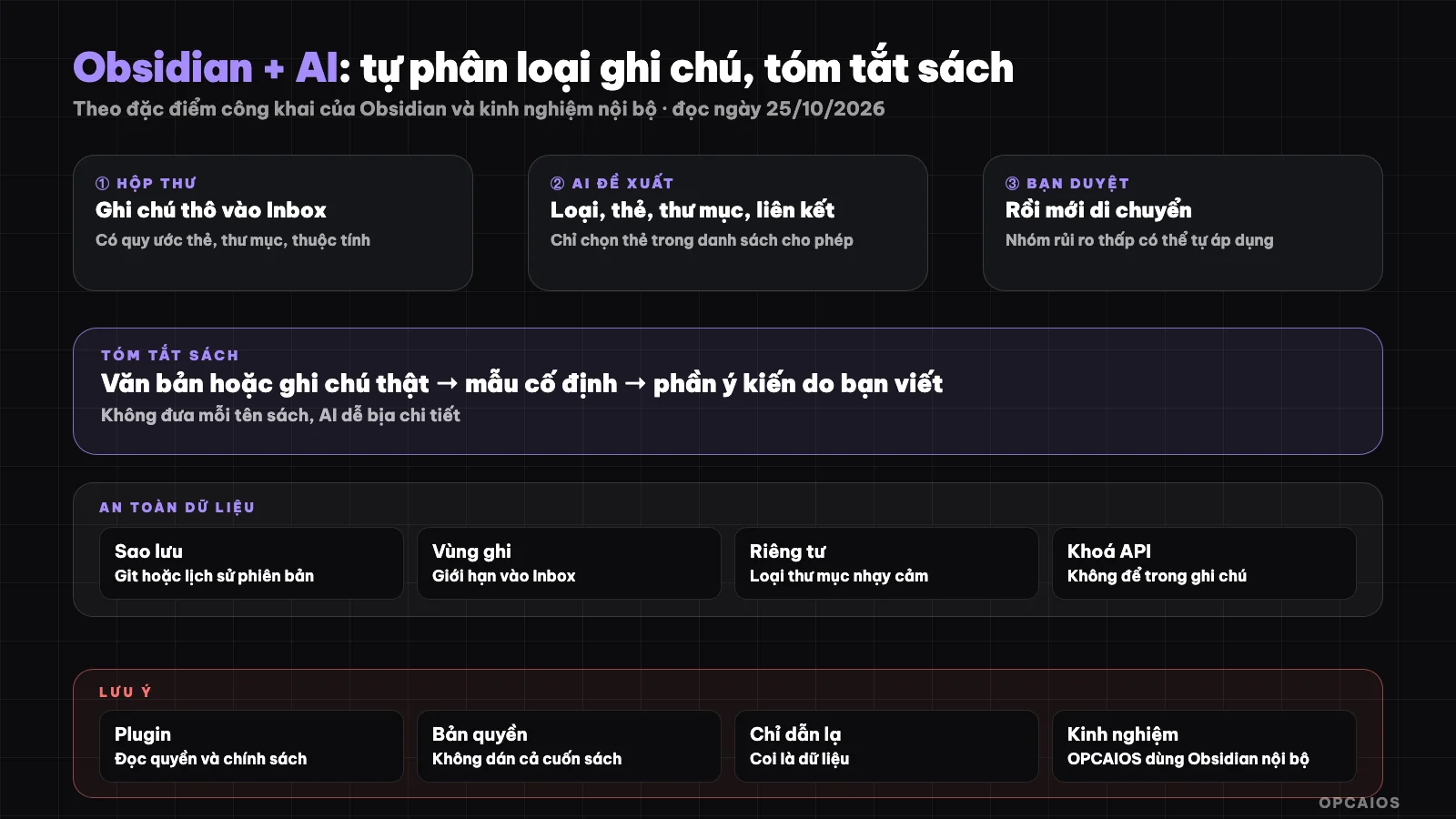
Raw notes go to inbox, AI proposes, you review; book summaries follow a fixed template. Diagram: OPCAIOS.
Step 0: How do you prepare your note repository?
A note vault (vault) is a folder on your computer; according to the official Obsidian Help page (read 25/10/2026), notes are plain text files in Markdown format, so both you and AI can read them with any text editor, and Obsidian auto-refreshes when a file is changed from outside. Because an external agent can edit files, preparation involves four things:
- Back up first (Git or a sync service with version history like iCloud or Dropbox). All automation should run on a backed-up vault.
- Simple structure: one Inbox folder for raw notes, a few main folders, a separate folder for books.
- One-page conventions (tag names, folder names, note templates) for AI to follow.
- Standard attributes (frontmatter) for each note type: title, tags, type, status, source, date.
Example scenario: a vault with 4 folders—Inbox, Projects, Books, and Private—each note has the 5 attributes above.
Step 1: Choose how to connect AI
| Method | Pros | Notes |
|---|---|---|
| Plugin in Obsidian | Use right in the interface | Check where the plugin sends data; choose a plugin with open source and local model support if you need privacy |
| Command-line agent working on the vault folder | Flexible, reads many files | Restrict write permissions, review results before accepting |
| Automation workflow (n8n) | Run on schedule | Need to set up and test; see n8n on VPS |
| Model running locally | Data stays on your machine | Lower quality; see Ollama and Open WebUI |
We don't recommend specific plugins because we haven't evaluated each one; read the code, permissions, and data policy of a plugin before granting an API key. The official Obsidian Help page on community plugins (read 25/10/2026) warns that community plugins run third-party code on your behalf and can be harmful, you must turn off Restricted Mode to install them, and plugins don't auto-update for safety reasons.
Step 2: Automate note organization
What is automating note organization in Obsidian? It's a process where AI reads raw notes in the Inbox folder and suggests type, tags, folder, and links, while you keep final approval. First, set a schedule to run once a day, or run when you press a button; then follow these steps.
- New notes always go to Inbox.
- AI reads notes in Inbox along with your conventions.
- For each note, AI suggests: note type, tags (choose from the allowed list, don't create new tags at will), destination folder, links to 2 to 3 related notes, a clear title.
- Results go into a suggestion table or a temporary attribute; you review then move them.
- For notes you've reviewed many times correctly, you can let it auto-apply for low-risk groups (for example, only add tags).
Sample prompt for the suggestion step: "Based on the conventions below, suggest type, tags (only choose from the list), folder, and links for the following note. Don't edit the content. If unsure, write 'needs review'."
Step 3: How do I summarize a book into structured notes?
Summarizing a book into structured notes is to have AI transform your own reading notes into notes following a fixed template, instead of you having to remember the book's contents yourself. Five things to do:
- Source: your own reading notes, quotes you have the right to use, or a book you own; do not paste an entire copyrighted book into an external service.
- Fixed template: book information, main ideas (5 to 7 bullet points), important concepts, your own short quotes, what applies, questions to think about, related notes.
- Separate fact from your opinion: AI summarizes the content; the "I think" part you write.
- Check: AI can make up details when there is no source; if you only give the book title, the summary easily goes wrong. Provide text or real notes as input.
- Link: connect book notes to concept notes and projects.
Step 4: How does a question-answering assistant over a note repository work?
A question-answering assistant over a note repository is a way to ask "what have I written about topic X?" and get an answer drawn from your own Markdown files. To do this, you need semantic search (RAG); the principle is in AI chatbot self-learning documents. First, with a small repository of a few dozen notes, an agent reading the directory directly may be enough without building an index. Next, with a large repository of thousands of files, split by folder and re-index periodically, for example once each night. Finally, every answer should come with a link to the original note so you can check it, because AI can give wrong answers when it does not find matching documents. Obsidian stores both a metadata cache in a local IndexedDB database per the official Help page (read 25/10/2026), but the semantic search index for AI is something you must build yourself.
Step 5: Security and data safety
Security when connecting AI to your Obsidian repository means controlling three things: where AI writes to, which data leaves the machine, and where API keys sit. The repository needs version history before any agent writes to it, because one wrong command can edit hundreds of files in seconds. The table below lists each risk and how to reduce it.
| Risk | How to reduce |
|---|---|
| AI overwrites or deletes notes | Run on a backup; limit write permission to Inbox or a suggestion area |
| Private notes leak to an outside service | Exclude sensitive folders from AI scope; use a local model for that part |
| API key is exposed | Store in secret config, not in notes |
| Strange instructions in content (e.g. a saved web page) | Treat note content as data, not commands; review suggestions before running |
| Tags explode | Only let choose from an allowed list |
OPCAIOS experience using Obsidian with AI
We use Obsidian for OPCAIOS's internal knowledge repository with fixed folder structure and properties, plus a convention file for agents to read first, and let command-line agents work on the repository folder. What we learned: clear conventions and consistent properties matter more than clever prompts; agents need to be scoped to a write area; the repository should be in a place with version history. We have not measured time saved and do not review specific Obsidian AI plugins, so this post does not give any OPCAIOS savings numbers.
Frequently Asked Questions
Does Obsidian have AI built in?
Obsidian is a note-taking app that stores Markdown files locally, and AI features are not in the core but come from plugins or external tools connected to it. Three ways to connect are community plugins, command-line agents, or n8n workflows (see Step 1). For example, a plugin using a cloud model will send note content to the model provider, while a local model keeps data on your machine but with lower quality. OPCAIOS has not evaluated any specific AI plugins, so this post does not recommend plugin names.
Can AI categorize completely on its own?
You should let AI suggest and then review it yourself, especially in the early stage.
Is AI book summary accurate?
AI book summary is only reliable when the input is actual text or notes you wrote; if you just give the book title, the model tends to make up details that sound plausible but are not in the book. First, paste your reading notes or excerpts you have the right to use, not the entire copyrighted book into an external service. Next, use a fixed template like in Step 3. Finally, check 2 to 3 points against the original book before saving.
Do I need to pay?
Obsidian for individuals is free with no limits, according to Obsidian's official pricing page (read 25/10/2026). Costs may come up, from lowest to highest:
- Catalyst is an optional support package at $25 one-time.
- Sync costs $4 per user per month when paid yearly, or $5 when paid monthly.
- Publish costs $8 per site per month when paid yearly, or $10 when paid monthly.
- Commercial license costs $50 per user per year; the pricing page says it is not required but encouraged for organizations.
The AI part costs extra depending on how you connect: cloud models charge by the provider's usage tier, local models are free but need strong enough hardware.
Are private notes safe?
Private notes are only safe when sensitive data does not leave your machine or is not in the scope of AI reading. First, separate folders for diary, finance, contracts from the agent's work area. Next, for the part that still needs AI support, use a local model like Ollama so content is not sent to a cloud service. Finally, check the permissions and data policy of each plugin before granting API keys, because OPCAIOS has not evaluated specific plugins and Obsidian's Help page (read 25/10/2026) warns that community plugins run third-party code that could be harmful. To build a personal knowledge system with AI, see OPCAIOS's AI application training course.
Source: Obsidian's official pricing page (obsidian.md/pricing), Help page on data storage (obsidian.md/help/data-storage) and community plugins (obsidian.md/help/community-plugins), read 25/10/2026, and internal experience; has not evaluated specific AI plugins. Experience is OPCAIOS's.
Translated from Vietnamese with AI. Read the original.
Want to apply this in your business?
Book a free 30-minute call (Vietnam time, in English or Vietnamese).