

What is a DIY social media template?
A DIY social media template is writing a pre-designed image layout in code (HTML, SVG, or JSX), leaving only text fields, colors, and background images blank, then letting software fill in the data and export to PNG or WebP. Unlike opening Canva or Figma and dragging each image, a DIY template turns an image into a function: put in a title and metrics, get out an image that correctly reflects the brand. Short answer: DIY is worth it when you need brand consistency, create batches from data, or plug into automated workflows; it's not worth it when you need free-form design, collaboration with non-coders, or a large template library. This post does not compare price or features of Canva, because we could not read Canva's official page when writing this. The post covers selection criteria, techniques for building templates, dimensions per Meta and YouTube guidelines, font and image rights, AI image labeling, and how OPCAIOS builds DIY image templates.
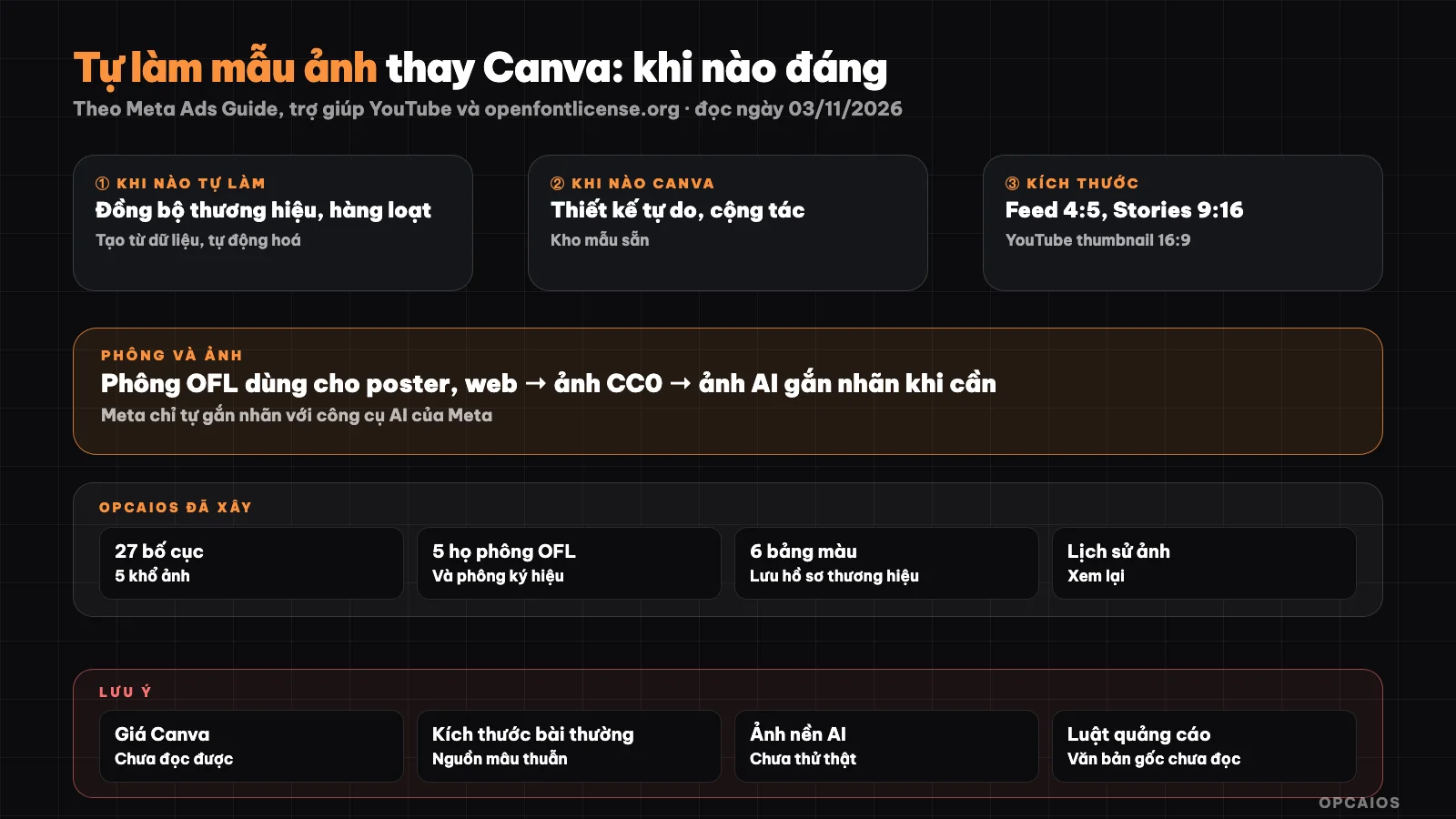
DIY template turns image into a data function; free-form design still fits with drag-and-drop tools. Diagram: OPCAIOS.
When should you build your own social media template?
You should build your own social media template when images repeat often, the layout is stable, and data already exists in your system. Three typical situations:
- Need brand consistency: every image uses the right font, right color, right logo placement. When the template is code, no one accidentally changes font size or shifts color.
- Create batches from data: 30 pull quotes, 12 tips in one carousel series, cover image for each blog post. One loop generates them all instead of editing each one by hand.
- Automate: when a post is written, the system auto-creates a few image options and you just pick one. This needs images generated by code running on a server.
Hypothetical example: an online course posts one "tip" daily with a title, three points, and author name. The layout is 100% the same; only the text changes. This is where DIY templates work best. See more on choosing tools by cost in the post AI toolkit for the OPC model.
When should you use Canva or Figma?
Use Canva or Figma when each image is its own design, when the person creating doesn't write code, or when multiple people need to edit. Four situations:
- Free-form design: event poster, product launch image, images that need eye-adjusted alignment.
- Collaboration: teammates, clients, or designers need to give feedback right on the image.
- Template library: need quick ideas for many layout types you haven't built before.
- Few images: a handful each month means the time to code a template never pays back.
We don't list Canva features or pricing here because the official pricing page blocks automated access when we read it on 03/11/2026; check Canva's page directly. Before paying for any tool, read the post breaking the AI tool buying habit: audit your spend.
How do you build an image template with HTML or SVG?
Building an image template with HTML or SVG means writing a layout like a fixed-size webpage, then using a builder to screenshot it as an image. Two common approaches: open the page in a headless browser and take a screenshot, or use a library to turn JSX to SVG to PNG without a browser. The parts of a good template:
- Fixed frame by aspect ratio: for example 1080 × 1350 for 4:5 portrait; all positions as percentages so changing aspect ratio is easy.
- Self-wrapping text: long title shrinks text size to fit, instead of overflowing. This takes the most work.
- Color palette: each palette has accent color, dark background, light background; the template just calls the color name, not hardcoded hex codes.
- Background image: stock image, uploaded image, or AI image, with a dark overlay so text reads.
- Export image: PNG for sharp text; WebP is lighter for web. Note some builders can't read WebP background images, so use JPG or PNG as input.
One common trap: font missing special characters (arrows, icons) makes the image break or hang; pack one symbol font ahead of time instead of letting the builder load fonts at runtime.
What are the standard image sizes for each platform?
Standard image sizes should come from official platform documentation, since aggregator pages are often outdated or contradictory. The numbers below are from official documentation as of 03/11/2026:
| Platform | Recommended ratio | Recommended resolution | Source |
|---|---|---|---|
| Facebook Feed image ads | 4:5 | 1440 × 1800 | Meta Ads Guide |
| Instagram Feed image ads | 4:5 | 1440 × 1800 | Meta Ads Guide |
| Instagram Stories image ads | 9:16 | 1440 × 2560 | Meta Ads Guide |
| YouTube video thumbnail | 16:9 | 3840 × 2160 (minimum width 640) | YouTube Help |
| YouTube Shorts thumbnail | 9:16 | 2160 × 3840 | YouTube Help |
Meta Ads Guide specifies JPG or PNG format, maximum 30 MB, and for Stories recommends leaving 14% at the top, 35% at the bottom, and 6% on both sides for text and logos, since those areas may be obscured. YouTube Help accepts JPG or PNG. We have not verified documentation for regular posts (not ads) on Facebook, Instagram, TikTok, and LinkedIn. The 1080 × 1350 size with 4:5 ratio should work for feed, just with less than the recommended resolution.
What copyright considerations apply to fonts and images?
Font and image copyright is the easiest part to overlook when making templates yourself, because the exported image looks like your own but the fonts and background images belong to someone else. Fonts: many fonts on Google Fonts use the SIL Open Font License (OFL). The official website openfontlicense.org (read on 03/11/2026) states that OFL fonts can be used in books, posters, logos, websites, do not require attribution, can be modified and redistributed, but Reserved Font Names may need to be changed when modifying the font. Check each font: in the google/fonts source repository, Be Vietnam Pro, Montserrat, Playfair Display, Lexend, and Oswald all have OFL licenses. Images: only use images you shot yourself, images you bought licenses for, or open license images like CC0 and public domain; record the source and license for each image. Do not take sample images from other accounts as backgrounds, even just to "reference the style". This section is for reference only, not legal advice.
Do AI images need labels?
AI images should be labeled when they could mislead viewers into thinking they are real photos, especially images with people that look realistic. Meta's help page (read on 03/11/2026) states that ads with images created or significantly edited using Meta's generative AI tool will have "AI info" in the three-dot menu; if there are AI-generated people who look realistic, the label appears next to the word "Sponsored". Minor edits like resizing or color correction do not trigger the label. Images created with outside AI tools are not automatically labeled by Meta; only ads about politics, elections, or social issues must self-declare content edited with digital techniques. This means if you make AI images with your own tool, it is your responsibility to note it clearly. A simple approach: add a small line "Illustration image created with AI" to the template, toggleable with a switch.
OPCAIOS experience
OPCAIOS built its own "Image Templates" tool in the internal admin area instead of using Canva for repetitive social media images. The codebase contains 27 layout templates: classic group (title, list, before and after, quote, checklist, statistics, steps, comparison, tweet style, misconceptions, question, event, customer feel, offer, device frame) and cut-and-paste group (versus, text block, cover, poster, sticker...), some only available in landscape. There are five sizes: 4:5, square, 1200 × 630 for link preview images, 9:16, and 16:9. The title font can be chosen from six styles across five OFL font families, plus one built-in symbol font. There are six preset color palettes, and custom palettes and brand profiles can be saved. Background images come from the library, uploads, or AI; the ready-cut shape library lists CC0 or public domain sources and licenses. AI options include suggesting image options from an idea, carousel sequencing, and making a few image options daily for pending design posts so people can choose (review portal similar to should we hand marketing plans to an AI CMO); generating backgrounds with AI has not been tried with real data since each image costs. Every image made is saved in history; deleting an image does not delete the file if the post still uses it. The blog also builds diagrams and cover images with scripts: diagrams are a fixed-size HTML page captured with a headless browser then converted to WebP. We have not measured whether self-made images get better engagement than Canva images.
Frequently Asked Questions
Can someone without programming knowledge create image templates themselves?
Yes, if you ask an AI agent to write the template and accept a few rounds of revisions. You describe the layout, image size, fonts, and colors; the agent writes the HTML or JSX template along with a script to export images. The hardest part is dealing with text overflow, so test the template with both the shortest and longest possible titles. If you only need a few images each month, Canva or Figma is still faster. See more at Claude Code là gì.
Should I export social media images as PNG or WebP?
For images posted on social media and ads, PNG or JPG is safer because Meta Ads Guide and YouTube Help explicitly mention these two formats. PNG keeps text sharp and works well for image-heavy designs; JPG is lighter for photographs. WebP works well for images displayed on your website because it's smaller in size. The practical approach: export PNG as the master file, then convert to WebP when uploading to the web.
Can I use Google Fonts for selling images?
Most fonts on Google Fonts use the SIL Open Font License, which allows you to use them in images, posters, logos, and websites without requiring you to credit the author. However, each font has its own license, so check the license file of the specific font you're using. Fonts downloaded from unclear sources shouldn't be used for commercial images. This is not legal advice.
Will AI images posted on Facebook be automatically labeled?
According to Meta's help page as of 03/11/2026, the "AI info" label is automatically applied to ads with images created or significantly edited using Meta's own generative AI tools; images made with outside tools do not get automatically labeled. Political ads and social issue ads must be self-declared. So if you use AI images with people that look realistic, you should write "illustration created using AI" to avoid confusing customers.
Is making your own image template cheaper than Canva?
It depends on volume. Making templates costs time upfront and effort to fix errors or revise them, but in return you pay no per-user fees and can generate many images. If you only make a few images each month, drag-and-drop tools are almost certainly cheaper when you count your time. Count how many images you repeat each month before deciding. To learn how to build automated image and content workflows using AI, check out OPCAIOS's AI application training course.
Sources: Meta Ads Guide pages for Facebook Feed, Instagram Feed, Instagram Stories images; Meta help page on AI image labels in ads; YouTube Help on thumbnails; openfontlicense.org; google/fonts code repository (all accessed 03/11/2026); Canva features and pricing, typical post sizes on Facebook, Instagram, TikTok, LinkedIn not verified; effectiveness of self-made images not measured by OPCAIOS. Experience is OPCAIOS's own.
Translated from Vietnamese with AI. Read the original.
Want to apply this in your business?
Book a free 30-minute call (Vietnam time, in English or Vietnamese).