



Installing Codex CLI means downloading the command-line version of Codex, OpenAI's programming agent, to my machine, logging in, then opening it in a project folder to assign work by voice. This post is for people who don't code professionally and only use commands shown in the README at github.com/openai/codex, Codex documentation at learn.chatgpt.com/docs, and codex --help version 0.162.1, read on 03/11/2026. "15 minutes" is an estimate for a machine with stable internet and an existing ChatGPT account, not a guarantee: corporate proxy, Windows, or login errors may take longer. This post does not promise Codex will fix things correctly; it goes from system requirements to the first task, reading diff, slash commands, and common errors.
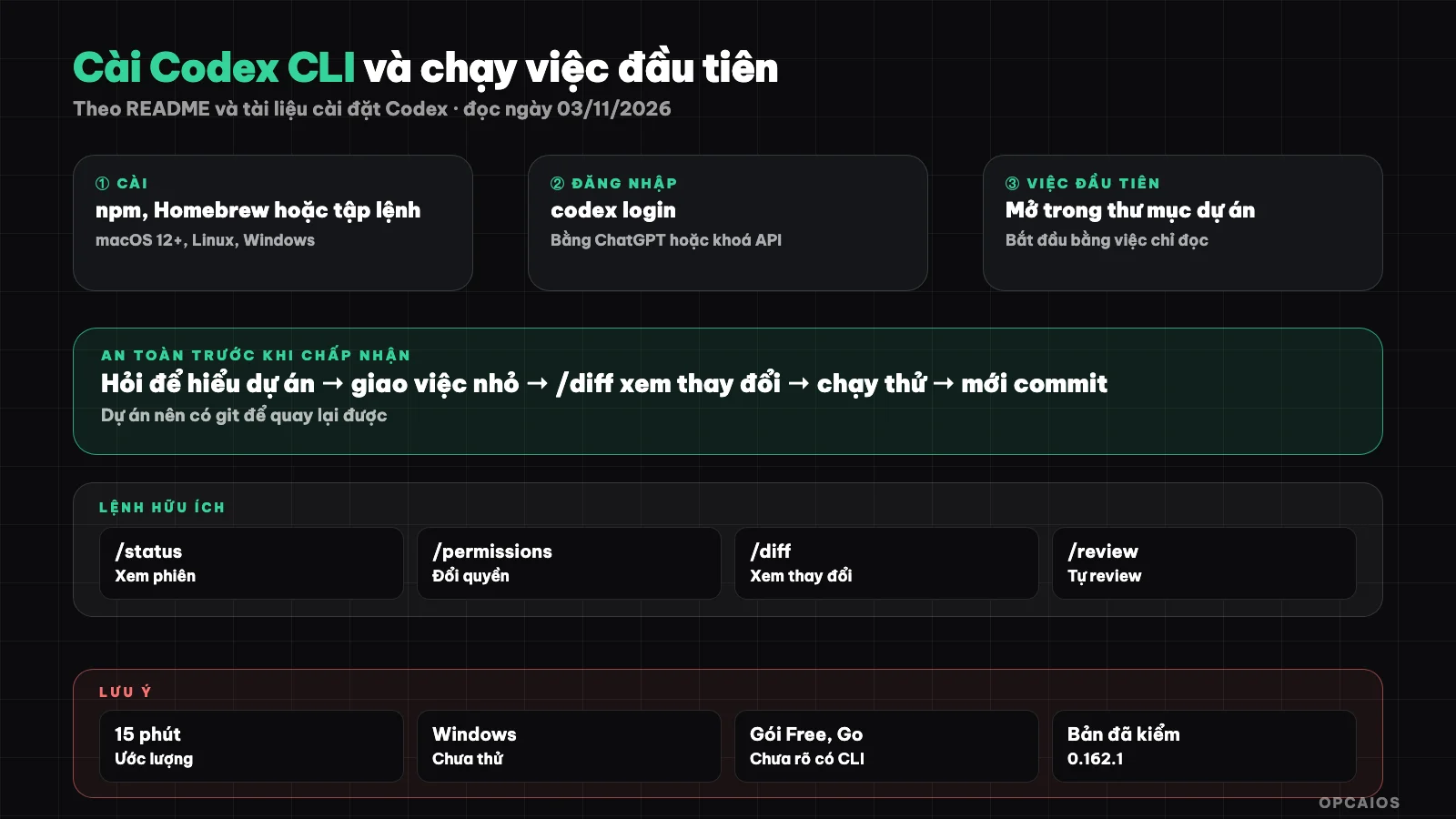
Six steps from a blank machine to the first safe task, each step has a checkpoint. Diagram: OPCAIOS.
What does my machine need to install Codex CLI?
My machine needs a supported operating system, enough memory, and should have git. According to the docs/install.md file in the github.com/openai/codex repository (read on 03/11/2026):
| Item | Requirement per documentation |
|---|---|
| Operating system | macOS 12 or later, Ubuntu 20.04+ or Debian 10+, Windows 11 via WSL2 |
| RAM | Minimum 4 GB, recommended 8 GB |
| Git | Not required, recommended version 2.23 or later |
| Account | ChatGPT account or OpenAI API key |
A discrepancy to know about: install.md states Windows 11 via WSL2, but the README and current Codex CLI page have an installer that runs directly in PowerShell. Windows users should follow the latest Codex CLI page. The pricing page on the same date states CLI is included in Plus plans or when using an API key. Pricing for plans is in the post What is Codex.
What are the ways to install Codex CLI?
Codex CLI has four official installation methods according to the README and Codex CLI page (read on 03/11/2026), choosing one is enough:
- Installation script on macOS and Linux, run in Terminal:
curl -fsSL https://chatgpt.com/codex/install.sh | sh
- Installer on Windows, run in a new PowerShell window:
powershell -ExecutionPolicy ByPass -c "irm https://chatgpt.com/codex/install.ps1 | iex"
- npm, if my machine already has Node.js:
npm install -g @openai/codex
- Homebrew on macOS:
brew install --cask codex
Commands like curl ... | sh run the downloaded script immediately, so only paste the exact command from official documentation. After installation, open a new terminal window and type codex --version; my machine returned codex-cli 0.162.1. Update using the same method used to install: run the script again, run npm again, or brew upgrade --cask codex; codex --help also has an codex update command.
How do I log in to Codex CLI?
Logging in to Codex CLI has two paths: ChatGPT account or API key. According to the Authentication page in the Codex documentation (read on 03/11/2026), the first time I run codex I choose "Sign in with ChatGPT", or I can run codex login directly; a browser opens, I log in, the browser returns login information to CLI. With an API key, the documentation directs me to pass the key via standard input instead of typing it on the command line:
printenv OPENAI_API_KEY | codex login --with-api-key
codex login status shows which method I'm logged in with; codex logout removes login information from a shared machine. Using an API key means costs are calculated by API pricing on my OpenAI Platform account, not against my ChatGPT plan limits. Login information is stored by default in ~/.codex/auth.json as plain text or in my operating system's credential store. Don't send this file to anyone, don't put it in git, don't paste keys into prompts. See also security when using AI to write code.
How to Open Codex CLI in a Project Directory?
Opening Codex CLI in the right directory determines what Codex reads and edits. Codex treats the directory you're standing in as the working directory, so enter your project directory before typing codex, or use the -C flag (long name --cd). According to the "Agent approvals & security" page (read on 03/11/2026), when starting Codex it checks if the directory has git: if it has git, it suggests Auto mode (edit files and run commands in the working directory, ask when needed to go outside or use the network); if it doesn't have git, it suggests read-only mode; depending on settings, Codex may be read-only until you confirm trust in the directory. For newcomers, prepare in four steps:
- Copy the real project to a separate directory.
- Turn on git and create an initial commit as a fallback point; Codex documentation recommends creating a git checkpoint before and after each task.
- Don't keep files with passwords, keys, or customer data in the test directory.
- Open a terminal in the directory, type
codex.
How to write project instructions for Codex is covered in the post What is AGENTS.md.
How to Safely Assign the First Task to Codex?
The first safe task is a read-only task: Codex views the project and explains, doesn't edit anything. The Codex CLI page suggests starting with a prompt like "Tell me about this project". To make sure Codex doesn't edit files, start in a read-only sandbox using two flags found in the documentation and codex --help:
codex --sandbox read-only --ask-for-approval on-request
Example for a small website, not a real project:
- "Explain what this project does, what directories it has, in plain language for someone who doesn't know code."
- "Suggest three small, low-risk changes, but don't edit anything yet."
Once you understand the project, then assign a small editing task, like changing one line of text on the homepage. Type /plan with your request so Codex can suggest a plan first; type @ to find and insert a file path into your prompt. When Codex needs to exceed current permissions, it stops and asks for approval: read the command it plans to run before you agree. Details are in the post Codex approval mode and sandbox.
How to Read the Diff Before Accepting Changes?
A diff is a comparison showing which lines are deleted, which are added, and which files are changed. According to the Codex CLI command page (read on 03/11/2026), /diff shows git diff, including files git hasn't tracked yet, and is recommended to view Codex's changes before committing or running tests. Suggested process:
- Type
/diffafter Codex says it's done. - Count how many files changed; if more than expected, stop and ask why.
- Ask Codex to explain the changes in each file in plain language.
- Type
/reviewso Codex reviews the changes like a second reviewer; the documentation notes review doesn't edit the working tree. - Run a test or open the page the way the project normally does.
- If it works, commit it yourself; if not, ask for more fixes or go back to the previous commit.
Working code can still miss the point; see also using Codex to review code.
Which Slash Commands Are Useful for Newcomers?
Slash commands are commands starting with "/" in a Codex session to control the session, not prompts for the model. The table includes only commands in the built-in command list of the Codex CLI documentation (read on 03/11/2026):
| Command | Used for |
|---|---|
/status |
View model, approval policy, directories you can write to, tokens used |
/permissions |
Change permission level during the session, for example between Auto and Read Only |
/plan |
Make a plan before acting |
/diff |
View changes before committing |
/review |
Ask Codex to review changes in the working tree |
/init |
Create a template AGENTS.md file in the current directory |
/model |
Choose model and thinking level if available |
/quit or /exit |
Exit Codex |
The documentation also notes: type ! at the start of a line to run a shell command under current permissions, Ctrl+C to exit; outside a session, codex resume --last opens the most recent session. Long-term configuration is covered in configuring Codex config.toml.
What errors do you often run into installing Codex CLI?
Errors when installing Codex CLI usually come from command paths, login, and network. How to handle them according to the documentation (read on 03/11/2026):
- Typing
codexsays command not found: open a new terminal; if still broken, reinstall using a different method. - Login doesn't come back, or you hit this on a remote server: use device code (beta) with
codex login --device-auth, after enabling this in ChatGPT security settings. - Company network has TLS proxy: set the
CODEX_CA_CERTIFICATEvariable pointing to your company's certificate file before logging in. - Codex only reads, won't edit: the folder has no git or isn't trusted; check
/status, change with/permissions. - Hit quota midway: check
/status; quota changes by model and job length. - Not sure what the error is: run
codex doctorto diagnose your install, config, and login.
Don't "fix" errors with --dangerously-bypass-approvals-and-sandbox, a flag that turns off both sandbox and approvals.
OPCAIOS's experience
OPCAIOS's main work machine has Codex CLI version 0.162.x and the Codex desktop app, running side by side with Claude Code and Google Antigravity. What we've seen for real:
- AGENTS.md gives Codex user-level instructions, so new sessions answer in Vietnamese on their own, read docs in order, and log at session end.
- Many project folders are marked trusted in config.toml.
- Each session commits only its own files, because multiple agents work one system; we once saw over 1,500 "different" files just because one agent deployed from a Windows machine with different line endings.
We haven't timed install on a fresh machine, so 15 minutes is a rough estimate; we haven't tried installing on Windows; we don't yet have hooks to block dangerous commands.
Frequently asked questions
Does installing Codex CLI cost money?
Installing Codex CLI costs nothing, because Codex CLI is open source under the Apache-2.0 license. The cost is in using the model, through a ChatGPT plan or an API key billed by usage. According to the pricing page read on 03/11/2026, CLI comes in Plus plans at $20 USD/month and up, or when using an API key; the feature table doesn't list CLI for Free and Go. Price doesn't include tax and may change.
Should I install with a script, npm, or Homebrew?
All three are in the official docs. The script method is listed first for macOS, Linux, and Windows. npm works if your machine already has Node.js and you're used to npm. Homebrew works for Mac users who've already installed Homebrew. Use just one way, because installing multiple ways can make your machine run the wrong old version.
Will Codex edit files on its own without asking?
It can, depending on the mode. In Auto mode, Codex edits files and runs commands in the working folder without asking, only stopping when it needs to go outside the folder or use the network. If you want Codex not to edit anything, start with --sandbox read-only, or switch between sessions with /permissions. Always work in a folder with git so you can go back.
Do I need to know how to code to use Codex CLI?
You don't need to know how to write code to start, but you do need to know how to open a terminal, go to the right folder, and make a git commit. The rest you can ask Codex itself in Vietnamese, from explaining your project to explaining diffs. The workflow for beginners is in the post programming agent for people who don't know code: safe workflow.
After I install, what should I learn next?
Learn in order: make AGENTS.md with /init then edit by hand, understand approval mode and sandbox, set the default model in config.toml, then move on to MCP, skills, and automation. If you want someone to guide you through your own real work, check out OPCAIOS's AI application training.
Source: github.com/openai/codex (README, docs/install.md), learn.chatgpt.com/docs (Codex CLI, Authentication, Developer commands, Agent approvals & security, Pricing; developers.openai.com/codex redirects here), codex --help, codex login --help version 0.162.1, read on 03/11/2026; "15 minutes" is a rough estimate, not measured; install on Windows not yet verified, official docs currently show two different methods; price doesn't include tax and may change. Experience is OPCAIOS's.
Translated from Vietnamese with AI. Read the original.
Want to apply this in your business?
Book a free 30-minute call (Vietnam time, in English or Vietnamese).