



What is PM2?
PM2 is a process manager for Node.js applications: it runs applications in the background, automatically restarts them when they crash, and can restore the list of applications when the server restarts. According to PM2's official documentation (pm2.keymetrics.io, accessed 25/10/2026), the core commands include pm2 start, pm2 list, pm2 logs, pm2 restart, pm2 startup and pm2 save, and cluster mode allows you to leverage multiple CPU cores. This post explains what PM2 is, how to run an application 24/7 on a VPS, the ecosystem configuration file, logs, zero-downtime updates, risks and OPCAIOS's experience. Honest note: this post does not guarantee your application will "never crash"; PM2 only restarts the process, it does not fix errors in your code. All examples use fictitious names and paths.
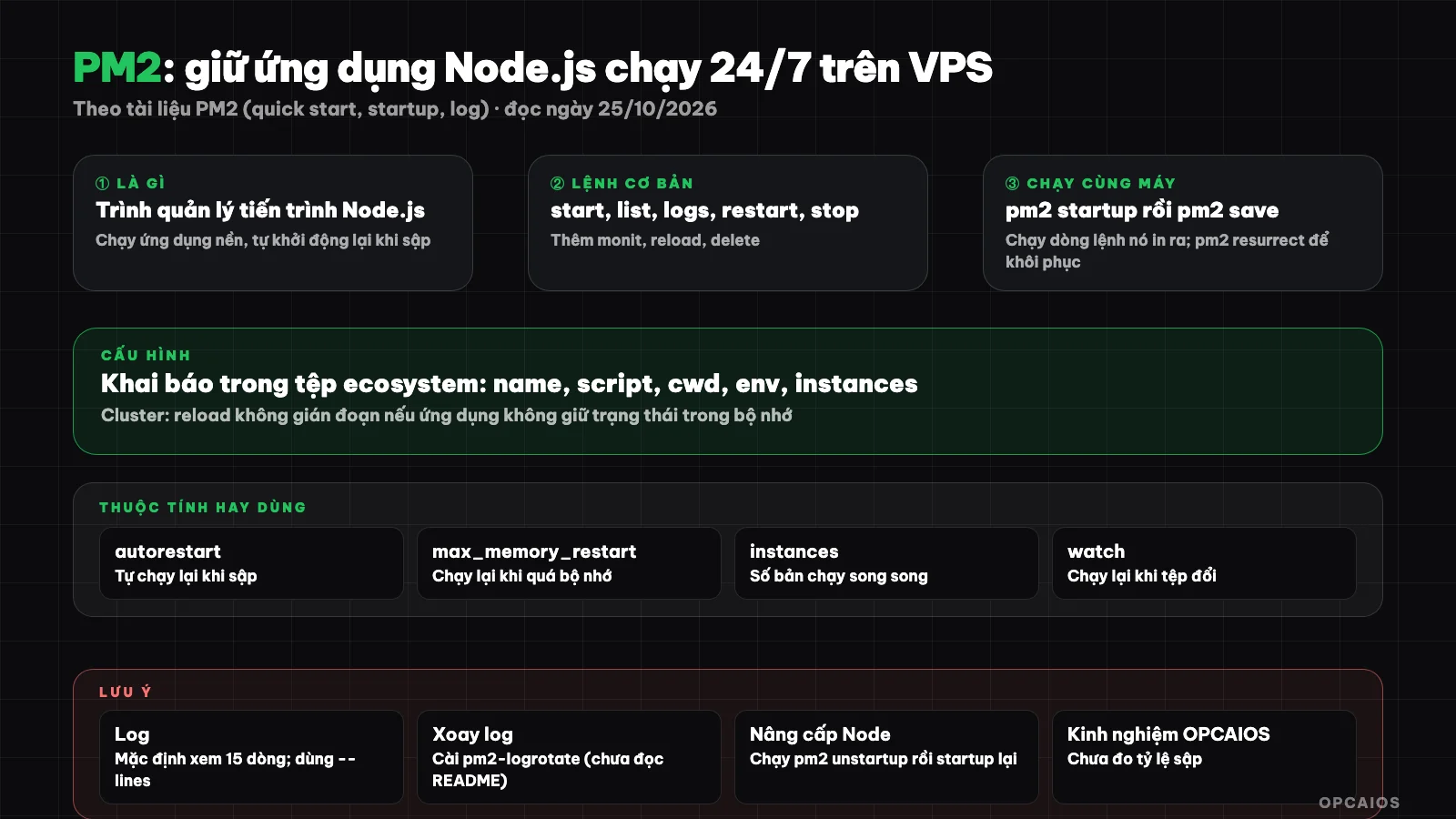
PM2 stands between the operating system and Node.js application. Diagram: OPCAIOS.
What is PM2 and what problem does it solve?
PM2 is a background program that manages Node.js applications for you. If you just run node app.js in a terminal, the application stops when you close the window or when it encounters an error. PM2 keeps the application alive, restarts it when it crashes, writes logs and allows you to manage it with a few commands.
The specific problem: on a VPS, you want your website or bot to run day and night without having to babysit it. There are many ways to do this, but PM2 is popular with Node.js users because it's easy to learn. PM2 only manages processes. It doesn't replace a web server like nginx, doesn't handle security certificates, doesn't automatically back up data. Usually you use nginx to receive traffic from the internet and forward it to the application running under PM2.
Basic PM2 commands
There are seven commands you use every day: pm2 start to run, pm2 list to check status, pm2 logs to view logs, pm2 restart to restart, pm2 stop to stop, pm2 delete to remove from the list, and pm2 monit to view a live monitoring dashboard.
The table below compares with PM2's official quick-start documentation (accessed 25/10/2026). Names like app.js or my-app are fictitious.
| Command | Function |
|---|---|
pm2 start app.js --name my-app |
Run in background, give the process a name |
pm2 list |
List the status of all applications PM2 is managing |
pm2 logs |
View logs in real time |
pm2 restart my-app |
Restart the application |
pm2 reload my-app |
Reload without downtime, for network applications |
pm2 stop my-app |
Stop the application |
pm2 delete my-app |
Remove the application from the PM2 list |
pm2 monit |
Process monitoring dashboard in the terminal |
The application name can be replaced with all or an id number. Be careful with all: pm2 restart all or pm2 delete all affects all applications on the server, including ones you didn't intend to touch.
How to Run Applications 24/7 on VPS Using PM2
The process has four steps: install PM2, run the application, create an autostart script with the server, then save the process list. Many people skip steps three and four, so after the server restarts, the application doesn't run automatically.
- Install PM2 following the installation instructions on the PM2 official page (we haven't verified the installation command this time, so check that page); you need Node.js already on the machine.
- Run the application, for example
pm2 start app.js --name my-appfrom the project directory, assuming/srv/app. - Run
pm2 startupto create a startup script for the system. - Run
pm2 saveto save the current application list.
According to PM2 documentation on startup (read on 25/10/2026): you run pm2 startup WITHOUT sudo; this command prints out a line for you to copy and run, and that printed line is what needs sudo. The documentation has an example like sudo env PATH=$PATH:<node path> pm2 startup systemd -u <user> --hp <home directory>. After upgrading Node.js, the documentation instructs you to run pm2 unstartup, run the line it prints, then pm2 startup again so the script points to the new Node version. The pm2 resurrect command is used to manually restore saved processes.
# Example assuming: run an application and name it
cd /srv/app
pm2 start app.js --name my-app

# Create a startup script with the server (don't add sudo to this command)
pm2 startup
# Copy the line that pm2 prints and run it following the instructions

# Save the current process list
pm2 save
Root privilege warning: the line printed from pm2 startup is run with elevated privileges to write to system configuration. Read that line carefully before running it and only run the line that PM2 itself prints on your machine, don't paste commands from elsewhere. If possible, run the application as a regular user instead of root. Testing warning: try this entire process on a test server, then restart the machine manually to confirm the application starts up automatically, before applying it to a production server.
What is an Ecosystem Configuration File?
An ecosystem file is a JavaScript file that declares all the PM2 applications that need to run, along with their configurations, so you can start them with one command instead of typing many options. It also keeps configuration in your code repository, making it easy to read and reproduce.
PM2 documentation on application declarations (read on 25/10/2026) lists the main properties: name (name), script (path to the run file), cwd (working directory), instances (number of instances to run), exec_mode (fork is the default or cluster), autorestart (whether to automatically restart if it crashes), max_memory_restart (restart when memory exceeds a threshold, for example "150M") and env (environment variables). The pm2 ecosystem command creates a template file.
// ecosystem.config.js (example assuming)
module.exports = {
  apps: [{
    name: "my-app",
    script: "./app.js",
    cwd: "/srv/app",
    autorestart: true,
    max_memory_restart: "300M",
    env: {
      NODE_ENV: "development"
    },
    env_production: {
      NODE_ENV: "production"
    }
  }]
}
# Run according to configuration, use the production variable set
pm2 start ecosystem.config.js --env production
Don't write passwords, API keys or tokens directly into the ecosystem file and then push it to your code repository. Keep them in a separate place, outside your code repository. One property to be careful with is watch: the documentation says when enabled, the application reloads automatically when files change, useful during development but on a production server it can cause unintended restarts.
Viewing Logs and Cleaning Logs with PM2
Logs are stored in the .pm2/logs directory of the user running PM2, each application has one regular log file and one error log file. Use pm2 logs to view in real time, pm2 flush to empty logs, and install the pm2-logrotate module to prevent logs from filling up the disk.
According to PM2 log management documentation (read on 25/10/2026): pm2 logs streams logs in real time, pm2 logs my-app shows only one application, by default it shows the last 15 lines and --lines 200 shows more, while --err and --out filter by type. pm2 flush empties the logs that PM2 is managing. The log rotation module is installed with pm2 install pm2-logrotate; the documentation says it limits disk usage but doesn't list the default configuration, so read the module's README before trusting a specific number.
Logs are the first place to look when an application crashes repeatedly. If pm2 list shows the restart count increasing rapidly, that's a sign of an error in the code or missing environment variables, and PM2 is just masking the symptom.
Cluster mode and zero-downtime updates
Cluster mode runs multiple instances of the same application to use all CPU cores, and allows pm2 reload to load new versions without dropping connections. This mode is for network applications and requires that the application does not store state in the memory of individual processes.
According to cluster mode documentation (read 25/10/2026): pm2 start app.js -i max runs one process per CPU core, the -i value can be max, a specific number, or special values that the documentation describes. pm2 reload gives zero seconds of downtime, while restart shuts down then starts again; if reload does not complete, it falls back to classic restart after a wait period. The documentation warns that the application must not store login sessions or WebSocket connections in process memory but should use a shared store like Redis, and should handle the SIGINT signal to close connections cleanly.
Another way to update without downtime: run two versions of the application side by side behind nginx and update each version in turn. This approach adds configuration effort, and PM2 alone does not guarantee zero downtime if your application is not designed for it.
Limits and risks when using PM2
PM2 does not make your application more reliable, it only restarts when it crashes. The main risks are forgetting to save the list after changes, running as root unnecessarily, log disk full, and mixing up restart and reload.
- Forgetting
pm2 save. Newly added applications will disappear after a machine restart if you have not saved the list. - Commands on "all".
pm2 delete allremoves all applications from the list; specify only the exact names. - Restart loop. An application that errors on startup will be run again and again by PM2, wasting CPU and filling logs.
- Single point of failure. One VPS is still one machine; PM2 does not protect when the entire machine goes down or the network is cut.
- Security. Keep secrets outside the code repository, update Node.js and PM2 regularly, do not open application ports directly to the internet if you already have nginx in front.
- Backup. PM2 does not back up data. Have a separate backup schedule, for example using cron jobs, and test restoration.
Comparing PM2 with other ways to run applications
PM2 is suitable for Node.js applications on one VPS and for beginners. Docker, systemd, or managed platforms are more suitable when you need to package the environment, run multiple languages, or deploy automatically. The table below is a general description, not a measurement.
| Method | Suitable for | Notes |
|---|---|---|
| PM2 | Node.js on one VPS, learn quickly | Mainly for Node.js; must configure nginx yourself |
| systemd | Any kind of program on Linux | Service file syntax, fewer built-in convenient commands |
| Docker | Consistent packaging, multiple services | Add one layer of concepts to learn |
| Platforms like Vercel | Do not want to manage servers | Dependent on provider, may charge |
node app.js in terminal |
Only for trying out | Stops when you close the terminal or the application crashes |
When should you use PM2?
Use PM2 when you have one or a few Node.js applications that need to run continuously on a dedicated server and want a simple management method. If you already use Docker or a managed platform, you may not need PM2.
| Situation | Recommendation |
|---|---|
| Next.js website or Node.js API on VPS | Suitable; combine with nginx |
| Long-running bot written in Node.js | Suitable |
| Application written in another language | Consider systemd or Docker |
| Only need to run scripts on schedule | Use cron, do not need PM2 |
| Need to rebuild the entire environment quickly | Consider Docker |
If you ask an AI agent to write deployment commands, read each command and test it on a test machine first, following the safe process for programming agents for people who do not know code.
OPCAIOS Experience
Website opcaios.org runs on a dedicated server, a Next.js application kept running by the PM2 process manager, sitting behind nginx. We cross-checked this against the project's deployment notes. We don't publish process names, ports or paths because those are internal information.
What we learned at the concept level: reloading directly on the running version during a build can show customers errors for a minute or two, so we switched to building into a separate directory first and then swapping it out, and keeping a second running instance as backup behind nginx for zero-downtime updates. If the build fails, the running version stays untouched. The second lesson is to have at least one person test that the restart mechanism actually works, rather than trusting the pm2 save command without trying it. We haven't measured uptime or downtime ratios as numbers, so we're not giving figures, and we haven't compared PM2 with systemd or Docker on this same system. We also haven't used cluster mode to scale across CPU cores.
Frequently Asked Questions
Is PM2 free?
This piece hasn't read PM2's license page or pricing page so I can't say anything about cost. Check the license and any bundled services on the official page; the server running the application is definitely a cost.
How is PM2 different from running node app.js directly?
Running directly means the application stops when you close the terminal or when it crashes. PM2 runs in the background, restarts itself when it crashes, logs output and keeps a list of applications to rebuild after the machine reboots.
When the server restarts, does the application run automatically?
Only if you've run pm2 startup and then executed the line it printed out, and you've run pm2 save after the application was running correctly. Try restarting the machine once to be sure.
Should I use pm2 restart or pm2 reload?
Use reload for network applications running in cluster mode when you want to reload without interruption; use restart for everything else. The documentation says if reload doesn't complete, it falls back to restart after a timeout.
How should a solo person learn PM2?
Try it on a test VPS with a small application, practice start, logs, startup, save and reboot the machine. If you want to learn with guidance on how to ask AI for help with safe deployment, check out OPCAIOS's AI Application Training.
Source: PM2 official documentation at pm2.keymetrics.io (quick-start, startup, application-declaration, cluster-mode, log-management pages), read on 25/10/2026. Not read: PM2 installation command, license, pricing page for PM2's monitoring service, pm2-logrotate README, minimum Node.js version requirement, Windows guide. Experience is from OPCAIOS, not measured data.
Translated from Vietnamese with AI. Read the original.
Want to apply this in your business?
Book a free 30-minute call (Vietnam time, in English or Vietnamese).