


What is Cap?
Cap is an open source screen recording software that introduces itself as a Loom alternative: record screen, camera and microphone, edit on your machine, then send a share link right when you stop recording. According to the GitHub API (accessed 04/11/2026), the CapSoftware/Cap repository has around 24,300 stars, was created on 17/11/2023, is written mainly in Rust and still receives code pushes on 04/11/2026; the latest release is cap-v0.6.2 (28/10/2026). Most of the code is under the AGPLv3 license. The pricing page cap.so (accessed 04/11/2026) has a free plan for individuals, Desktop License for 29 USD per year and Cap Pro for 12 USD per person per month. This post explains what Cap can do, pricing and licensing, how to get started or self-host, risks you should know about, and when you should choose Cap.
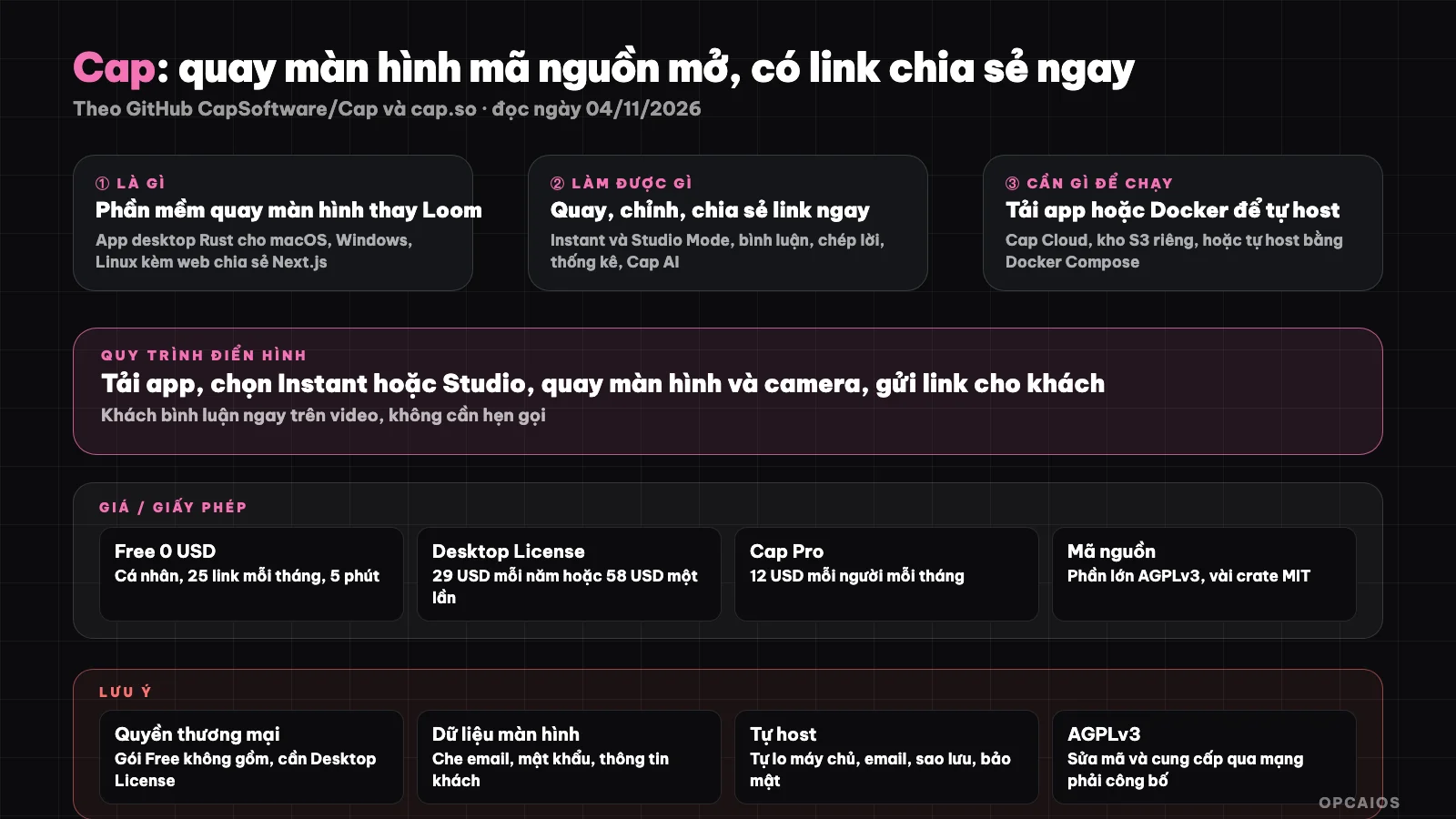
Cap records on your machine, then shares via Cap's cloud or infrastructure you choose yourself. Diagram: OPCAIOS.
What is Cap and who made Cap?
Cap is a screen recording application with a video sharing platform, developed publicly by the CapSoftware team on GitHub and sold as a cloud service at cap.so. Cap aims to replace Loom for product demos, bug reports, guides and asynchronous updates, with the difference that you can keep your data yourself.
According to the README on GitHub (accessed 04/11/2026), Cap has two main parts. The first is a desktop application written in Rust with a GPUI interface, running on macOS, Windows and Linux. The second is a web application written in Next.js, using Drizzle and MySQL, serving as a dashboard to view, share and manage recordings. The recording, editing and video export functionality sits in shared Rust crates. The repository is a Turborepo monorepo, with added Rust CLI, media processing server, embedding SDK and recording SDK. The project accepts contributions and has a bounty program via Algora. For those new to open source repositories, see also What is GitHub?.
What are Cap's main features?
Cap has two recording modes and a set of collaboration features around the share link. Instant Mode uploads video while recording so you get a link as soon as you stop. Studio Mode records on your machine then opens an editor to make the video more polished. The table below summarizes according to the README (accessed 04/11/2026).
| Feature | Brief description |
|---|---|
| Instant Mode | Upload while recording, get share link when you stop; good for bug reports, quick feedback |
| Studio Mode | Record locally, edit background, zoom, crop, captions, then export or share |
| Controlled sharing | Public or private, set password, use custom domain |
| Collaboration | Comments, reactions, transcript, viewer stats, team spaces |
| Cap AI | Auto-generate title, summary, clickable chapters, captions and transcript |
| Private storage | Cap Cloud, S3-compatible repository (AWS S3, Cloudflare R2, Backblaze B2, MinIO, Wasabi) or self-host |
| Import from Loom | Import old Loom videos into Cap library |
A practical use case example (hypothetical): a solo service provider records a 3-minute video explaining a quote to a client using Instant Mode, sends the link right away, the client comments on that exact part of the video instead of scheduling a call. A longer guide video for a course is recorded using Studio Mode, backgrounds and captions edited then exported.
How much does Cap cost, and what's the license?
Cap has a free plan for individuals, but commercial use or unlimited sharing requires payment. The source code is primarily under AGPLv3, so you can self-host, but self-hosting still costs servers, storage, and operational work. The prices below are from cap.so/pricing as of 04/11/2026, excluding taxes and subject to change.
| Plan | Price (USD) | Key points |
|---|---|---|
| Free | 0 | Personal use; 25 share links per month, each link maximum 5 minutes; no commercial rights |
| Desktop License | 29 per year, or 58 one-time | One user; commercial rights; unlimited local recording and editing; offline capability |
| Cap Pro | 12 per person per month, or 8.16 per month if paid annually | Unlimited links, cloud storage, AI-generated titles and summaries, custom domain, private S3 |
| Enterprise | Pro price plus add-ons | SAML SSO 199 per month, BAA 99 per month per organization, custom contract |
For licensing, the README clearly states their cap-camera* and scap-* crates are under MIT, third-party components keep their original licenses, and the rest is AGPLv3. GitHub API shows the license as "Other" because the repository has multiple licenses. AGPLv3 is a strong copyleft license: if you modify the code and let others use it over the network, you must disclose the modified code. The pricing page also says commercial use of the desktop version requires a Desktop License; the pricing page has a link explaining commercial licensing but we haven't read that page. The pricing page also has some inconsistencies: the Free plan description says unlimited local recording time, while the comparison table marks "unlimited local recording and editing" as not included in the Free plan. If you're using it for paid work, read the terms carefully or ask Cap before choosing a plan.
How do you get started using Cap?
The quickest way is to download the desktop app from cap.so/download, log in, and start recording. To self-host, you need Docker and basic server knowledge. The steps below follow the README on GitHub (read on 04/11/2026); we haven't run these steps ourselves.
- First, download Cap for macOS, Windows, or Linux from cap.so/download.
- Next, log in or create an account, choose Instant Mode or Studio Mode.
- Record your first video, grant screen recording, camera, and microphone permissions when your operating system asks.
- Finally, share the link, export the file, or keep the recording on your machine.
To self-host the web part, the README guides you to use Docker Compose:
git clone https://github.com/CapSoftware/Cap.git
cd Cap
docker compose up -d
Before email is configured, the login link is in the web service logs:
docker compose logs cap-web
The README also mentions two other deployment methods: Railway (one click) and Coolify (has its own compose file). Before exposing to the Internet, the README requires you to set the public URL and replace the default secret keys. The desktop app points to your self-hosted server through the Cap Server URL setting in settings. If you're new to this, read What is Docker? and What is Coolify? first.
What security, data, and legal risks does Cap have?
Cap's biggest risk isn't the software itself but the content you record: screens usually expose emails, passwords, customer data. Next are viewer privacy, AGPLv3 license obligations, and operational responsibility if you self-host. This section is for reference only, not legal advice.
- First, data on screen: turn off notifications, close tabs with customer info before recording; use private links or password-protected videos for internal content.
- Next, viewer statistics: Cap records views to make statistics. The README says the development version uses Tinybird for this. If you send links to viewers in the EU, consider GDPR obligations; we haven't cross-checked Cap's privacy policy.
- Then, Cap AI: the title, summary, and transcription features send content to AI providers. The self-hosted version has instructions for configuring AI providers in the self-hosting documentation that we haven't read.
- Finally, licensing: if you modify Cap's code and provide it to others over the network, you must comply with AGPLv3; for commercial desktop use, check the Desktop License terms.
On copyright, if you record someone else's software, video, or course to repost it, you still must respect their copyright and content terms; the recording tool doesn't change this obligation.
How Cap Compares to Loom and Other Options
Cap differs from Loom mainly in being open source and letting you keep your data. Compared to pure recording tools like OBS Studio, Cap leans toward quick sharing and collaboration. The table below is a general overview, not a measurement; we haven't tested these tools side by side.
| Criteria | Cap | Loom | OBS Studio |
|---|---|---|---|
| Source code | Open (mostly AGPLv3) | Closed | Open |
| Instant share link | Yes (Instant Mode) | Yes | Not built in |
| Self-host | Yes, via Docker Compose | No, cloud service | No, runs on your machine |
| Private S3 bucket | Yes (Pro plan or self-host) | Unverified | Save files on machine |
| Best for | Explainer videos, bug reports, customer demos | Teams already in Loom ecosystem | Livestreaming, long recordings, complex scenes |
If you need to build videos with code instead of screen recording, see What is Remotion?. If you need multi-layer video editing in the browser, see What is OpenReel?.
When Should You Use Cap?
Cap suits people who send explainer videos regularly but want to keep their data or don't want to pay Loom per seat. Someone recording just a few times a month can use the Free plan. People doing services for income should consider the Desktop License or Pro.
| Situation | Recommendation |
|---|---|
| Individual recording a few short videos each month | Free plan, remember 25 link limit, 5 minutes per link |
| Freelancer recording tutorials, exporting files to send clients | Desktop License, has commercial rights |
| Send links to clients often, need analytics, custom domain | Cap Pro |
| Have your own server, want to keep all data | Self-host with Docker Compose, responsible for security and backups |
| Livestreaming or recording many complex scenes | Dedicated recording tools like OBS Studio fit better |
OPCAIOS Experience
We added Cap to the Repo list in the Tools section of opcaios.org after reading the README and checking that the repo is still maintained; we haven't tested it yet, so this part states the criteria we use to consider it, not an evaluation after using it. There are four criteria. First, is the repo still updated: Cap has new code on 04/11/2026 and a release from late October 2026, so it passes this. Second, licensing: AGPLv3 allows self-hosting, but the desktop version's commercial rights come with the Desktop License, so read carefully before using it for clients. Third, hidden costs: self-hosting needs a server, storage, email, and maintenance; for solo workers, a paid plan might be cheaper than your operating time. Finally, can Cap replace your current tool: this depends on whether you need a share link with comments or just the video file.
Read more: What is Docker?, What is VPS?, What is Coolify?, What is OpenReel?.
Frequently Asked Questions
What is Cap, and is it like Loom?
Cap is open-source screen recording software by CapSoftware, which describes itself as a Loom alternative. Like Loom, Cap records screen, camera, and microphone, and creates a shareable link as soon as you stop recording. It also has comments, transcripts, and viewer analytics. Unlike Loom, Cap's code is public on GitHub, mostly under AGPLv3, and you can save videos to your own S3 bucket or self-host the entire platform using Docker Compose. The desktop application runs on macOS, Windows, and Linux according to the README read on 04/11/2026.
Is Cap free?
Cap has a Free plan at 0 USD for personal use, according to the cap.so pricing page read on 04/11/2026. This plan gives you 25 shareable links per month, with each link capped at 5 minutes, and does not include commercial use rights. To use it for paid work, Cap sells a Desktop License for 29 USD per year or 58 USD one-time, and Cap Pro costs 12 USD per person per month. You can download the source code for free, but self-hosting still costs money for servers, storage, and operational time. Prices do not include tax and may change.
What do I need to self-host Cap?
To self-host Cap, you need a server that can run Docker, such as a VPS, along with a domain name and HTTPS certificate if you open it to the Internet. According to the README, you clone the repository, run docker compose up -d, then get the login link from the web service logs if you have not set up email. The Compose stack includes the web app, API, database, media server, and object storage. Before using it in production, you must set the public URL and replace the default secret keys. Cap's self-hosting documentation also covers email, AI providers, SSL, and security hardening.
Can Cap be used by people who do not know how to code?
Yes, if you only use the desktop application and Cap Cloud service. You download the application from cap.so/download, log in, select recording mode, and send the link—no command line needed. The part requiring technical knowledge is self-hosting: setting up Docker, configuring domain names, email, S3 storage, and backups. People who do not know code should start with the cloud version, and only move to self-hosting when they need to keep their data private—then ask someone with server experience, or use an AI agent like Claude Code to help step by step and review every command before running it.
Are there any legal considerations for using Cap at work?
There are three points to keep in mind—this is reference only, not legal advice. First, Cap's Free plan does not include commercial use rights according to the pricing page read on 04/11/2026, so using it for clients or paid work requires a Desktop License or a paid plan. Second, if you modify Cap's code and distribute it to others over the network, you must comply with AGPLv3. Third, screen recording videos may contain personal data from your clients, so you need to hide sensitive information and restrict viewing permissions. To learn how to use AI tools and video safely at work, see OPCAIOS's AI application training course.
Sources: GitHub CapSoftware/Cap (README, API, release notes, read on 04/11/2026), cap.so/pricing page (read on 04/11/2026); not read/not verified: self-hosting documentation, Cap's commercial use rights explanation page, and privacy policy, did not directly compare with Loom; star count and pricing may change. Experience is from OPCAIOS.
Translated from Vietnamese with AI. Read the original.
Want to apply this in your business?
Book a free 30-minute call (Vietnam time, in English or Vietnamese).