



Running Claude Code Automatically
What is running Claude Code automatically? Running Claude Code automatically means letting the Claude Code programming agent do a predefined task without someone sitting and typing commands: a script calling claude -p in non-interactive mode, a GitHub Actions workflow running when there is a @claude comment or on a schedule, or a scheduled task running on the cloud or on a desktop application. This post does not promise that Claude Code will "work for you" safely; every unattended run can fail, cost money, or do more than you want, so the right design is for the machine to draft and a person to review before publishing or merging. OPCAIOS has also not run Claude Code via GitHub Actions yet; that section is written from the official docs, not experience. The post covers the -p flag, Claude Code GitHub Actions, ways to schedule, permission limits, and an assumed workflow of drafting each morning.
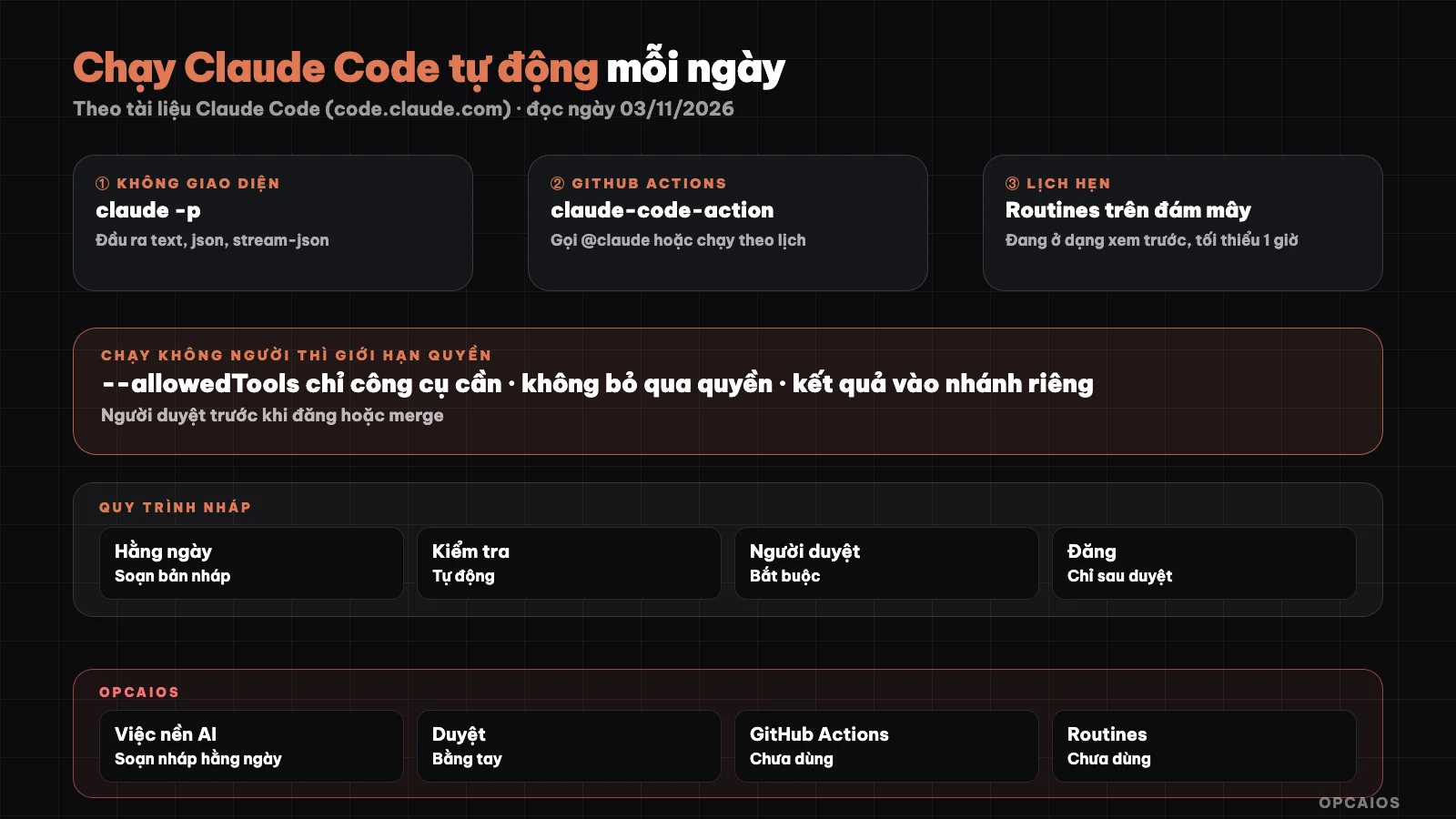
The scheduler only triggers, minimal permissions limit what gets done, the reviewer is the final gate. Diagram: OPCAIOS.
If you are new to this tool, read first What is Claude Code.
What is Claude Code's headless mode?
Headless mode (non-interactive) is running Claude Code with the -p flag (or --print): you give a prompt on the command line, Claude Code does it, prints the result, and exits without opening a chat window. According to the "Run Claude Code programmatically" page on code.claude.com/docs (read 03/11/2026), the command exits with code 0 on success and another code on failure, so a script can branch on the exit code. The command also takes data piped in via standard input, up to 10MB. The docs recommend adding the --bare flag when running in CI or scripts: Claude Code skips loading hooks, skills, subagents, plugins, MCP servers, auto memory, and CLAUDE.md, so results are the same on every machine. One thing to know: --bare mode does not read subscription package login info, so you must set the ANTHROPIC_API_KEY variable with a key created in Claude Console.
claude -p "What does the auth module do?"
claude --bare -p "Summarize README.md" --allowedTools "Read"
Which output format to choose when running via script?
Output format is chosen with --output-format, and the official docs list 3 values:
text(default): plain text, good when you just need to write the result to a file.json: a JSON block with aresultfield holding the answer, session ID, and metadata; the docs note that this block hastotal_cost_usd, which is a client-side estimate and may differ from the actual bill.stream-json: one JSON event per line, use when you need to show progress in real time.
To get results in a fixed shape, add --json-schema; the result sits in the structured_output field, remember to check that this field exists before using it.
claude -p "Summarize this project" --output-format json | jq -r '.result'
How do I set up Claude Code GitHub Actions?
Claude Code GitHub Actions is a GitHub Action (anthropics/claude-code-action@v1) that runs Claude Code in a repository workflow. According to the "Claude Code GitHub Actions" page (read 03/11/2026), there are 2 ways to set it up, both requiring admin access to the repository:
- Quick install: open
claudein the repository, run/install-github-app. The command installs the Claude GitHub App, saves the key as a repository secret (ANTHROPIC_API_KEYfor an API key orCLAUDE_CODE_OAUTH_TOKENfor a subscription package token created withclaude setup-token), then opens a pull request with a workflow file. This method only works for repositories on github.com and needs GitHub CLI already logged in. - Manual install: install the Claude GitHub App, add the secret, copy the
examples/claude.ymlfile from the action's repository into.github/workflows/.
Note: installing the official app means accepting all its permissions, which include many beyond Contents, Issues, and Pull requests; if you want fewer permissions, create your own GitHub App following the action's instructions.
How does calling @claude in issues and pull requests work?
Calling @claude is the interactive mode of the action: when the workflow has no prompt input, Claude waits for a trigger phrase (default @claude) in issue comments, pull request comments, reviews, or in the title and body of new issues, then replies with a comment right there. When the workflow has a prompt, the action switches to automation mode and runs without anyone prompting it. The documentation lists 2 checks before each run: the person triggering it must have write permission to the repository (except for events not created by the user like schedules), and the bot is denied unless listed in allowed_bots, to prevent bots calling each other in a loop. The write permission check is very important: issue content written by strangers is untrusted data that may contain injected commands targeting AI. See also the article security when using AI to write code.
What are the ways to schedule Claude Code?
There are 4 ways to schedule Claude Code, differing in where it runs and whether you need to keep a machine on:
| Method | Runs on | Needs machine on | Notes from documentation (read 03/11/2026) |
|---|---|---|---|
Cron on your machine calling claude -p |
Your machine or server | Yes | You handle authentication, permissions, and logging yourself |
GitHub Actions schedule |
GitHub runners | No | Only runs from the default branch; public repositories have schedules disabled after 60 days of inactivity |
| Cloud scheduled tasks (formerly called routines) | Anthropic infrastructure | No | In research preview form; create at claude.ai/code/routines or with /schedule command; minimum interval 1 hour; Pro, Max, Ultra, Team, Enterprise plans |
| Scheduled tasks on Claude Code Desktop | Your machine | Yes, app must be open | Skips if machine sleeps; when awake, only runs once for the nearest missed run within 7 days |
The /loop command only repeats within the open session and expires after 7 days, not suitable for daily schedules. Cloud tasks run on a fresh clone, push to a branch with claude/ prefix, default to auto mode, and act through GitHub or connector under your account name.
Example daily schedule at 09:00 UTC, taken from GitHub Actions documentation (skipping the model selection line, in which case the action uses the default model):
name: Daily Report
on:
  schedule:
    - cron: "0 9 * * *"
jobs:
  report:
    runs-on: ubuntu-latest
    permissions:
      contents: read
      issues: read
      id-token: write
    steps:
      - uses: anthropics/claude-code-action@v1
        with:
          anthropic_api_key: ${{ secrets.ANTHROPIC_API_KEY }}
          prompt: "Generate a summary of yesterday's commits and open issues"
          claude_args: |
            --allowedTools "mcp__github__list_commits,mcp__github__list_issues"
Note on time: GitHub cron uses UTC, 09:00 UTC is 16:00 Vietnam time.
How do you limit permissions when running unattended?
Limiting permissions when running unattended means granting only the exact tools needed for that task and denying everything else instead of waiting for someone to approve. According to the official documentation (read 03/11/2026), there are 6 layers you should use:
- List tools with
--allowedTools, as narrow as possible, for exampleBash(git diff *)instead of all ofBash. The documentation notes the space before*is important. - Choose permission mode with
--permission-mode:dontAskdenies any action that would normally require asking, suited for locked-down CI;acceptEditsallows file edits;autolets a classifier review, but does not guarantee safety. - Add
--permission-prompts none(requires version 2.1.259 or later) to prevent the run from hanging waiting for someone to answer. - Limit volume: use
--max-turnsto cap the number of turns,--max-budget-usdto cap spending, plus the workflow's time limit. - Use
--barewith repositories not written by you: the documentation warns that-psessions don't show the trust directory dialog, so hooks in.claude/settings.jsonand servers in.mcp.jsonof the repository still run unless--bareis used. - Don't put keys in the workflow file: always keep them in GitHub Secrets.
To understand the permission modes better, see plan mode and permission modes in Claude Code; to block commands with hooks, see hooks in Claude Code.
Why Always Have a Reviewer Before Posting or Merging?
A reviewer is the final control layer that automation cannot replace, because machines can write false facts, edit the wrong file, or follow an instruction planted in the input data. GitHub Actions documentation is clear: only grant the workflow the permissions it needs and review Claude's changes before merging. The practical approach has 4 points:
- Automated runs can only create branches and pull requests, not push directly to the main branch; use GitHub's branch protection rules to enforce this.
- Content (blog posts, emails, social media posts) only go into draft status.
- The reviewer reads the diff, not just the AI's summary.
- Hard-to-undo actions (delete, send, publish, charge) never belong in the automated run's permission list. Also, each run costs Claude tokens and GitHub Actions minutes; check Claude Code costs before setting up dense schedules.
Example Daily Draft Workflow
A hypothetical process, not a real person: someone selling online courses wants a blog draft each morning from the previous day's notes:
- Notes are put into a folder in a private Git repo.
- At 6 AM, a scheduled task (server cron calls
claude --bare -p, or ascheduleworkflow) asks Claude to read new notes and write a draft into the draft folder, with only read and file-edit permissions. - The run creates a new branch and opens a pull request, not touching the main branch.
- The
--output-format jsonresult is saved to check estimated costs and errors. - The owner reads the draft, edits it, then merges and posts it themselves.
On a day the task fails, there is just a missing draft, nothing posted wrong.
OPCAIOS Experience
OPCAIOS runs daily background jobs on a server using AI to draft content: one job picks a topic and writes an SEO post, another drafts an introduction for new starred GitHub repos. Both only create drafts waiting for review, never post on their own; when reviewing, we have had to fix typos, truncated fields, and inflated ratings in the AI drafts. These background jobs call AI through the API, not Claude Code. Claude Code is used in sessions with a person (CLI and desktop app, usually in auto mode, hard-to-undo actions still need owner approval). We have not yet run Claude Code through GitHub Actions or used cloud scheduled tasks for websites, so we have no real numbers on the stability or cost of those approaches.
Frequently Asked Questions
Does running claude -p require a paid plan?
You need a valid authentication method. Running -p normally uses existing login information on the machine, while --bare doesn't read login information from a registered plan, so you must set ANTHROPIC_API_KEY from Claude Console, which charges by token. In GitHub Actions you can use an API key or a plan token created with claude setup-token. Prices and limits change, so check Anthropic's official pricing page instead of trusting numbers in third-party articles.
Is GitHub Actions or cloud scheduled tasks better?
It depends where you want to manage things. GitHub Actions lives in the repository, you can see run history, GitHub compute minutes plus tokens, and you write the workflow file yourself. Anthropic's cloud scheduled tasks are created via interface or /schedule command, no workflow file needed, but are still in research preview so behavior and limits may change. If you need to read files on your machine, only cron on the machine or desktop tasks can do it.
Should I let automated runs merge directly into the main branch?
No. Automated runs should stop at pull requests or drafts. Use GitHub's branch protection rules to block direct pushes, and only grant read permissions when the job is read-only like daily reports. Auto-merging causes a bug or an injected command from an issue to go straight to production without anyone reviewing it. A few minutes of reviewing diffs is much cheaper than fixing the consequences.
How do I know if a daily run failed?
With claude -p, check the exit code: 0 is success, anything else is failure; errors during run like missing authentication get printed as output. Save output with --output-format json to a log file to review later. With GitHub Actions, see the workflow run history and turn on notifications for failures. With desktop tasks, the task details page has history, including runs skipped because the machine was asleep.
Can someone who can't code automate Claude Code?
Yes at a simple level, if you start with read-only work like daily commit or issue summaries, and always leave results as drafts. The hard part is understanding permissions, secrets, and branch protection rules; don't skip them to move faster. Read more about safe process for using coding agents. For step-by-step guidance, see AI application training course from OPCAIOS.
Source: Claude Code documentation at code.claude.com/docs, pages "Run Claude Code programmatically", "Claude Code GitHub Actions", "Automate work with scheduled tasks", "Schedule recurring tasks in Claude Code Desktop", "Run prompts on a schedule" (read 03/11/2026); draft process in this post is assumed; prices and limits not verified, workflow blocks not tested on OPCAIOS repositories. Experience is from OPCAIOS.
Translated from Vietnamese with AI. Read the original.
Want to apply this in your business?
Book a free 30-minute call (Vietnam time, in English or Vietnamese).