


What is Plan Mode?
Plan mode is a permission mode in Claude Code where Claude only researches and proposes a plan: reads files, runs commands to explore, writes a plan, but does not modify source code until you review it. According to the "Choose a permission mode" page in the Claude Code documentation (code.claude.com, read on 03/11/2026), plan mode is one of six permission modes, alongside default (display name Manual), acceptEdits, auto, dontAsk and bypassPermissions. This post does not claim any mode is absolutely safe: the documentation itself notes that auto mode reduces the number of prompts but does not guarantee safety, while bypassPermissions cannot defend against prompt injection. The post also does not mention costs or which OPCAIOS plan is used. The content includes: how plan mode runs, what each permission mode does, allow, ask, deny rules, what auto mode blocks, why bypass permissions mode is dangerous, sandbox for shell commands, a table for choosing modes by task type, and how OPCAIOS actually uses it. The general introduction to Claude Code is in the post Claude Code là gì.
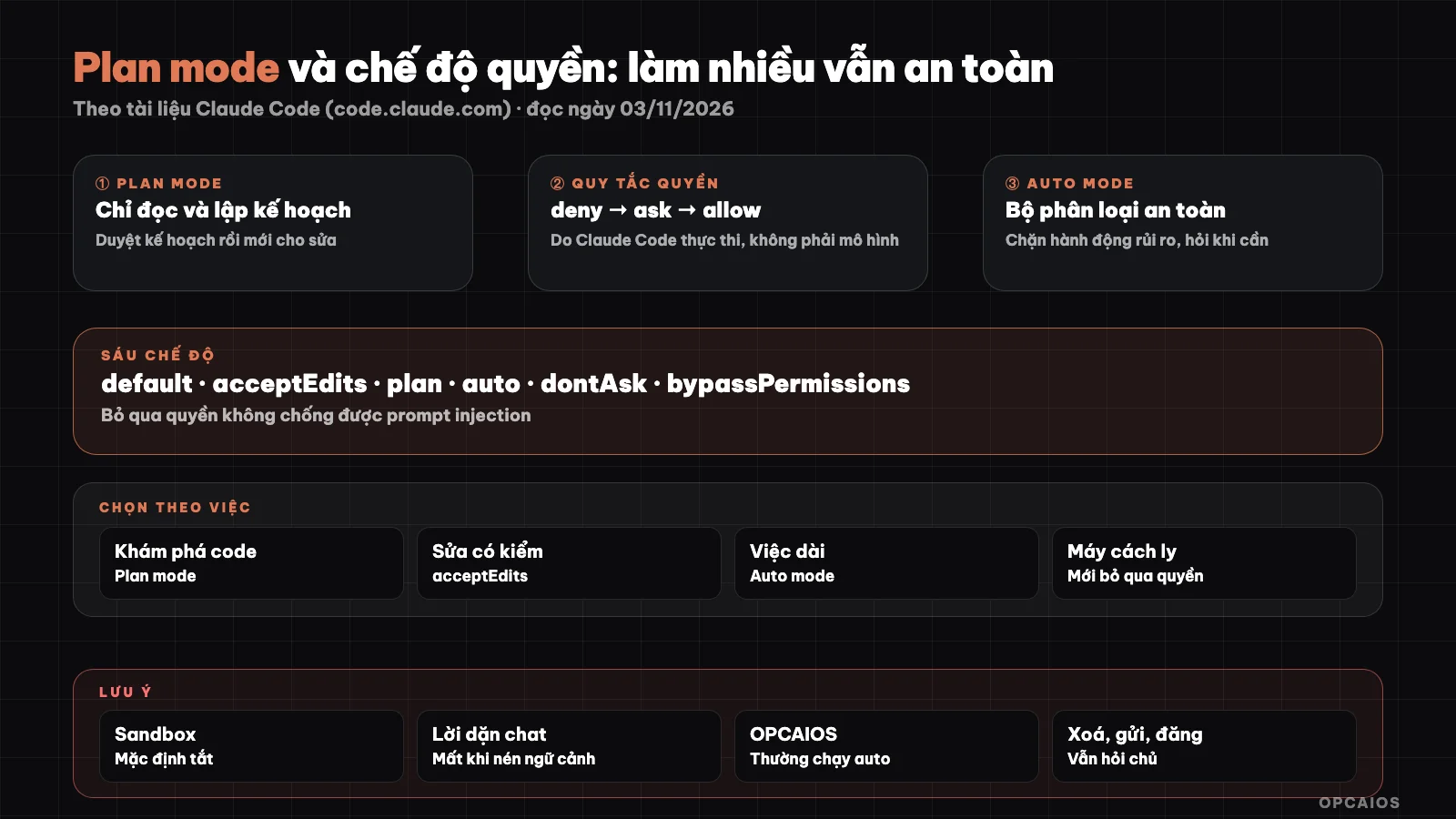
Permission rules, permission modes and sandbox are three different layers; the owner still makes the final call. Diagram: OPCAIOS.
How does Plan Mode in Claude Code work?
Plan mode works like a "think first, act after" step: Claude reads the project, may run commands to explore, then presents a plan; all file edits are blocked until you accept the plan. According to the Claude Code documentation (read on 03/11/2026), there are three ways to enter plan mode: press Shift+Tab to switch modes, type /plan at the start of a command, or start with a command-line flag:
claude --permission-mode plan
When the plan is done, Claude asks what you want to do next. The options according to the documentation:
- Agree and use auto mode: review the plan then switch to auto mode (if your organization turned off auto mode, this option means you are accepting edits yourself).
- Agree, review each edit: you see each change one by one.
- Not yet, plan more: stay in plan mode and tell Claude what needs to change.
Press Ctrl+G to open the plan in an editor and edit it directly before Claude acts. One easy thing to miss: shell commands during planning are not completely blocked. When auto mode is available, a classifier considers those commands instead of asking you; when it is not, commands outside the existing read-only list need permission.
How are the six permission modes in Claude Code different?
The six permission modes differ in what runs without asking you. The table below summarizes the Claude Code documentation (read on 03/11/2026):
| Mode | Runs without asking | Good for |
|---|---|---|
default (Manual) |
Read only | Sensitive work, unfamiliar code, want to review each step |
acceptEdits |
Read, edit files, common file commands like mkdir, mv, cp |
Quick iteration on code you are watching |
plan |
Read, plus commands approved by classifier when auto mode is on | Explore before editing |
auto |
Everything, with safety checks running in background | Long tasks, reduce fatigue from clicking approve |
dontAsk |
Read in work folder and pre-allowed tools; rest denied | CI, tightly locked scripts |
bypassPermissions |
Everything | Container or isolated VM only |
According to the documentation, from version v2.1.283 auto mode is the default permission mode for terminal sessions and VS Code; older versions have different rules. In CLI, Shift+Tab cycles through modes; dontAsk is not in the cycle but must be turned on with a flag, and bypassPermissions only shows up if you enable it when starting. The status bar always shows the current mode, so glance at it before giving a big task.
What are the allow, ask, deny rules in Claude Code?
The allow, ask, deny rules are a configuration layer on top of the permissions mode, used to allow in advance, force asking, or block specific tools or command patterns. According to the "Configure permissions" page (read on 03/11/2026), the rules take the form Tool or Tool(specifier), for example Bash(npm run build), Read(./.env), WebFetch(domain:example.com). The evaluation order is always deny, then ask, then allow; the first matching rule determines the outcome, and more specific rules cannot override this order. Here is an example configuration from the settings page of the documentation:
{
  "$schema": "https://json.schemastore.org/claude-code-settings.json",
  "permissions": {
    "allow": [
      "Bash(npm run lint)",
      "Bash(npm run test *)"
    ],
    "deny": [
      "Read(./.env)",
      "Read(./.env.*)"
    ]
  }
}
Three practical points drawn from the documentation:
- Deny rules take effect in every mode, including bypassPermissions; allow rules have no effect in bypassPermissions.
- Ask rules are never auto-approved: auto mode will still ask you, while dontAsk will refuse outright.
- Permission rules are enforced by Claude Code, not by the model. Instructions in CLAUDE.md only guide Claude, they do not change what Claude Code permits.
View and edit rules using the /permissions command right in the session.
What does auto mode block and when should you use it?
Auto mode is the mode for Claude to run on its own without asking at each step, while a separate classifier model reviews actions before they run. According to the Claude Code documentation (read on 03/11/2026), the classifier blocks actions that go beyond your request, target infrastructure that is not recognized, or appear to be led by harmful content Claude has just read. Blocked by default include, in part:
- Download and run code like
curl | bash. - Send sensitive data to external endpoints.
- Deploy and migration on production environments.
- Bulk deletion on cloud storage, destroy pre-existing files outside the session.
- Force push, git commands that discard uncommitted changes like
git reset --hard. - Print keys or tokens actually in use to screen or file.
If you say in the conversation "don't push" or "wait for me to approve before deploying", the classifier treats that as a boundary. But the documentation warns this boundary may be lost when context is compressed; to be certain, write a deny rule. When an action is blocked 3 times in a row or 20 times in a session, auto mode pauses and asks you instead. One configuration note: setting defaultMode to auto in the project settings file has no effect, you must set it in user-level settings. Auto mode works well for long tasks where you trust the direction, it does not replace your own review of sensitive actions.
Why is the permission bypass mode dangerous?
The permission bypass mode (bypassPermissions, equivalent to the --dangerously-skip-permissions flag) is dangerous because this mode turns off prompts and safety checks, so every command runs immediately, including writes to protected paths like the .git folder or Claude's configuration. The Claude Code documentation (read on 03/11/2026) says plainly this mode offers no protection against prompt injection or unintended actions, and recommends using only inside containers, virtual machines, or dev containers without internet. This means if Claude reads a website or a file containing harmful instructions, there is no layer left to pause and ask you. The documentation adds a few remaining safeguards: deny and ask rules still take effect, deletion commands for important paths like rm -rf ~ are still prompted, the first time you enable it shows a warning dialog making you take responsibility, and on Linux and macOS, Claude Code refuses to run this mode under root or sudo. Organization administrators can lock this mode entirely. With a work machine containing real business data, the advice is simple: do not enable it. Read more 5 data security rules when using AI.
What does the Sandbox in Claude Code protect?
The sandbox in Claude Code is a boundary enforced by the operating system around the shell commands Claude runs, limiting the files and network domains those commands can access. According to the sandboxing page in the documentation (read on 03/11/2026), the sandbox is off by default, turned on with the /sandbox command or the sandbox.enabled key in settings, and runs on macOS, Linux, and WSL2; native Windows does not yet have sandbox support. When enabled, the defaults are:
| Access type | Default |
|---|---|
| Write files | Working directory, user temp directory, added directories |
| Read files | Most of the machine, including sensitive files like the ~/.ssh directory, unless you block them |
| Network | No direct outbound; goes through a proxy only to domains you allow, initial list is empty |
The sandbox only wraps shell commands; the file editor tool, MCP servers, and hooks run outside the sandbox. The documentation calls permissions and sandbox two complementary protective layers: the sandbox still enforces limits even if Claude's decision-making is bypassed through prompt injection. How to safely connect external tools is covered in What is MCP.
Which permission mode should I choose for each type of work?
| Type of work | Suggested mode | Reason |
|---|---|---|
| First time working with an unfamiliar project | plan then default |
Understand first, review each step |
| Editing interface, text you're viewing directly | acceptEdits |
Fewer clicks, still see changes |
| Long multi-step work, clear direction | auto with deny rules for forbidden actions |
Less interruption, has a filtering layer |
| Touching customer data, payments, real servers | default |
Every action gets reviewed |
| CI, scripts running on schedule | dontAsk with precise allow list |
No one sitting clicking approve |
| Disposable experiments | bypassPermissions in isolated container |
Only when your machine has nothing to lose |
This is OPCAIOS guidance, not an Anthropic rule. The full process for beginners is in Programming agents for people who can't code.
OPCAIOS experience
OPCAIOS is a website built by one person using AI agents, so permission modes are a daily thing. What follows is real, at the concept level:
- Usually run in auto mode. Work sessions on the main machine usually run in auto mode with a safety classifier, because multi-step work and approving each command one by one breaks focus.
- Got checked and blocked once. There was a time a command got blocked and the session had to rewrite it in a clearer, narrower way. We see being blocked as a signal to review, not as a reason to find a workaround.
- Hard-to-undo actions still ask the owner. Deleting data, sending messages or emails, publishing content all need owner approval in the conversation. Blog posts written by AI always go to draft, only scheduled when the owner reviews.
- No hooks to block dangerous commands yet. Hooks right now are only used to report session status, so the main protection layer is still permission mode, the classifier, and the human reviewer.
We don't use bypassPermissions on the main work machine. Related posts: What is subagent and Hooks in Claude Code.
Frequently Asked Questions
Does Plan mode block all commands?
No, it doesn't block everything. Plan mode blocks edits to source files until you review the plan, but Claude can still read files and run commands to explore. According to Claude Code documentation (read 03/11/2026), when auto mode is available, a classifier reviews these commands; when it's not available, commands outside the read-only list must ask you for permission. To block a command outright in all modes, write a deny rule.
Is Auto mode absolutely safe?
No. Claude Code documentation clearly states that auto mode reduces the number of requests but doesn't guarantee safety, and recommends using it for work where you trust the overall direction rather than replacing manual review of sensitive actions. The classifier can block by mistake or miss things. Combine auto mode with deny rules to ban actions outright, sandbox for shell commands, and back up your data before major work.
Is writing "don't delete" in CLAUDE.md enough?
Not enough to guarantee it. According to the "Configure permissions" page (read 03/11/2026), permission rules are enforced by Claude Code, while instructions in CLAUDE.md only guide Claude's behavior. Instructions help Claude understand your intent, but absolute prohibitions should be written as deny rules in settings, for example blocking reads of .env files. See more in the post What is CLAUDE.md.
When should I use dontAsk?
Use dontAsk when there's no one sitting there to review, like in CI or a scheduled script, and you know exactly what Claude is allowed to do. According to the documentation, this mode automatically declines any action that would normally ask, only runs reads in the working directory, read-only commands and tools in the allow list. Start with claude --permission-mode dontAsk along with a narrow allow list.
What permission mode should beginners start with?
Beginners should start with plan mode for major work and Manual (default) for small tasks, reading the plan and approving each permission request before saying yes. Once you know your project and have git to undo changes, gradually move to acceptEdits or auto for longer work, with a few deny rules for secret files. Don't turn on bypassPermissions on machines with real data. To learn how to delegate work to AI safely step by step, see OPCAIOS's AI application training course.
Source: Anthropic's Claude Code documentation at code.claude.com, the pages "Choose a permission mode", "Configure permissions", "Settings files" and "Configure the sandboxed Bash tool" (read 03/11/2026); unverified: behavior in versions other than the documented one, the full list of what the classifier blocks (the post covers only part of it), the actual false positive rate of auto mode; Experience is from OPCAIOS.
Translated from Vietnamese with AI. Read the original.
Want to apply this in your business?
Book a free 30-minute call (Vietnam time, in English or Vietnamese).