



If you need a tool to run AI locally, the short answer is: beginners choose LM Studio because it has a graphical interface and suggests models automatically; those who want to connect AI to applications or agents choose Ollama because it installs with one command and has a ready-made API; those who need a chat interface for a whole team set up Open WebUI on top of Ollama. To create images and videos, use ComfyUI. According to LM Studio's system requirements page (read on 04/11/2026), Mac machines need an Apple Silicon chip and should have at least 16 GB of RAM. According to GitHub API on the same date, the ollama/ollama repository has around 185,800 stars. This post compares 5 tools across five criteria: difficulty, hardware requirements, license, API server capability, and update level. No single tool is best for every machine.
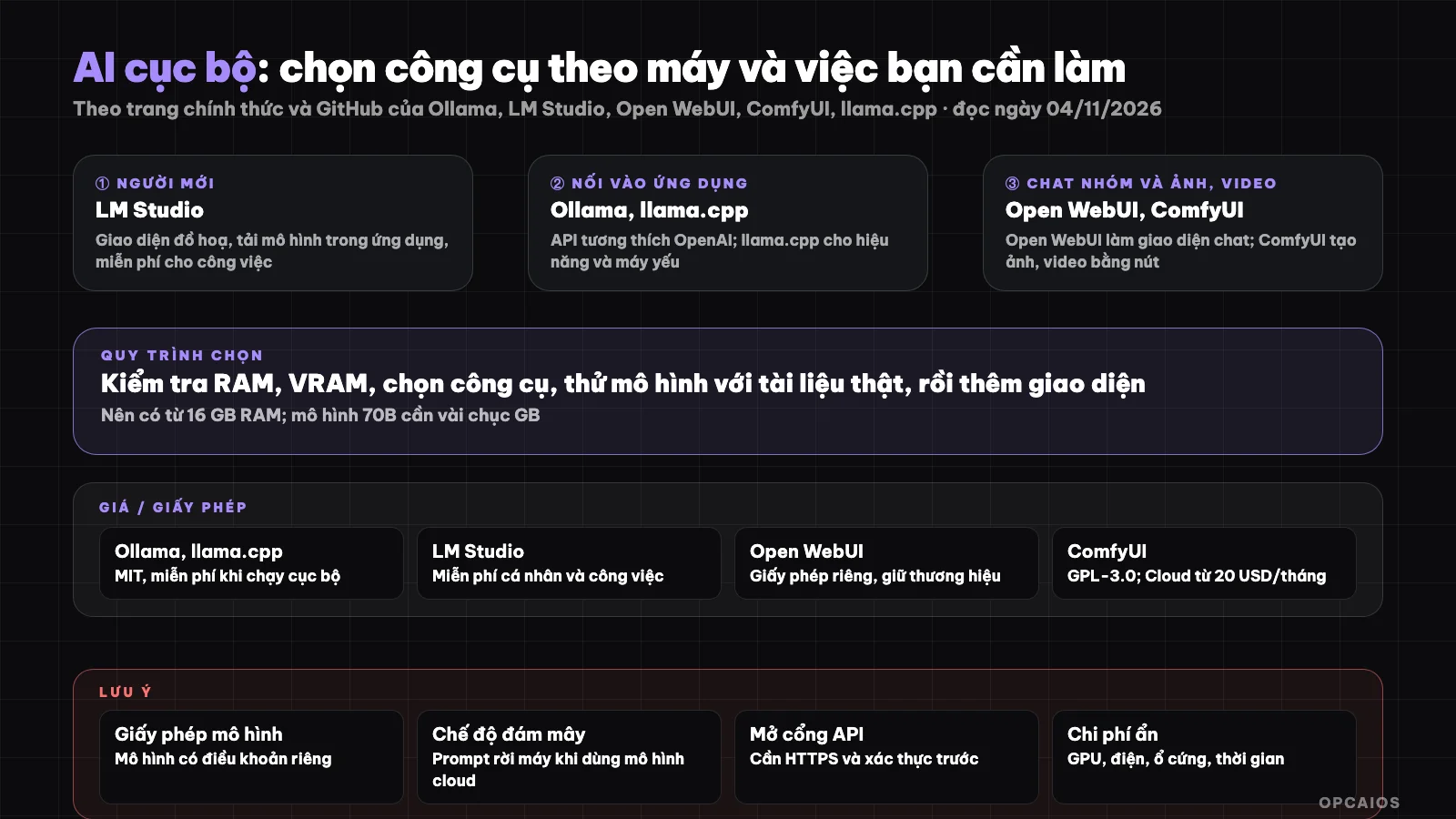
Three main needs when running AI on personal machines and matching tools. Diagram: OPCAIOS.
Quick comparison table of 5 local AI tools
The table below summarizes 5 local AI tools by best fit for needs, price, license, Vietnamese language, and difficulty, read from official pages on 04/11/2026. All five are free when running on your machine. Vietnamese language depends on which model you download, not the tool; we haven't measured it.
Logos of the tools in this post, taken from each project's official page.
| Tool | Best for | Starting price (read 04/11/2026) | Self-host | Vietnamese | Difficulty |
|---|---|---|---|---|---|
| Ollama | Developers, connecting AI to applications | Free when running locally; Pro 20 USD/month for cloud models | Yes (MIT) | Depends on model | Easy to medium |
| LM Studio | Beginners, prefer graphical interface | Free for personal and work use | Yes (closed source application) | Depends on model | Easy |
| Open WebUI | Chat interface like ChatGPT for teams | Free to self-host; enterprise pricing on request | Yes (proprietary license) | Multi-language interface; answers depend on model | Medium |
| ComfyUI | Creating images, videos, audio with nodes | Free locally; Comfy Cloud from 20 USD/month | Yes (GPL-3.0) | Less relevant, prompts usually written in English | Difficult |
| llama.cpp | Maximum performance, weak machines, deep customization | Free | Yes (MIT) | Depends on model | Difficult |
What criteria did we use?
We chose 5 local AI tools based on five criteria, using official documentation and GitHub API read on 04/11/2026. OPCAIOS downloaded ComfyUI to our work machine to try it, but haven't installed Ollama on the main machine and haven't used LM Studio, Open WebUI, or llama.cpp for real work yet.
- Difficulty: can someone unfamiliar with command line use it (read installation documentation).
- Hardware: how much RAM, VRAM needed, can it run on CPU (read system requirements page).
- License: open source under OSI standard or proprietary license (read LICENSE and GitHub API).
- API server: does it have OpenAI-compatible endpoints to connect with applications and agents (read documentation).
- Update level: number of stars, date of latest code push, is it archived (GitHub API).
Not clear on concepts, then read What is an LLM?.
Detailed evaluation of each tool
Each local AI tool below is matched to a specific need rather than ranked absolutely. Each entry has a brief definition with source and reading date, a homepage screenshot dated 04/11/2026, strengths, limitations, and links to more detailed explanations if the blog already has them.
1. Ollama: best for developers who want to integrate AI into applications
Ollama is an open-source tool, MIT licensed, that helps you download and run open language models on your machine with a single command, with a REST API on default port 11434. According to the GitHub API (read on 04/11/2026), the ollama/ollama repository has around 185,800 stars and is still updated daily. According to the GPU documentation, Ollama supports NVIDIA cards from compute capability 5.0, some AMD cards via ROCm, Apple via Metal and additionally Vulkan on Windows and Linux. The FAQ page doesn't provide a RAM table by model size, but examples show that llama3:70b takes 42 GB when running. According to the pricing page on the same date, running locally is always free with no limits. The Pro plan is $20/month and Max $100/month for cloud models. Note: when using cloud models, the FAQ states that Ollama processes your prompt on their servers.
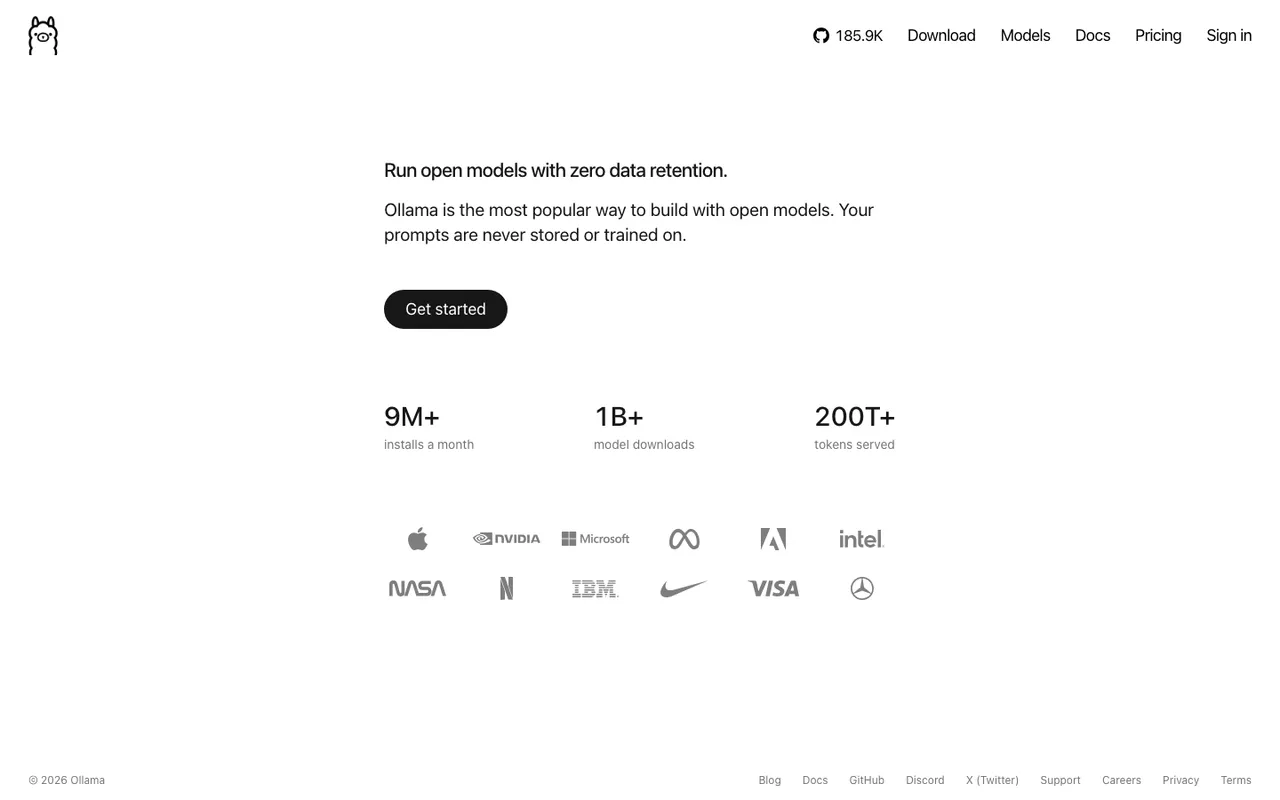
Ollama homepage (ollama.com), screenshot dated 04/11/2026. Screenshot: OPCAIOS.
Strengths: Quick setup. Large model repository, download with a single command. API already supported by many tools like Open WebUI, Open Notebook. MIT licensed.
Limitations: Fewer deep customizations than llama.cpp. Default context is only 4,096 tokens according to the FAQ. Cloud models send data outside, need to turn off if you want completely local.
Read more: What is Ollama?
2. LM Studio: best for beginners who want a graphical interface
LM Studio is a desktop application to find, download and chat with open language models entirely on your machine, released by Element Labs. According to LM Studio documentation (read on 04/11/2026), the application supports GGUF format via llama.cpp on all three operating systems and MLX on Mac with Apple Silicon. The application has offline chat with documents (RAG), supports MCP and an OpenAI-compatible API server. The model.lmstudio.ai page states LM Studio is free for individuals and work. System requirements: Mac needs Apple Silicon, macOS 14 or higher, should have 16 GB RAM; Windows needs CPU supporting AVX2, should have 16 GB RAM and 4 GB VRAM if using GPU. The application is not open source, only the CLI lms on GitHub under MIT license. On 16/07/2026, the company launched Bionic, a separate agent application, and the lmstudio.ai homepage now introduces Bionic.
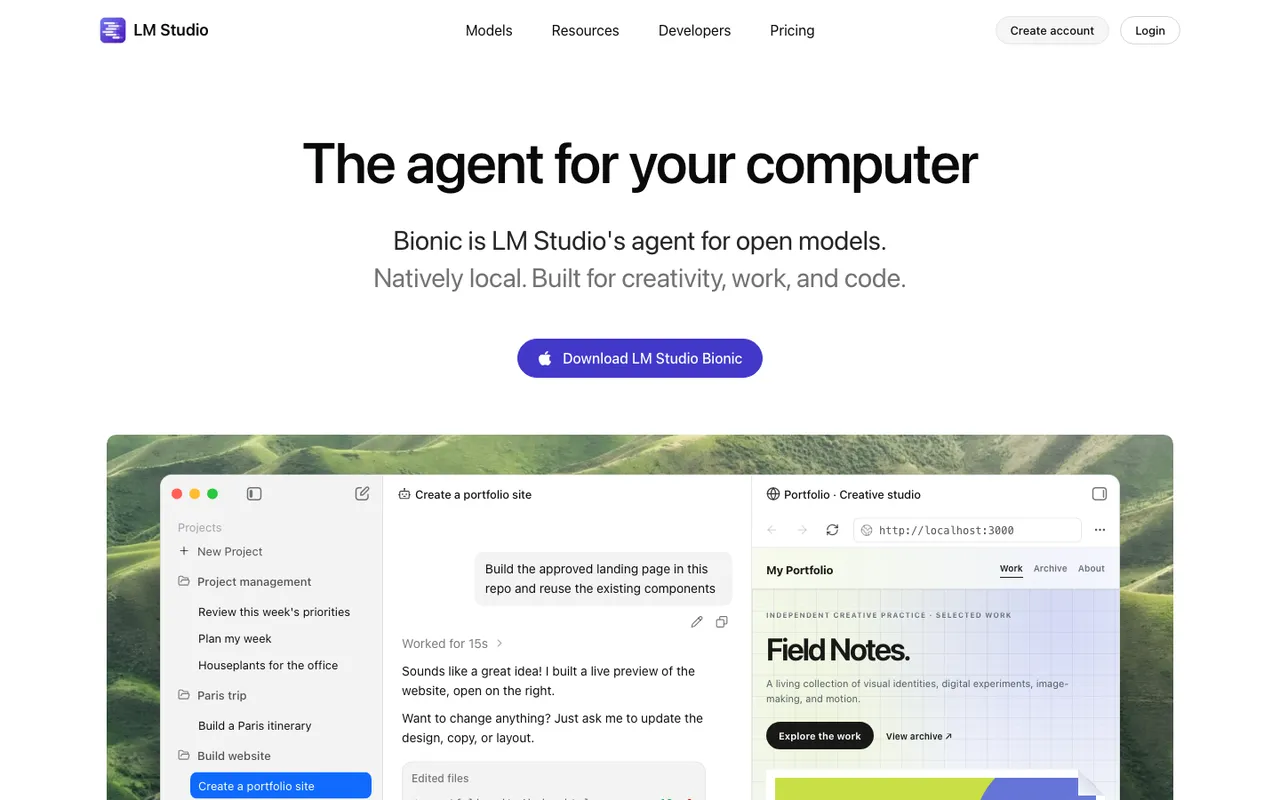
LM Studio homepage (lmstudio.ai), screenshot dated 04/11/2026. Screenshot: OPCAIOS.
Strengths: Easiest for beginners. Find models on Hugging Face right in the application. Also has MLX for Mac. Free for work.
Limitations: Application code is closed. Does not run on Mac Intel chips. Group and enterprise packages require contact, pricing not yet public.
3. Open WebUI: best when you need a chat interface for a whole team
Open WebUI is a self-hosted AI chat interface that runs on your machine or VPS, connecting to Ollama or any OpenAI-compatible API. According to the GitHub API (read on 04/11/2026), the open-webui/open-webui repository has around 157,700 stars. The README says install via pip with Python 3.12 or via Docker, with pre-packaged builds including Ollama and GPU CUDA versions. The license needs attention: according to the official license page, from version 0.6.6 (19/04/2025) Open WebUI uses a proprietary license, requires keeping the Open WebUI branding, and notes this is not an OSI-recognized open source license. Deployments with 50 or fewer users within 30 days are allowed to remove the branding. Open WebUI itself does not run models: you need Ollama, llama.cpp or an API key.
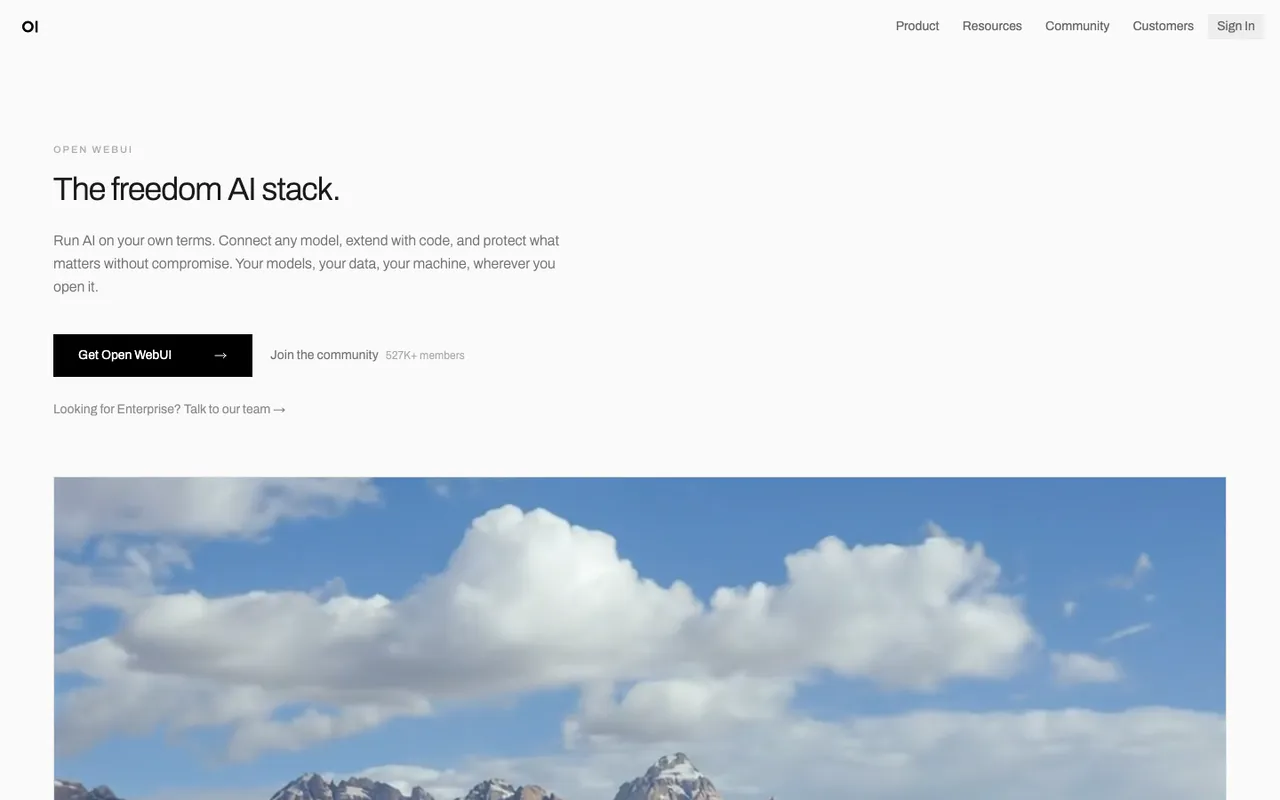
Open WebUI homepage (openwebui.com), screenshot dated 04/11/2026. Screenshot: OPCAIOS.
Strengths: ChatGPT-like experience. Multiple users, permissions. RAG and web search built in. Works with both local and cloud models.
Limitations: Not standard OSI open source from 0.6.6. Needs additional tool to run models. Opens to Internet then you must handle HTTPS and security yourself.
Read more: What is Open WebUI?
4. ComfyUI: best for creating images, videos and audio on your machine
ComfyUI is open-source software, GPL-3.0 licensed, letting you chain image, video, and audio generation models into node diagrams on a canvas. The repository moved to the Comfy-Org organization. According to the GitHub API (read on 04/11/2026), the Comfy-Org/ComfyUI repository has around 144,900 stars. The README says ComfyUI can run "even the largest open source models" with 4 GB VRAM and 8 GB RAM; these are project claims, unverified, and speed will be slow on weak machines. ComfyUI supports NVIDIA, AMD, Intel GPUs, Apple Silicon, and has CPU versions. There are desktop applications for Windows, macOS and manual install options. According to the pricing page on the same date, the desktop version is free; Comfy Cloud runs on cloud GPU from $20/month (Standard), new users get 5 free runs.
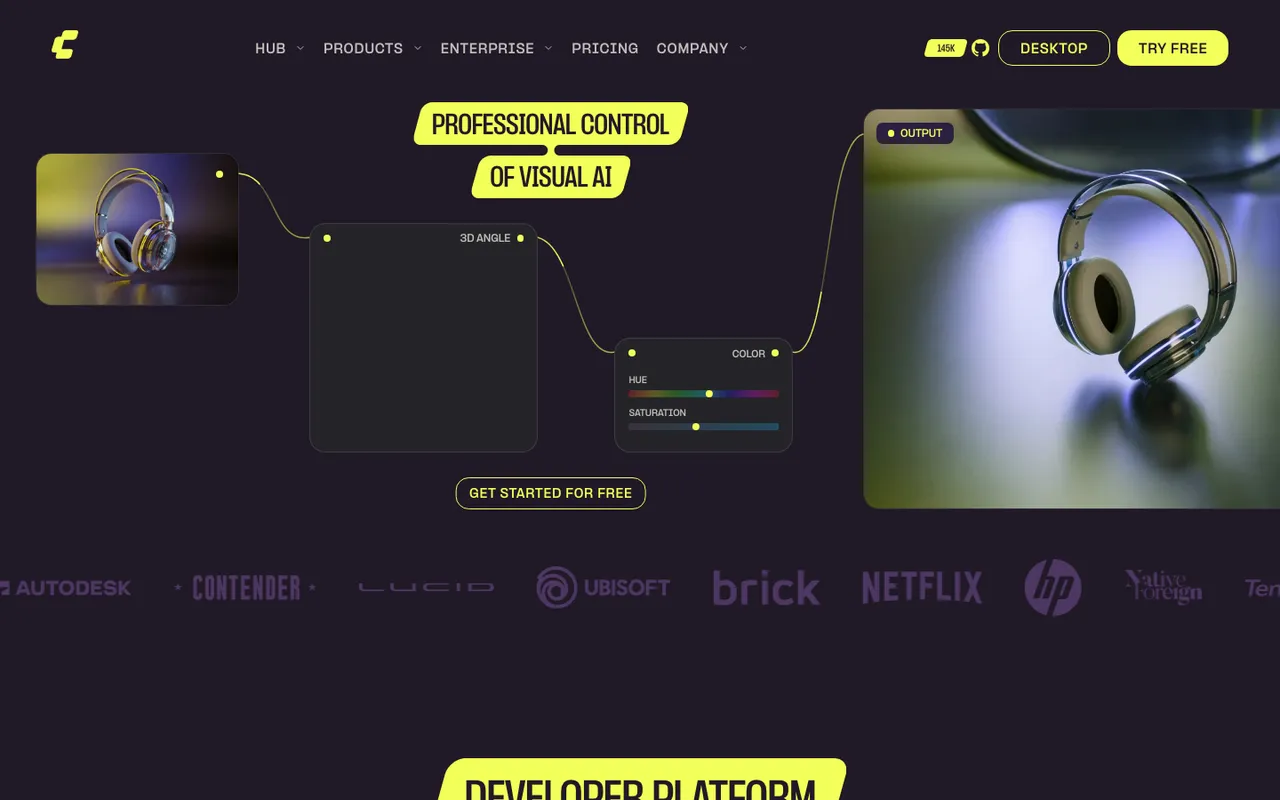
ComfyUI homepage (comfy.org), screenshot dated 04/11/2026. Screenshot: OPCAIOS.
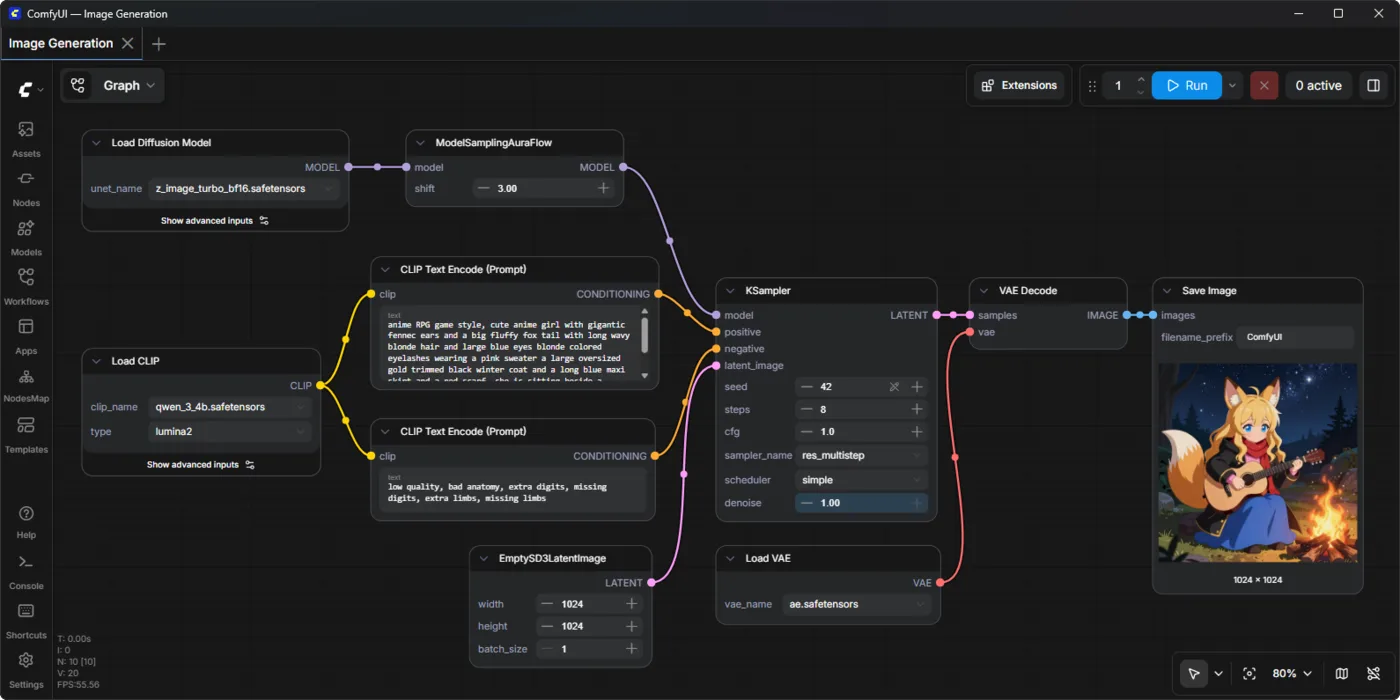
ComfyUI interface. Image: GitHub README Comfy-Org/ComfyUI.
Strengths: Control every step of image, video creation. Support for new models very fast. Save workflows as files to reuse. Has API.
Limitations: Hard for beginners. Community nodes might contain malicious code if installed carelessly. High-quality video needs GPU with lots of VRAM.
Read more: What is ComfyUI?
5. llama.cpp: best when you need maximum performance and deep customization
llama.cpp is an open-source library and toolkit, MIT licensed, that runs language models using pure C/C++, with no external library dependencies. This is the foundation of many other tools: LM Studio uses llama.cpp to run GGUF files according to LM Studio's own documentation. According to the GitHub API (read on 04/11/2026), the ggml-org/llama.cpp repository has around 133,300 stars. The README lists Metal support on Apple Silicon, CUDA for NVIDIA, HIP for AMD, Vulkan, and x86, ARM CPU. Quantization from 1.5 to 8 bits helps models use less memory. The llama serve command opens an OpenAI-compatible API server with a web interface. The homepage links to GitHub as llama.app, introducing the Llama application for Mac and Windows "from the llama.cpp and Hugging Face teams"; we have not tried this application yet.
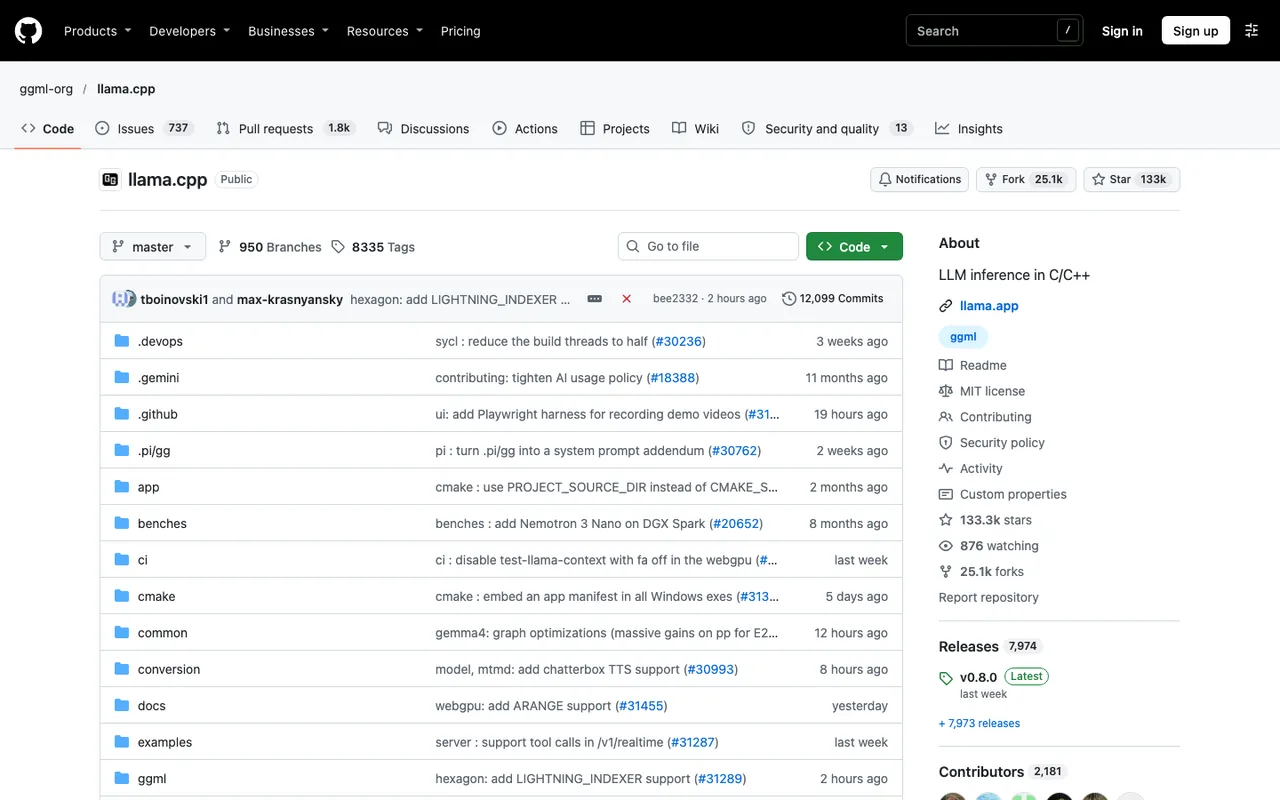
ggml-org/llama.cpp GitHub page, screenshot dated 04/11/2026. Screenshot: OPCAIOS.
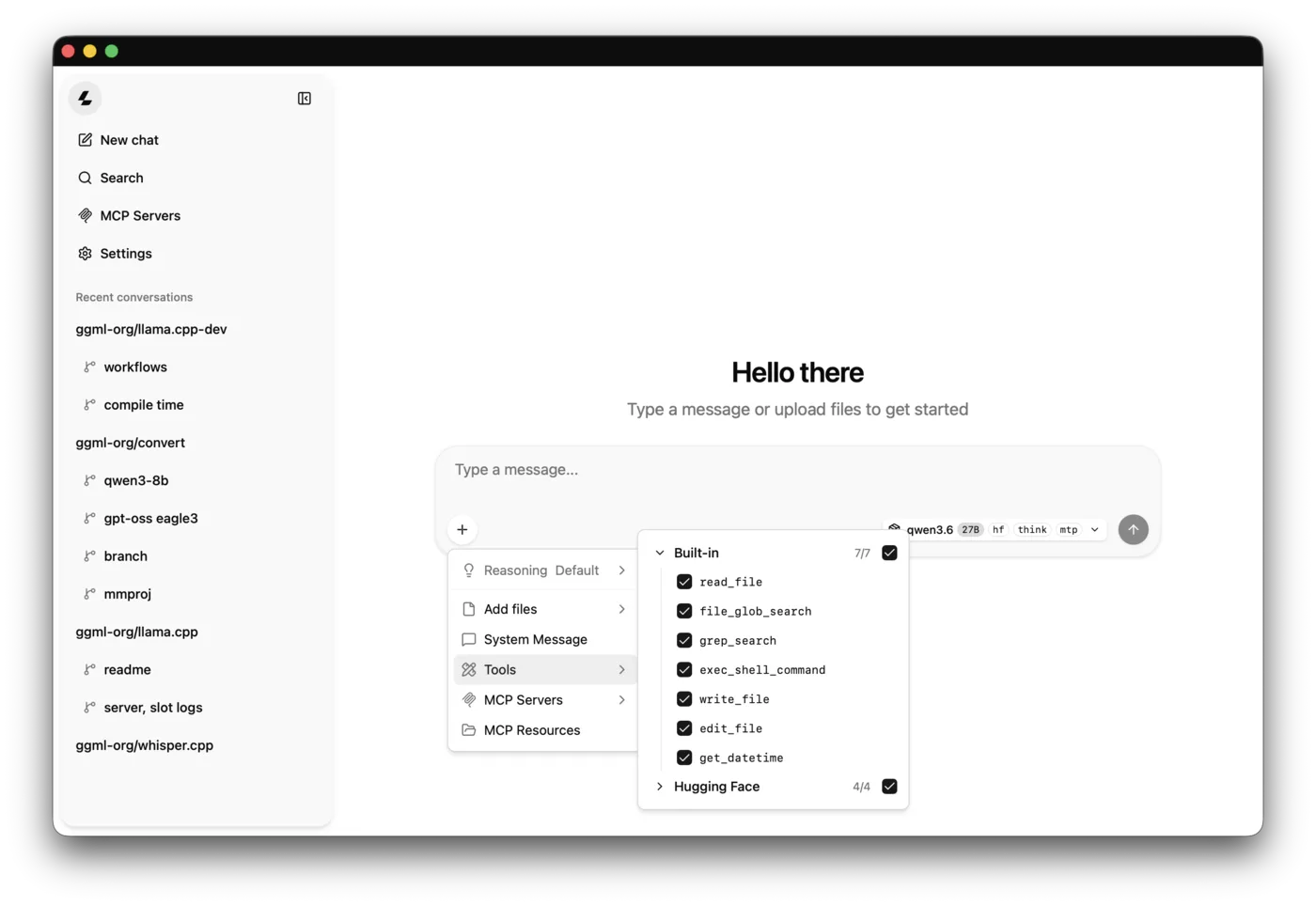
llama.cpp web interface. Image: GitHub README ggml-org/llama.cpp.
Strengths: High performance, many hardware types. Flexible quantization. MIT. Control every parameter.
Limitations: Mostly command line. Must manually choose model files and parameters. Documentation changes quickly with versions.
Which tool to choose? For each situation
The right local AI tool depends on what machine you have and what you want to do. The table below suggests options for common situations for solo workers. Many people combine two layers: Ollama or llama.cpp to run models, Open WebUI as a chat interface, and ComfyUI specifically for images and video.
| Situation | Recommendation | Reason |
|---|---|---|
| Newcomer, not comfortable with command line | LM Studio | Graphical interface, load models within the app |
| Connect AI to applications, n8n, agents | Ollama | One command to install, API ready, many supporting tools |
| Chat for a whole team, with permissions | Open WebUI on Ollama | ChatGPT-like interface, multiple users |
| Create images, video, audio | ComfyUI | Node-based workflow, fast support for new models |
| Weak machine or need to optimize speed | llama.cpp | Deep quantization, run on CPU |
| Mac with Apple Silicon | LM Studio (MLX) or Ollama | Leverage Mac's unified memory |
| No GPU, need large models | Cloud models through a routing gateway | Personal machine lacks memory |
Risks and general notes
Running AI locally keeps data on your machine, but does not automatically make it safe or cheap. The four points below come from official documentation of the tools in this post, and apply to whichever tool you choose.
- First, model licenses: free tools do not mean free models for commercial use. Each model has its own license, read it before using it for a product. This section is reference only, not legal advice.
- Next, cloud mode: Ollama has cloud models, Bionic in LM Studio can send heavy work to cloud models; when used, your prompt leaves your machine. Ollama lets you turn it off via the OLLAMA_NO_CLOUD variable according to the FAQ.
- Opening ports to the Internet: Do not expose local API to the Internet without putting it behind HTTPS and an authentication layer. See one-person website security review, 15 things in one afternoon.
- Finally, hidden costs: GPU, electricity, disk space (one model can be tens of GB), and fine-tuning time. Community nodes and plugins may contain malicious code.
OPCAIOS experience
OPCAIOS does not run local AI in our daily workflow, and we say that straight. We downloaded ComfyUI to our work machine to try it but have not brought it into our process. Ollama is not installed on our main machine. Most of our work uses cloud models through 9Router, a model routing gateway, with agents Claude Code, Antigravity and Codex. Heavy work like voice cloning for video we rent GPU servers for. So the evaluation in this post is based on official documentation, not our own measurements.
Example choice (hypothetical): someone with a MacBook 16 GB RAM who wants to summarize internal documents without sending them to the network could start with LM Studio, then switch to Ollama plus Open WebUI when they need to share with an assistant.
Read more: install Ollama and Open WebUI on your personal machine, what is 9Router?, best second brain tools.
Frequently Asked Questions
Which local AI tool is easiest for beginners?
LM Studio is easiest for beginners because it's a graphical application: you find a model, click download, and chat right away—no command line needed. According to model.lmstudio.ai, the app is free for personal and work use. If you're comfortable with the command line or want to connect AI to other applications, Ollama is also easy: install with one command, run a model with one command.
What computer specs do I need to run AI locally?
According to LM Studio's system requirements page (read 04/11/2026), you should have at least 16 GB of RAM; Mac must have Apple Silicon, and Windows machines using GPU should have at least 4 GB VRAM. ComfyUI's README states it runs on 4 GB VRAM and 8 GB RAM—these are the specs the project published. Larger models need more memory: for example, Ollama's FAQ shows llama3:70b takes up 42 GB. An 8 GB machine only suits small models.
Is running AI locally free?
All five tools in the article are free when running on your own machine, according to their official pages read on 04/11/2026. The real costs lie in hardware, electricity, and time. Some tools offer paid cloud services alongside: Ollama Pro at 20 USD/month for cloud models, Comfy Cloud from 20 USD/month. Models you download have their own licenses—read them before commercial use.
Do locally run models write Vietnamese well?
Vietnamese quality depends on which model you download, not on Ollama, LM Studio, or llama.cpp. These tools are just software that runs models. Small models that fit personal machines are usually weaker than large cloud models. We haven't measured this numerically, so the best approach is to try a few models with your own Vietnamese documents before choosing.
Should I run AI locally or use cloud models?
Local is right when your data is sensitive, you need to work offline, or you call it many times and want fixed costs. Cloud models work when you need the highest quality, don't have a GPU, or only use it occasionally. Many people combine both: sensitive work runs on the machine, hard problems go to the cloud through a routing gateway. To learn how to choose and build this workflow for your work, see OPCAIOS's AI application training course.
Sources: ollama.com, ollama.com/pricing, docs.ollama.com (FAQ, GPU), README and GitHub API ollama/ollama; lmstudio.ai, lmstudio.ai/docs (app, system requirements), LM Studio blog on Bionic, model.lmstudio.ai; openwebui.com, docs.openwebui.com/license, README and GitHub API open-webui/open-webui; comfy.org, comfy.org/pricing, README and GitHub API Comfy-Org/ComfyUI; README and GitHub API ggml-org/llama.cpp, llama.app (read 04/11/2026); not read/not verified: LM Studio's full terms, LM Studio group package pricing, ComfyUI minimum VRAM level as published by the project, Llama app on llama.app; prices and ratings may change. Experience from OPCAIOS.
Translated from Vietnamese with AI. Read the original.
Want to apply this in your business?
Book a free 30-minute call (Vietnam time, in English or Vietnamese).