


What is an automated lead funnel from Tally form to personalized report via email?
It's a process where a customer fills out a Tally form (usually a short diagnostic quiz). Tally sends the data to n8n via webhook. AI writes a short report based on the customer's own answers. Finally n8n sends the report by email and saves the contact to a spreadsheet (like Google Sheets) or CRM. According to Tally documentation (read 25/10/2026), webhooks are free for all users, sending a POST request with JSON each time there's a new response, and your endpoint must return a 2xx code within 10 seconds. So the step of creating an AI report needs to run after confirming data receipt. This post guides seven steps, from step 1 designing a form with email consent, connecting webhook, verifying signature, calling AI, sending email, saving contact, to step 7 handling errors. The end section notes legal considerations and OPCAIOS experience (we have a similar diagnostic quiz built right on our website).
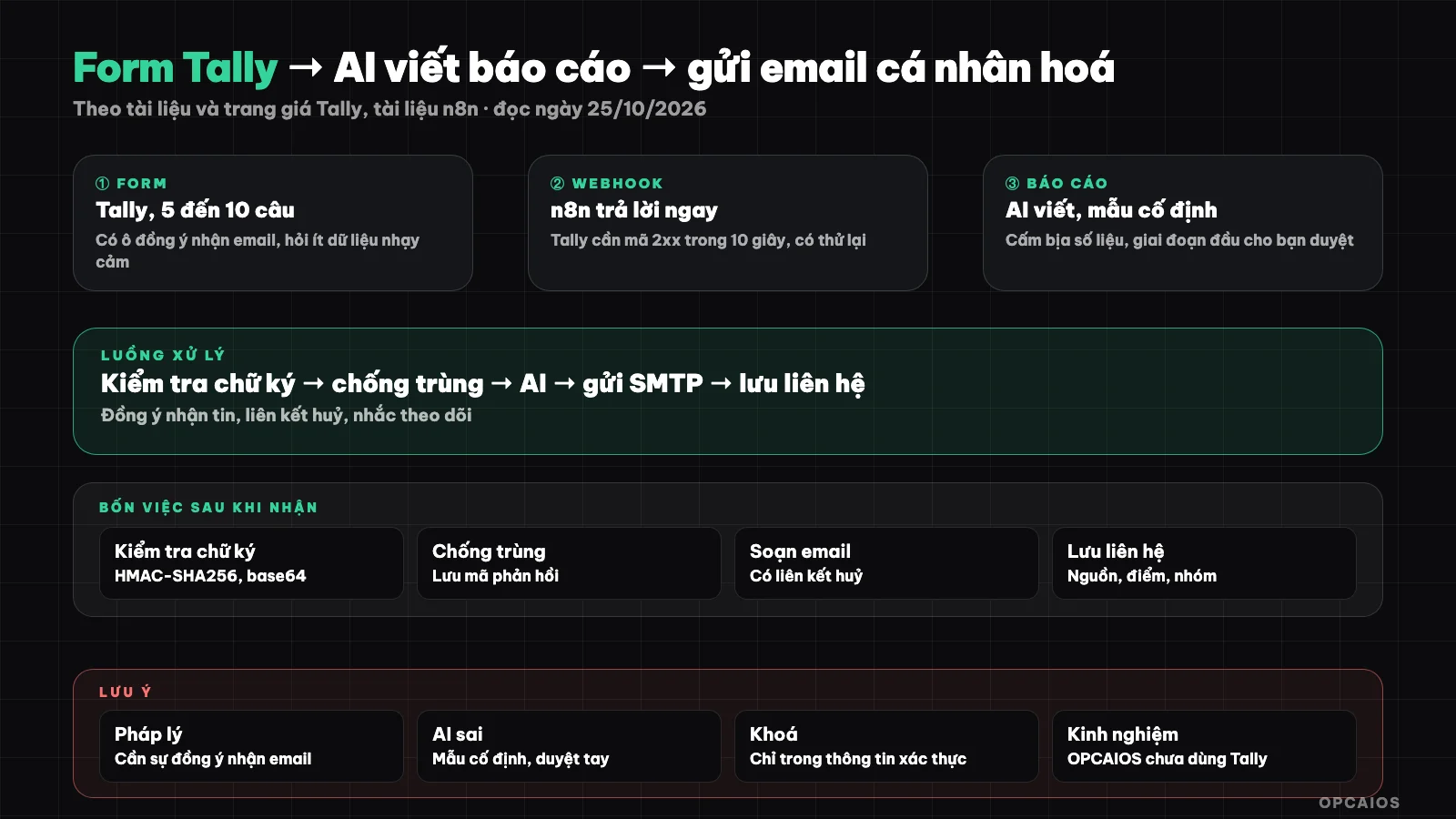
Form, webhook, AI, email, save contact; reply to Tally in 10 seconds then do heavy processing. Diagram: OPCAIOS.
The big picture
| Step | Tool | Task |
|---|---|---|
| 1 | Tally | Diagnostic form 5 to 10 questions, with email consent checkbox |
| 2 | n8n (Webhook node) | Receive data, reply immediately |
| 3 | n8n | Verify signature, extract needed fields |
| 4 | AI model | Write short report from answers |
| 5 | n8n (email send node) | Send report via SMTP |
| 6 | Spreadsheet or CRM | Save contact, source, score |
| 7 | n8n | Remind you to follow up with qualified customer |
No n8n yet? See n8n installation guide on VPS.
Step 1: Design form in Tally
According to Tally's official pricing page (read 25/10/2026): Free plan has unlimited forms and responses (per fair use policy), conditional logic, calculations, file upload max 10 MB per file, integrations with Google Sheets, Notion, Airtable, Zapier, Make and webhook, email notifications to you. Pro plan $24 per month adds remove Tally branding, custom domain, partial response saving, custom email to responder and more design options; Business plan $74 per month. Pricing page doesn't state which plan API belongs to.
Design form by five principles:
- 1. One-sentence goal: form helps customer know what (for example readiness level for automation).
- 2. 5 to 10 questions, mostly choice-based; one short open-ended question; name and email at the end.
- 3. Clear consent checkbox: "I agree to receive the report and related emails; I can unsubscribe anytime."
- 4. Don't ask sensitive data (exact income, documents, health).
- 5. State time to receive report ("a few minutes").
Step 2: Create webhook in n8n and connect with Tally
Follow four steps below per Tally and n8n documentation; example assumed, run test with 3 sample responses before going live:
- In n8n, create new workflow with Webhook node (POST method). Choose Immediately reply mode so n8n returns success code right away (per documentation, it returns "Workflow got started"); this meets Tally's 10-second limit.
- Use test URL when developing (click listen for test event), then switch to production URL when activating workflow; production URL doesn't show data in editor, check Executions tab.
- In Tally, publish form, open Integrations tab, click Connect at Webhooks, paste URL.
- Fill test form and see data arrive. Payload has
eventId,eventType(FORM_RESPONSE),createdAt,data(includingresponseId,formId, form name...) andfieldsarray where each field haskey,label,type,value.
Per Tally documentation (read 25/10/2026), if send fails or times out, Tally retries after 5 min, 30 min, 1 hour, 6 hours and 1 day; if all retries fail, form owner gets an email. Since retries exist, prevent duplicate processing by saving responseId (or eventId) and skip if seen (see What is webhook?).
Step 3: Check the signature
Public webhooks can be spoofed by strangers (for example: sending hundreds of fake responses to waste AI costs), so you need to check the signature. According to Tally documentation (read 25/10/2026), Tally lets you set a signing secret (optional); when set, each request has a Tally-Signature header. According to the example in Tally's documentation, the signature is HMAC-SHA256 of the request body with your secret, encoded in base64. In n8n, do three things: first enable the Raw Body option of the Webhook node to get the raw body; next use the HMAC calculation node (n8n's Crypto node; check the documentation of this node about the algorithm and encoding) and compare it with the header; finally stop if it doesn't match. We base this on Tally's example and haven't tried it ourselves in n8n; test carefully before using in production. Alternatively you can add a custom header to every request from Tally and check that header.
Step 4: Call AI to write personalized reports
Follow five steps below, in which step 3 is most important:
- Combine fields from the
fieldsarray into a neat object (question label, answer). - If the form has a score, calculate the score using a Code node or condition node and group customers into categories (for example three levels).
- Send to a language model (via n8n's AI node or HTTP Request node to a provider like OpenAI or Anthropic; see What is API? and What is LLM?) with a prompt: expert role; customer data; report structure (2-sentence summary, 3 strengths, 3 things to do first, 1 next step); forbid making up data, commitments or prices; maximum length; tone of voice.
- Limit inputs (truncate long answers) to avoid wasting token costs.
- Use a template with a fixed part written by you, only the personalized part written by AI; reduce the risk of wrong content.
Step 5: Compose and send email
Step 5 has four things:
- 1. Send via SMTP: use n8n's email sending node with an email service like Brevo (see What is Brevo?: Free plan 300 emails per day); authenticate your sending domain with SPF, DKIM, DMARC (see What is Email marketing?).
- 2. Content: clear subject, short report in text form, one call to action (schedule, reply to email), sender information, unsubscribe link.
- 3. Transparent labeling: note that the report was automatically generated from the customer's answers and powered by AI.
- 4. Preview in early stage: in the first week, put emails in a queue for you to review before sending, then only turn on automatic sending for low-risk score groups.
Step 6: Save contacts and follow up
Save to a spreadsheet or CRM: name, email, date, source, score, group, consent status and report content. Set follow-up reminders 2 to 3 days later for high-score customers, and remind you via Telegram (see What is Telegram bot?). Example scenario: a high-score customer fills out the form on Monday will be a reminder for you to call back on Wednesday or Thursday. Consent status helps exclude people who declined from automatic emails. See the full funnel in Automated sales funnel for OPC.
Step 7: Handle errors and security
| Situation | How to handle |
|---|---|
| AI error or timeout | Send fixed template email or put in queue for you to handle manually |
| Wrong email format | Check before sending; notify you |
| Webhook called repeatedly | Prevent duplicates using responseId |
| Key exposed | Keep AI and SMTP keys only in n8n credentials |
| Large load | Rate limit, set AI spending cap |
Legal and trust
- Email consent is a requirement; sending ads without consent may violate regulations on mail and spam (Decree 91/2020/NĐ-CP according to articles, not yet checked against original text; ask a legal expert).
- Personal data: clearly state what you collect, what you use it for, how long you store it; this is not legal advice.
- Don't let AI make promises on your behalf and don't present the report as professional advice (medical, financial, legal).
OPCAIOS experience
We haven't used Tally; our diagnostic part was built into our website itself: a diagnostic form with a scoring system to group customers into categories, add contacts to CRM, with an email sequence that has an unsubscribe link and rules to exclude people who declined from automatic emails. Our system email is sent via Brevo's SMTP. So the Tally and n8n steps above are based on official documentation, not a process we've run; especially the signature checking part using the Crypto node we haven't tried. We haven't published our form completion rate or email open rate.
Frequently Asked Questions
Is Tally's webhook free?
Yes. According to Tally's documentation (read on 25/10/2026), webhooks are free for all Tally users, including the Free plan. Each time there's a new response, Tally sends a POST request with JSON to the webhook address you paste in the Integrations tab. Example scenario: an 8-question diagnostic can trigger n8n immediately when the customer clicks submit. Response count is unlimited, subject to fair use policy.
How long does Tally require the endpoint to respond?
Tally requires the endpoint to return a 2xx code within 10 seconds. According to Tally's documentation (read on 25/10/2026), if it times out, Tally considers it a failure and retries. So have n8n respond immediately with Immediately mode, then call AI to write the report afterward. Step 1, the Webhook button receives data and returns "Workflow got started". Step 2, the workflow continues to verify the signature. Step 3, the workflow calls AI, which may take several seconds.
Do I need Tally's Pro plan?
Not necessary. According to Tally's official pricing page (read on 25/10/2026), the Free plan already includes unlimited forms and responses subject to fair use policy, conditional logic, and webhooks. The $24/month Pro plan adds Tally branding removal, custom domain, partial response storage, and custom email for responders. The $74/month Business plan. A diagnostic sending a report via n8n works with the Free plan; upgrade only when you want to remove Tally branding or use a custom domain. Prices exclude tax.
How do I avoid sending two reports to one customer?
Save the responseId from each Tally response to a spreadsheet or database, then skip if already processed. According to Tally's documentation (read on 25/10/2026), when sending fails or times out, Tally retries after 5 minutes, 30 minutes, 1 hour, 6 hours, and 1 day, so the same response can arrive multiple times. Example scenario: n8n responds slower than 10 seconds, Tally resends after 5 minutes; without checking responseId, the customer receives two reports. So first return a 2xx code immediately, then check responseId, and only then call AI.
Is AI-written report trustworthy?
Yes, if controlled, because AI tends to make errors or overpromise. You need three layers of protection. First, use a template with fixed sections you write, letting AI only personalize the part based on customer answers. Second, state in the prompt that fabricating numbers, commitments, or prices is forbidden. Third, during the first week, put emails in a queue for you to review before sending, then enable auto-send only for low-risk groups. Also clearly state the report is auto-generated with AI assistance. To learn how to build safe automation funnels, see OPCAIOS's AI application training course.
Source: Tally documentation and pricing page, n8n documentation (Webhook node), read on 25/10/2026; have not run a Tally-to-n8n workflow myself; have not verified the Crypto node for Tally signature verification; legal information is for reference only. Prices exclude tax. Experience is OPCAIOS's.
Translated from Vietnamese with AI. Read the original.
Want to apply this in your business?
Book a free 30-minute call (Vietnam time, in English or Vietnamese).